How to Define a Static IP Address for Endpoint Devices to Connect to SDConnex
1. Overview
This article describes how to configure a static IP address for a SecureDoc-protected endpoint device to use at pre-boot when communicating with SDConnex. The configuration involves an SES profile change, creation of an IpConfig.ini file on the client, and running a command to apply the static IP setting.
2. SES Profile Configuration
Create or modify a SecureDoc profile on SES with the following settings:
Enable PBConnex – Enable machine to communicate with SDConnex at preboot
Ensure Use Static IP Configuration from Client at Preboot is unchecked
This allows the static IP to be defined locally on the client via IpConfig.ini rather than pushed from SES
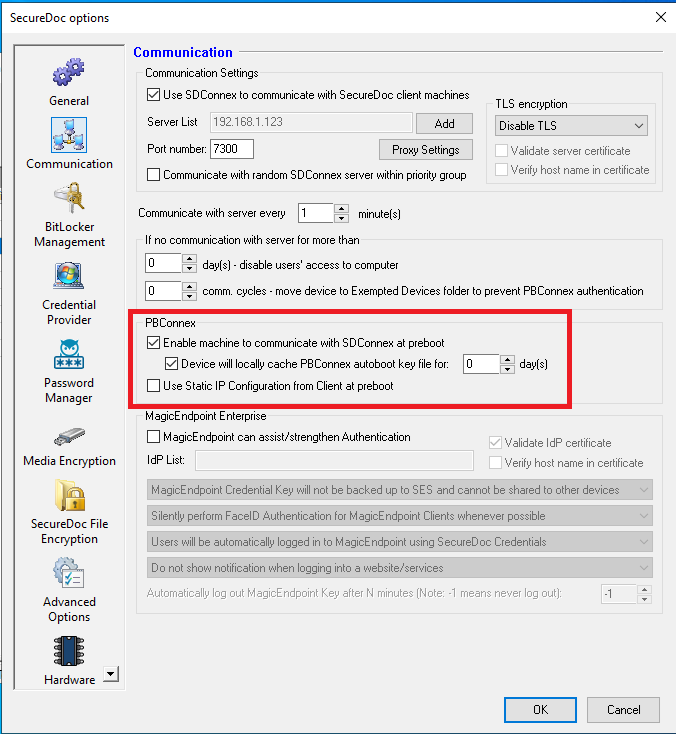
Click Edit Manually
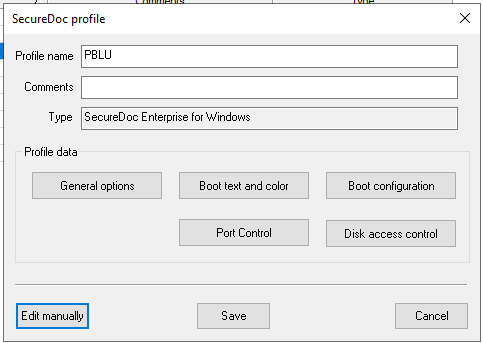
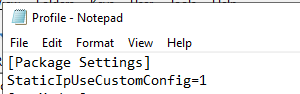
Add StaticIpUseCustomConfig=1 under [Package Settings] section
Create a deployment package using the updated profile and deploy it to the client successfully.
Or able to assign the profile to the existing client to have StaticIpUseCustomConfig=1 applied.
3. Create the IpConfig.ini File on the Client
On the client machine, navigate to:
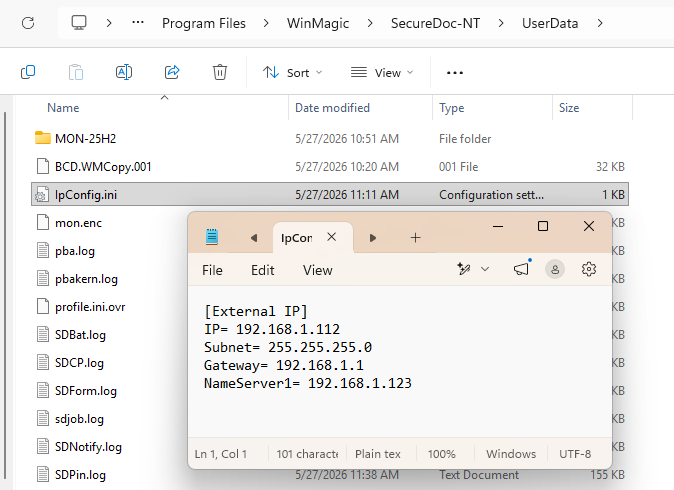
C:\Program Files\WinMagic\SecureDoc-NT\UserData\ |
Open Notepad, paste the configuration content, filling in the relevant values, and save as File > Save As > All Files (*.*), file name IpConfig.ini in that folder.
[External IP] |
The fields are defined as follows:
Field | Description |
MACAddress | MAC address of the network interface to apply the static IP to. Leave blank to use the first available Ethernet interface |
IP | Static IP address to assign to the device at pre-boot |
Subnet | Subnet mask for the network (e.g. 255.255.255.0) |
Gateway | Default gateway IP address |
NameServer1 | Primary DNS server IP address |
Note: If MACAddress is left blank, SecureDoc will apply the static IP to the first detected Ethernet interface. In environments with multiple Ethernet interfaces, specify the correct MAC address to ensure the correct interface is targeted.
e.g. configured as below.
4. Apply the Static IP Configuration
Open a command prompt as Administrator
Navigate to:
C:\Program Files\WinMagic\SecureDoc-NT\ |
Run the following command:
SDPin.exe /SetStaticIP |
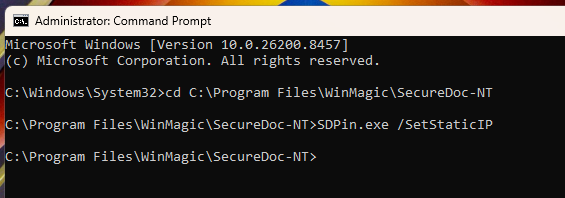
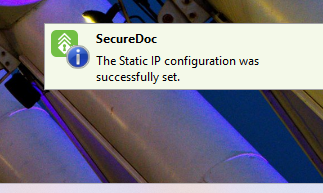
Wait for the balloon notification to appear with the message: "The Static IP configuration was successfully set."
5. Reboot and Verify
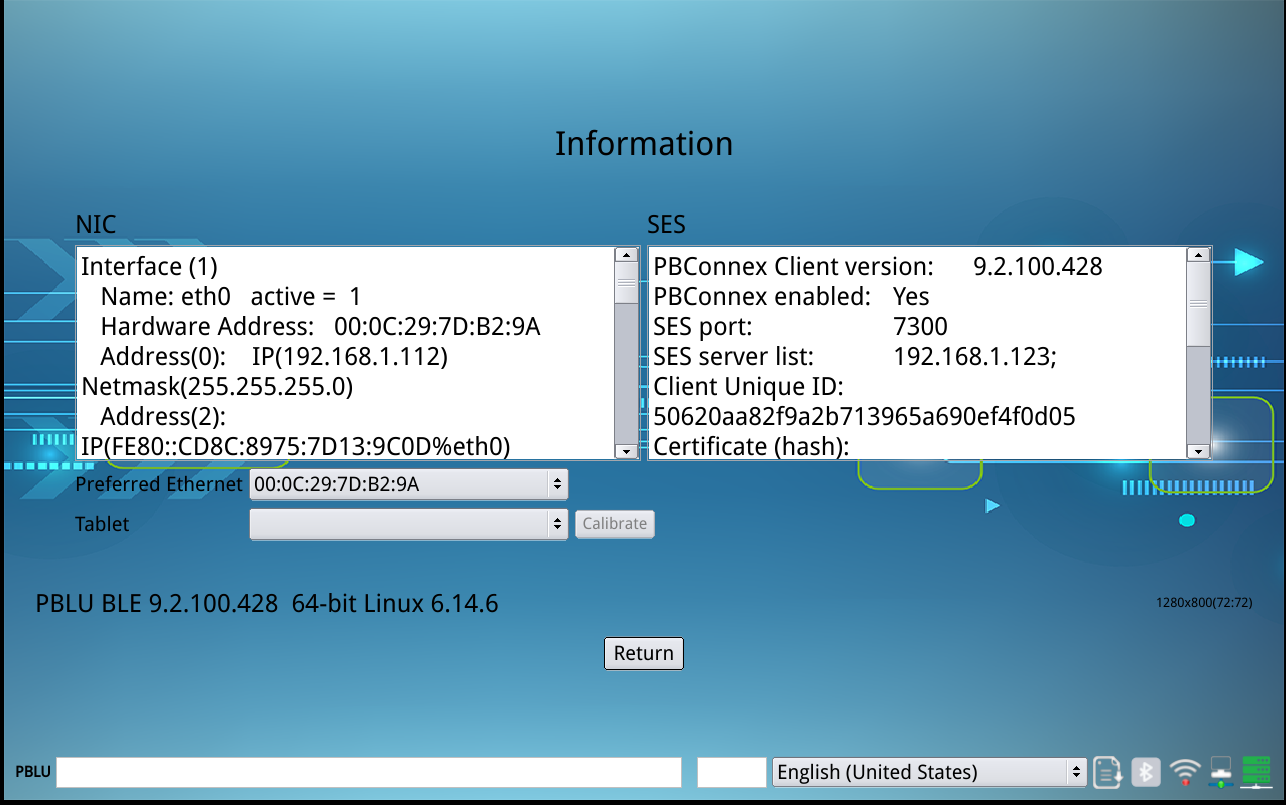
Re-boot the machine, at Preboot, the device will use the static IP defined in IpConfig.ini to connect to SDConnex
To verify the configured IP, press F3 and click Information icon, the IP displays correctly.
Note: If the static IP needs to be updated, edit the IpConfig.ini file with the new values and re-run SDPin.exe /SetStaticIP before the next reboot.
Referencing: Jira SD-53353