Issue:
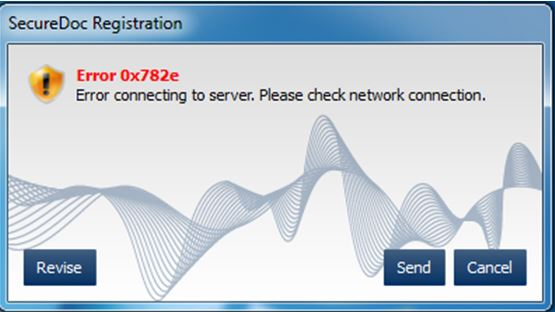
Error 0x782e is a generic error that suggests a device is unable to connect to the SES server during installation.
Possible causes:
1) The SDConnex service is not running properly
2) The Profile on the device is not using correct IP address to reach SDconnex server
3) The IP address on the client and server may not match (Can be found in securedoc.ini and SD Control Center)
3) The device may have firewall enabled
4) Check the SQL credential in services. SDConnex is not communicating with the SQL - use local admin to log on.
(Determining whether the local account or another Domain account that has the proper SQL rights assigned or not)
5) No SDConnex set up in the DMZ client is installing outside the local network (no VPN) and no SDConnex on DMZ
Product version affected:
All SD versions
Environment (OS/hardware/software):
All Windows OS platforms
Troubleshooting/Solutions:
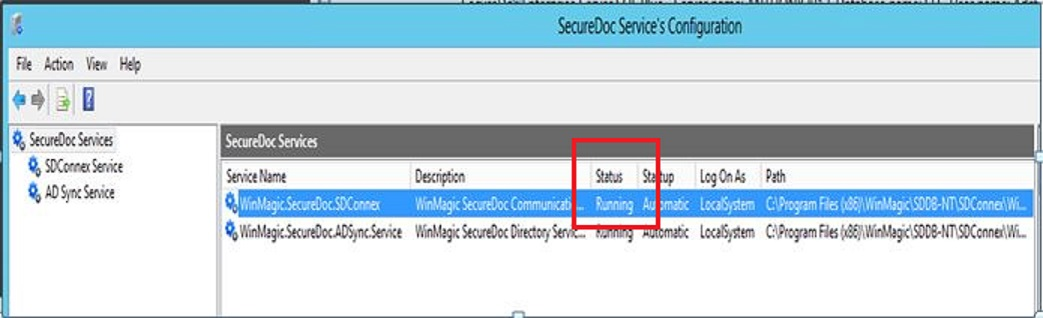
1. Make sure SDConnex service is registered and running in SecurDoc Service Configuration.
Please click on "View Event log” and ensure SDConnex does not have any connection errors
There may be situations where SDConnex is running but never actually reached to SQL (be bad password or service account has no rights to SQL).
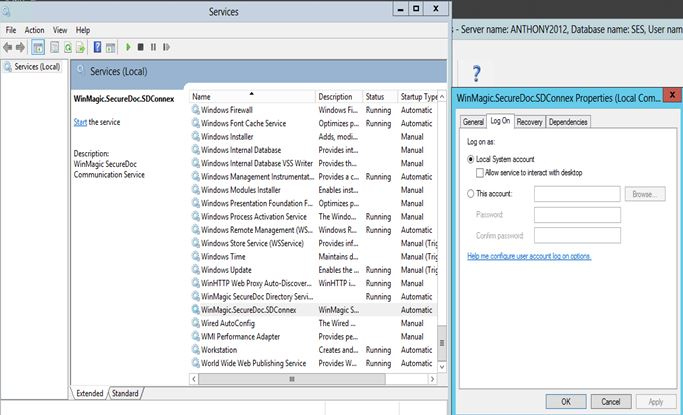
2. In Services (services.msc), locate WinMagic.SecureDoc.SDConnex and change the connection to local logon if server and user computer are on the same network/subnet.
It is possible that local system account may not the proper SQL rights to run the SDConnex service or not. It could also be due to password incorrect.
In Microsoft SQL Server Management check the following:
Locate SECURITY —> NT AUTHORITY\SYSTEM > USER MAPPING > see if there is a check mark on the SES database or not. If not put a check mark there and then click OK.
3. Make sure you can ping between computers (Server and user device)
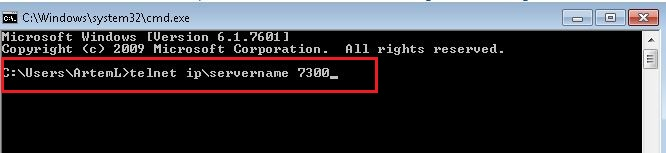
4. Do a telnet command from the user computer to the SES server with the following command: telnet server ip address 7300 i.e telnet 192.168.10.2 7300
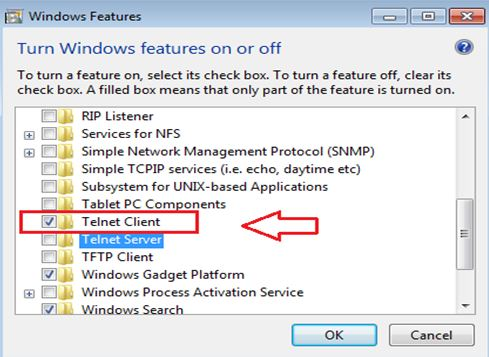
You may need to enable the telnet client in Program Features > Turn Windows Features on or off.
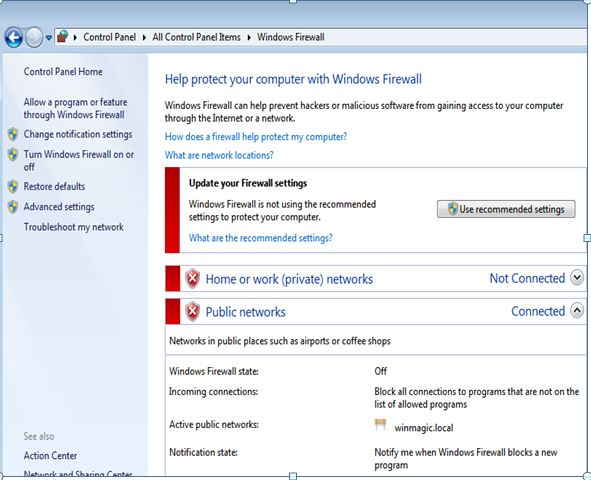
 5. As a test, please turn off FireWall on one client device. If this is the issue that causes the error 782e, then you may have to apply a global firewall server policy setting that will allowing incoming traffic from SES on port 3700/7300.
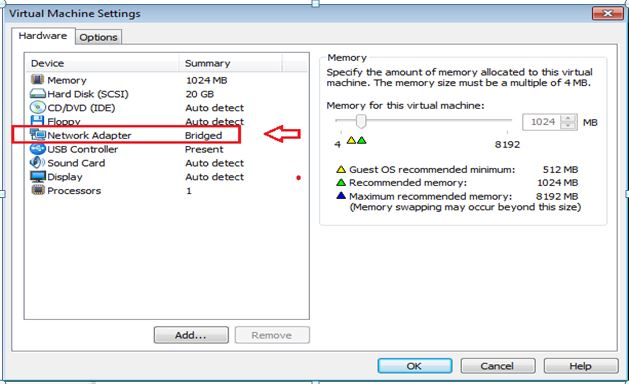
6. If working in VMWARE environment, change network settings to bridge mode.
Click on VM —> Settings
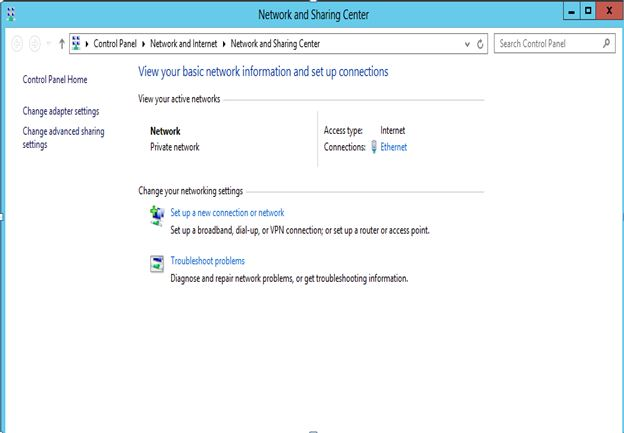
7. Turn on Network Sharing.
Turn to Private from Public on server side.
Path: Control Panel\Network and Internet\Network and Sharing Center.
This troubleshooting technique help us determine whether the devices can be connected to the network or not.