Issue:
Some devices may not have received the updated profile containing the new SES server IP Address. The affected devices can no longer communicate with the old (decommissioned) or new server.
Case Scenario:
Client may have setup a new SES production server and thought to have migrated most of the encrypted devices to the new server.
However, it is possible that some devices may not have received the updated profile before the old SES server was decommissioned.
Product version affected:
All SD versions
Environment (OS/hardware/software):
Applicable to Windows OS
Solution/Workaround:
Suggestion 1:
There is a section within the securedoc.ini file that the SES administrator need to make changes so that the device will communicate with the new server:
Modify the C:\program files\Winmagic\Securedoc-nt\userdata\securedoc.ini file:
SOAP_IP=10.20.13.11 (main ip address)
SOAP_ServerName=
Winsocket_IP=10.20.13.11 (main ip address)
Winsocket_SrvName=
Winsocket_IP_List=10.20.13.11;67.207.217.38; (input the secondary IP address of the new server)
Winsocket_SrvName_List=
Winsocket_Port=7300
WinsocketSelectRandom=0
Winsocket_Address_List=10.20.13.11;67.207.217.38; (input the secondary IP address of the new server)
Suggestion 2:
The second option is to enable the second NIC card and assign the old IP address to it. This should works also. Please consider trying the first method before proceeding with this second suggestion.
Suggestion 3:
Turn the old server back on so that the administrator can push the profile to devices and make sure the devices received the profile updates.
Suggestion 4:
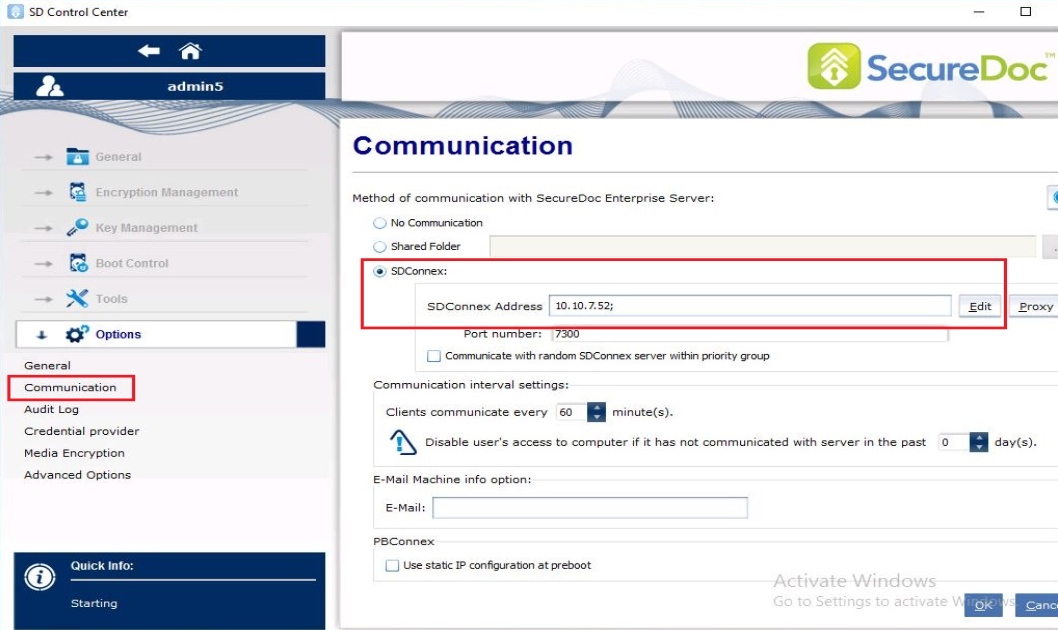
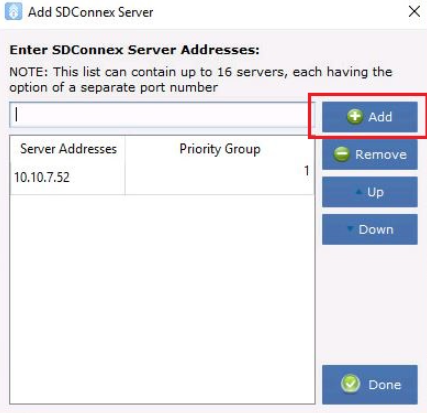
Client can log into the SD Control Center with admin privileges and update the new server IP Address.
Options > Communication > click Edit beside the SDConnex to input the new IP Address.