Topic:
This article addresses how to integrate a view of SecureDoc Enterprise Server-managed devices into LANDESK Data Analytics.
Overview
Part of the power of LANDESK® Management Suite is found within its LANDESK Data Analytics software—a set of tools that installs with the product enabling you to gain a better view of your IT assets through automated asset data discovery, aggregation, monitoring, and reporting services.
The Data Analytics tool you’ll use to import data from your WinMagic-enabled devices is called Data Translation Services. Data Translation Services uses a rules-based scan engine to pull in device data from a variety of sources and enables you to aggregate and organize that data into reports from one location—the Management Suite console.
Follow the steps below to set up the latest version of Data Analytics, import WinMagic device data into your Management Suite inventory database, and then view that data from the Management Suite console.
Step 1: Set up the latest version of Data Analytics
To import WinMagic device data into your inventory database, you need the Management Suite 9.6 SP2 version of Data Analytics.
If you’re currently using Management Suite 9.6 SP1 or 9.5 SP2/3, you must first uninstall the Data Analytics software that shipped with these versions and then install the Management Suite 9.6 SP2 version of Data Analytics, which can be found on the LANDESK Data Analytics community landing page:
https://community.landesk.com/support/community/systems/data_analytics
Step 2: Configure a rule to import WinMagic device data into inventory
You need to configure a rule in Data Translation Services that will enable a connection between both databases for pulling your WinMagic device data into inventory.
From the Management Suite console, open Tools > Data Analytics > Data Translation Services. You’ll notice that a Data Translation Services pane opens in the console.
Scroll down the right-side tree structure and open the All Types > Enterprise Aggregators > WinMagic Import folder, as shown in Figure 1 below.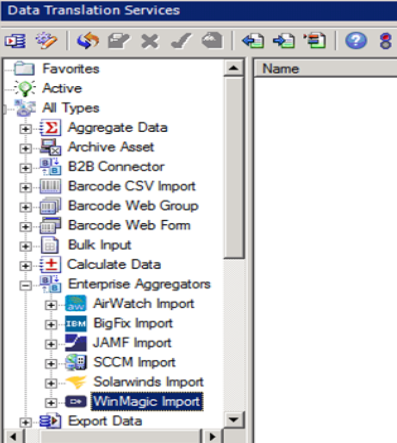
Figure 1 - Data Translation Services for WinMagic - WinMagic Import section
Right-click WinMagic Import and select New Rule.
In the New Rule Name dialog, enter a unique name for this rule and a description (optional). Click the Next button.
Enter the connection information for your WinMagic database in the panel that will appear (see example in Figure 2, below) :
- Type: Select SQL.
- Server: The SQL server instance for the site server. Enter the server name or <server>\<instance>,<port>.
- Database: The name of the SQL server database.
- Use integrated security: Select if you're accessing the SQL server using Windows integrated security.
- User: The SQL server username (needed when Windows integrated security isn’t used).
- Password: The password for the SQL server username (needed when Windows integrated security isn’t used).
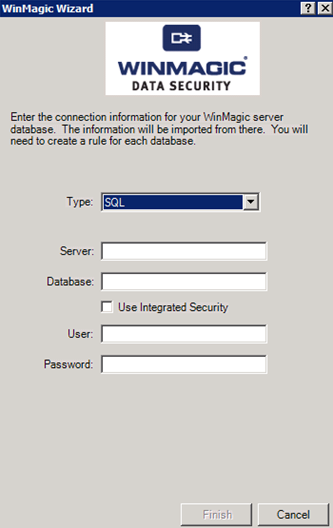
Figure 2 - Define WinMagic Data Connectivity information
Click the Finish button. The rule will display in the Enterprise Aggregators > WinMagic Import > All Rules folder. From the All Rules folder, you can run the rule by right-clicking it and selecting Run Now.
As the rule runs, it will connect to your WinMagic database and import the device data into Management Suite inventory. During the import process, no changes will be made to your WinMagic database.
If you want to run this rule periodically, right-click it and select Schedule to create a scheduled task.
Step 3: View WinMagic device data in the Management Suite console
The following inventory data will display for your WinMagic-enabled devices under the Computer.Security.Data Protection component in the console:
- Encryption Status
- Encryption Type
- Installed
- Last Sync Time
- Product Version
- Profile Name
- Protected Date
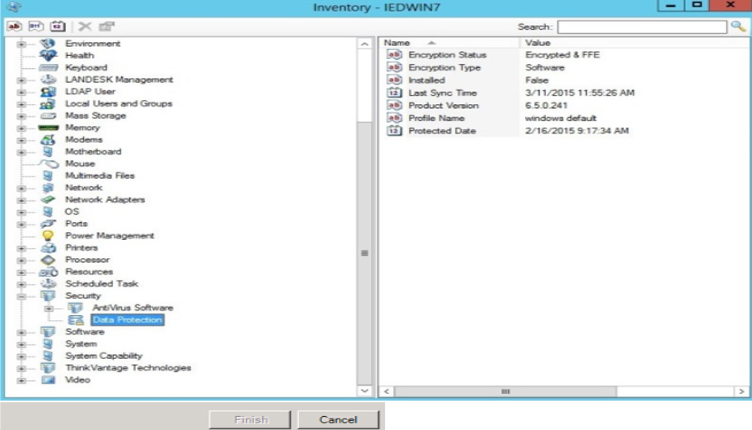
Figure 3 - View of the Device Information in the LanDesk Data Management Suite
For more information about using LANDESK Data Analytics, refer to the product online help, at the following link:
https://help.landesk.com/docs/help/en_US/LDDA/9.6/Default.htm#DA/ldda_t_dts_enterpriseagg_wiz.htm%3FTocPath%3DData%2520Translation%2520Services%7C_____13