KB# | 1703 |
Title | Why am I getting My primary account setup cannot be completed error code 0x7e03? |
URL Name | Why-am-I-getting-My-primary-account-setup-cannot-be-completed-error-code-0x7e03 |
Summary | This article provides a troubleshooting guide when user has completed a fresh install of SecureDoc on a Windows Device and upon restart receives the windows Popup prompt regarding Primary account setup but unable to complete due to error code 0x7e03 |
References | See case Ref. 85851 |
Article Summary:
This article provides a troubleshooting guide when user has completed a fresh install of SecureDoc on a Windows Device and upon restart receives the windows Popup prompt regarding Primary account setup but unable to complete due to error code 0x7e03. In addition, this article will provide additional recommendations and best practices when it comes to installing SecureDoc on a device with a Self-encrypting drive which will help in preventing this error from appearing.
Product version affected:
All versions
Environment:
Self Encrypting OPAL 2.0 hard drives
Windows Based OS
Cause:
There are 3 possible causes to receiving this error. The first is that the disk was not properly deactivated or reset prior to the re-install of SecureDoc. This can happen if the system is re-imaged.
The second is that edrive on the disk during the Windows installation.
The thirst possible cause is that the disk was partially activated from the manufacturer.
Observations:
The following scenario provided is a general outline of what has been observed:
- Client successfully completes install of SecureDoc
- Restart is performed
- Upon Restart of the device, the user is presented with a “SecureDoc Primary Setup” Window dialogue prompting for user to be used for the setup and client will then click on OK to continue the setup process.
- Upon Clicking OK, the user is presented with the following error:
“Primary account setup cannot be completed. Error Code 0x7e03”
- Client then observes:
SecureDoc Control Center is not running in the Windows Taskbar
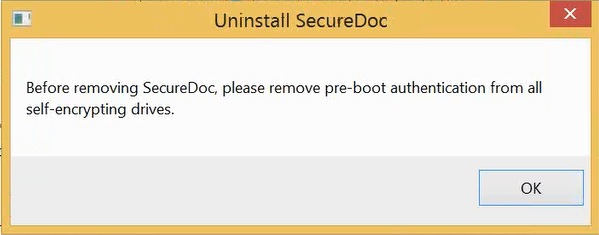
If client attempts to complete an uninstall of SecureDoc from the Windows Device, they observe that they’re unable to successfully complete this step as they will also experience the following error:
Before removing SecureDoc, please remove pre-boot authentication from all self-encrypting drives.
From within the userdata folder, please check sdjob log file:
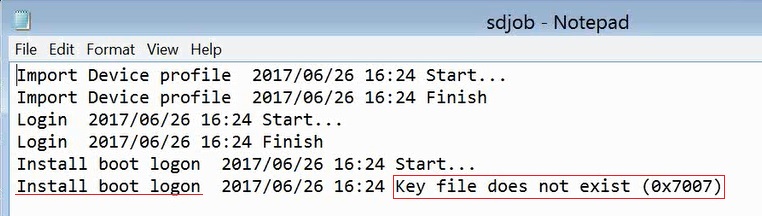
As shown in this example, an error was generated during the install attempt of SecureDoc Boot Logon showing “Key file does not exist (0x7007)”.
- Using the hwemngr tool we need to check the status of the disk. Confirm the status of the disk is 0x4. Please refer to article 1171 on how to sue the hwemngr tool.
Resolution:
To resolve this, the disk will need to be reset. Refer to article 1542 on how to use WinPE, and how to PSID Revert the disk.
If the disk was edrive activated, you will also want to refer to article 1646 on how to prevent the activation of edrive.
Before re-installing SecureDoc, please ensure the Intel Rapid Storage drivers, and NVMe drivers are up to date,
Please also check the manufacturer’s website for firmware updated. If the disk came with the system, check the system manufacturers site for updates. If the drive was sourced separately, check the drive manufacturers site for updates.