Topic:
This How-To article provides instructions on how to recover data using WinHex and WinPE tool.
NOTE: This procedure can only be attempted only after the drive has been unlocked and the customer could not access the data from the following methods:
- Not accessible from Windows Explorer
- The disk not have a drive letter
- The disk could not be initialized
- The partitions showing as RAW in Disk Management
Product version affected:
All SD versions
Environment:
- All Windows OS versions including Windows 10
- All devices
- All SATA and OPAL 2 SED hard drives
Download Link:
- WinHex: http://www.winhex.com/winhex/hex-editor.html
- WinPE tool: Please contact technical support to obtain the latest download
Additional Reference Material:
- KB 1540 - How to create a bootable WinPE USB tool
- KB 1541 - How to unlock software encrypted drive using WinPE tool
Steps to follow:
- Download the Winhex tool.
- Create the Bootable WinPE USB tool.
- Place the Winhex tool on the root of the USB drive.
- Boot the WinPE tool and use the WinPE to unlock the disk.
- Run and load the Winhex.exe in WinPE.
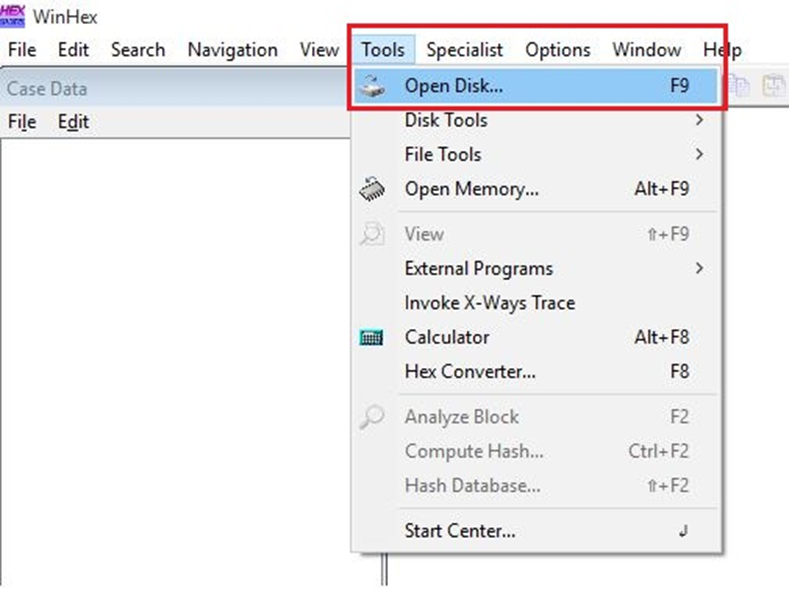
- From the Tools menu, select Open Disk.
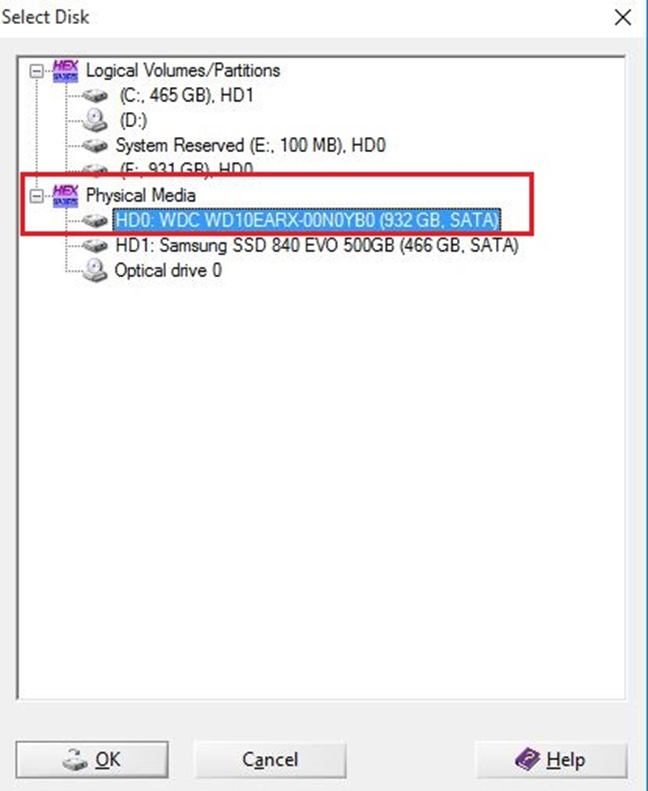
- Select the internal disk from the Physical Media section.
- If any of the partitions show as NTFS, you can recover data. Please look at the next steps to do so with WinHex.
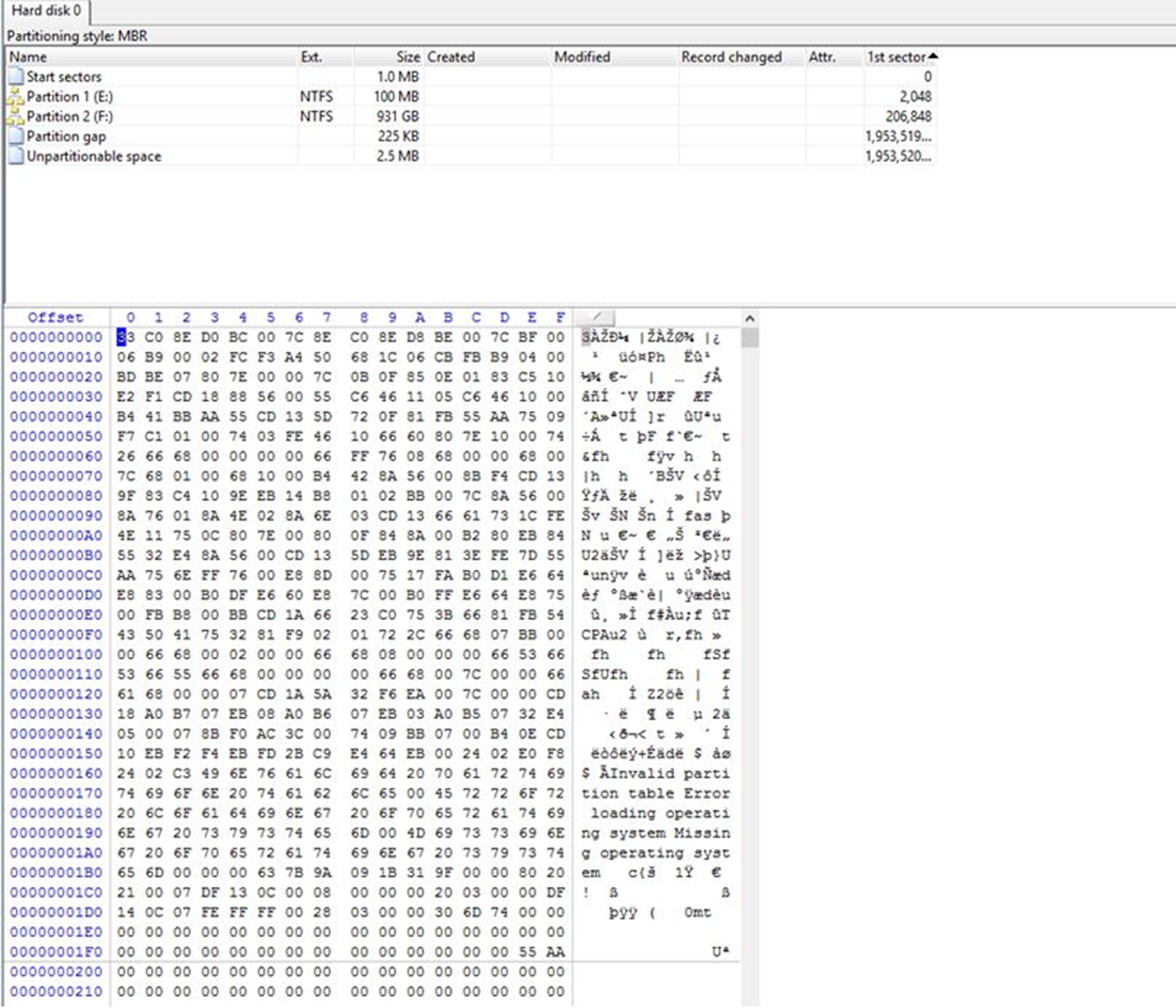
- Double click on a partition to view its Contents.
- Right click on files and folders and select Recover/Copy… to recover data.
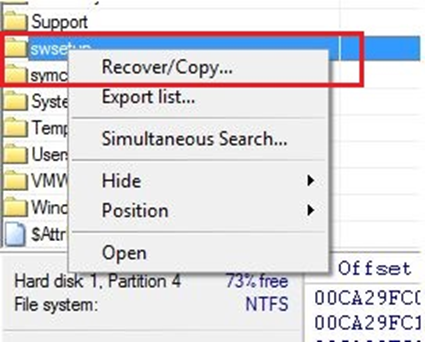
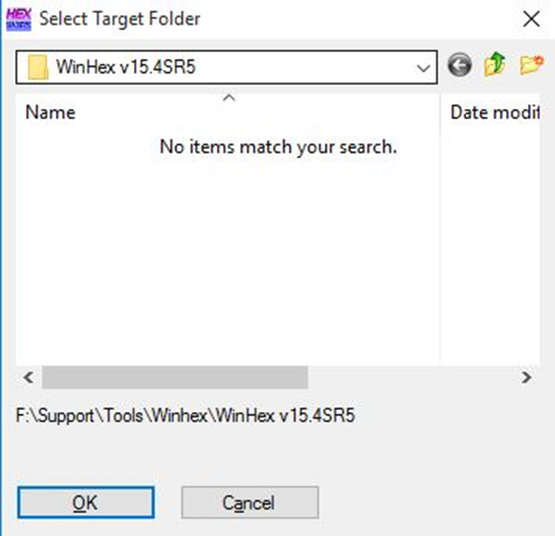
- Select the destination to recover the files and folders to. This should be an external disk that should have the capacity for the data that are being recovered.