Topic: This How-To articles provides steps to unlocking software encrypted drive using the WinPE tool
Note: This article applies to both SATA and Self-Encrypting drive (SED) drives that have been configured for software encryption.
Product version affected: All SD versions
Environment: All Windows OS versions All SATA and Self-Encrypting OPAL 2 hard drives (using software encryption method)
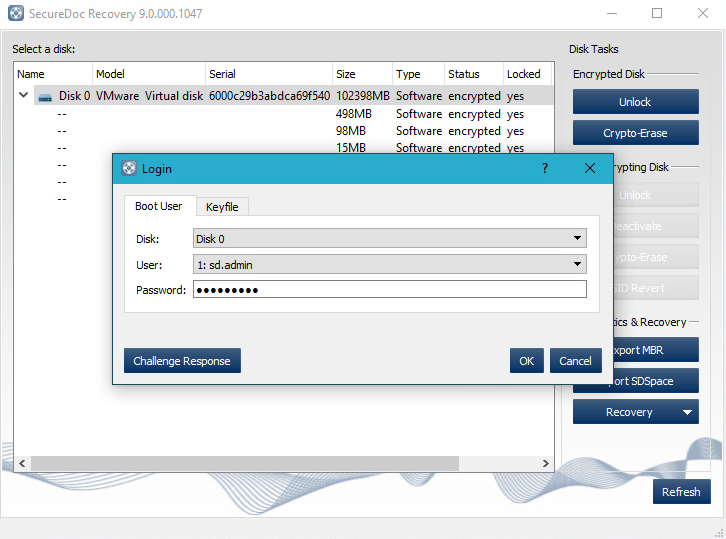
Steps to follow: Download the WinPE iso file: https://fileshare.winmagic.com/link/tKkd6zB34mgkalBz4u8T42 Step 1: Please refer to KB 1540 – “How to Create a Bootable WinPE USB Tool” article Step 2: Boot to WinPE USB tool Step 3: Once it boots to the WinPE Iso image, open the SDRecovery application on the desktop. The encrypted drive will be listed. Click on 'Unlock'
• OPTION 1: Login to Local Key File If a local key file is present from the drop-down, type in the password to authenticate and unlock the drive
OPTION 2: Login to external Key File If the password to local key file is unknown, then a key file from SES is required for the target drive.
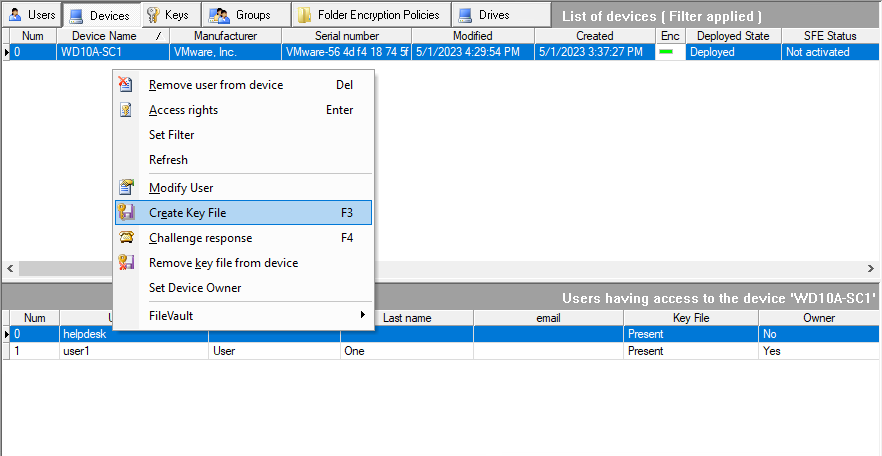
First identify and highlight the target computer in SES.
Select a valid account under the target device
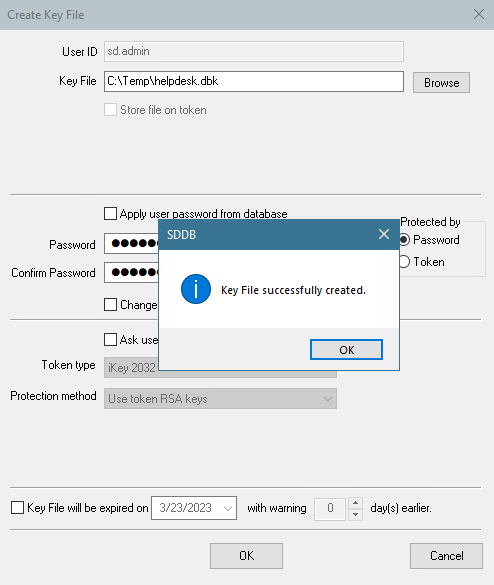
Right-click on the selected account and choose Create Key File
Browse to a USB Media and type in a password. This password will be used to authenticate to the extracted keyfile to unlock the target drive.
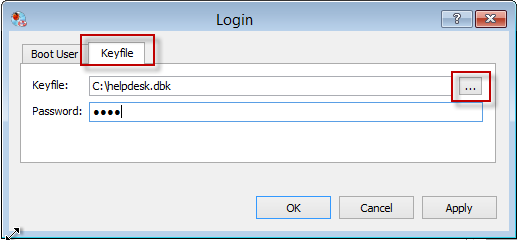
Insert the USB Media to target device. (Device is still booted to WINPE) Click on Keyfile tab and browse to the USB Media, select the DBK file created previously and authenticate with password associated.
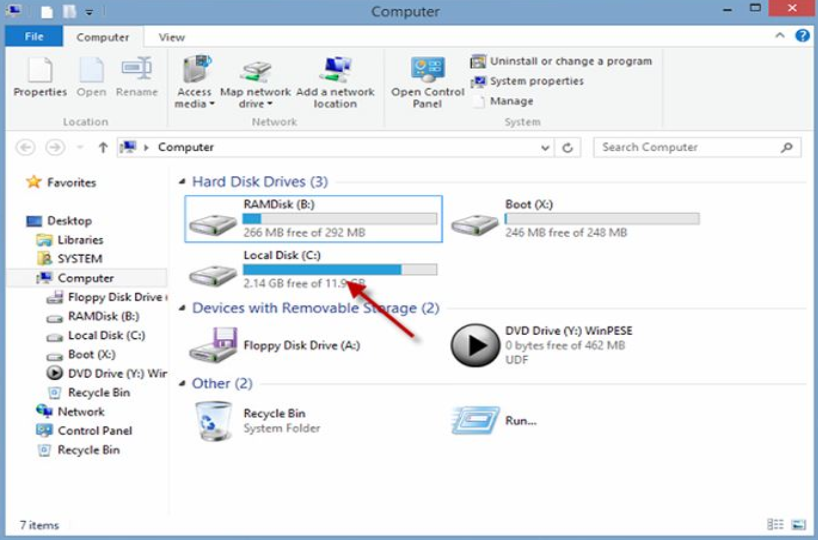
A prompt confirms drive has been unlocked Open the Window Explorer to access the file system and recover any data. - Plug in an external hard drive and begin recovering the data.