Topic: This article provides instructions on how to unlock a BitLocker-protected devices using SecureDoc's WinPE tool.
The following steps will be covered:
How to obtain the Bitlocker recovery key for a device from SES
How to use Windows Explorer within WinPe tool to unlock a disk
How to unlock a disk in WinPe using the Command Prompt
Environment (OS/hardware/software):
UEFI enabled devices
Windows 7, Windows 8(.1) and 10 OS
Requirements:
You will need to have a Bootable WinPE USB.
Please refer to KB 1540 – How to Create a Bootable WinPE USB Tool for more info
Obtaining the Recovery Key:
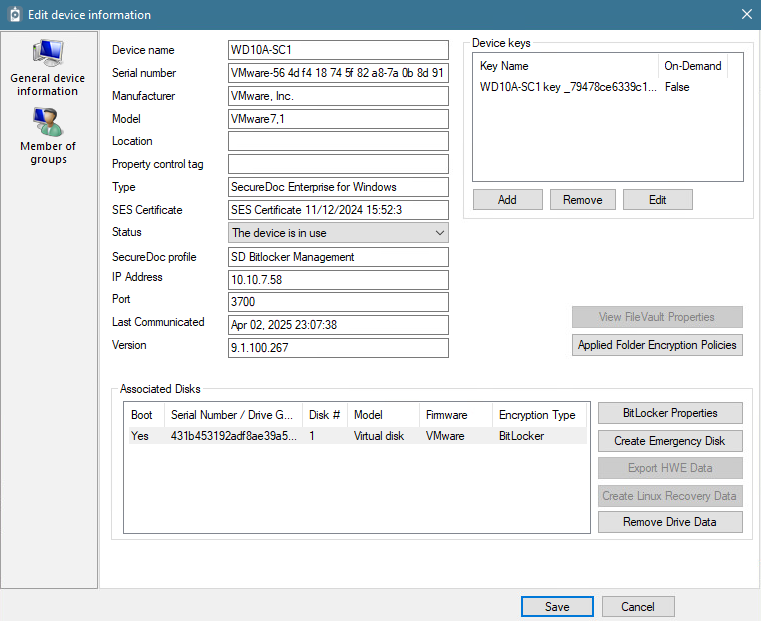
1) Navigate to the device in the SES to obtain the Bitlocker Recovery Key.
a. Double-click on target device in SES
b. Click on Bitlocker Properties
2) Click Bitlocker Properties
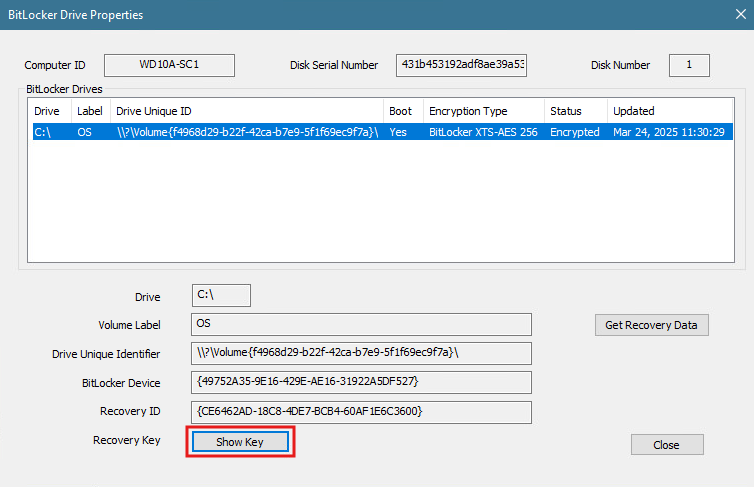
3) Click Show key.
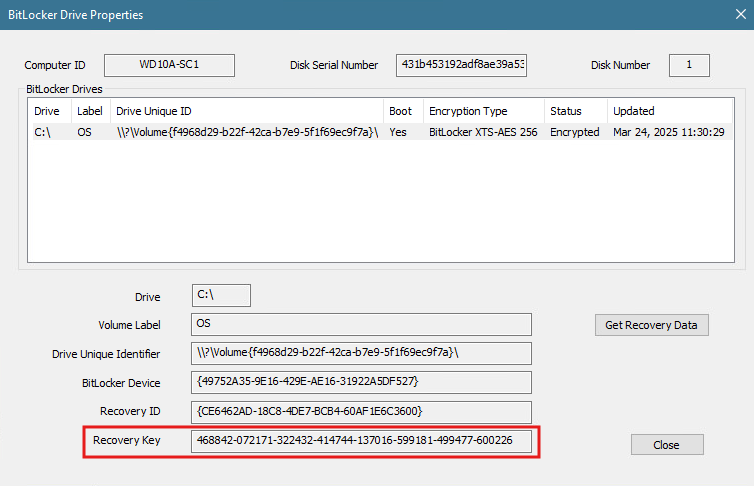
4) Document the key displayed for use later in the article.
Unlocking a Disk Using Windows Explorer:
1) Boot the target device using the SecureDoc WinPE tool.
2) Click on the Windows Explorer icon in the Task Bar.
3) Right Click on the Bitlocker encrypted drive.
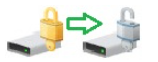
Note: Bitlocker encrypted drives will be displayed with a yellow locked lock over the drive.
4) Select Unlock Drive …
5) Enter the Bitlocker Recovery key obtained from earlier in the article and then click on Unlock
Note: Once you click Unlock, the icon on the drive will change from a yellow lock to gray and blue lock.
You can now navigate the drive to recover data.
Unlocking a Disk Using Command Prompt:
1) Boot the system using the SecureDoc WinPE tool.
2) Click on the Windows Explorer icon in the Task Bar.
3) In the Explorer window, take note of the drives marked with a yellow lock.
4) Click on the Command Prompt icon in the Task Bar.
5) Type manage-bde -unlock <Drive letter> -RecoveryPassword <Bitlocker Recovery Key> and hit enter
Replace <Drive letter> with the letter noted from step 3.
Replace <Bitlocker Recovery Key> with the recovery key noted earlier in the article.
You will receive a message that states “The password successfully unlocked volume E:.”
6) You should now be able to use Windows Explorer to navigate the drive, and recover data.
Note: Once you click Unlock, the icon on the drive will change from yellow to gray and blue unlocked lock.