How to Enable RME Log from SES Server and From Standalone Device
Topic:
This How-To article provides instructions on how to enable the RME (Removable Media Encryption) log both from the SES server and standalone device.
Product version affected:
All versions of SecureDoc
Environment (OS/hardware/software):
Windows OS and devices
Steps to follow:
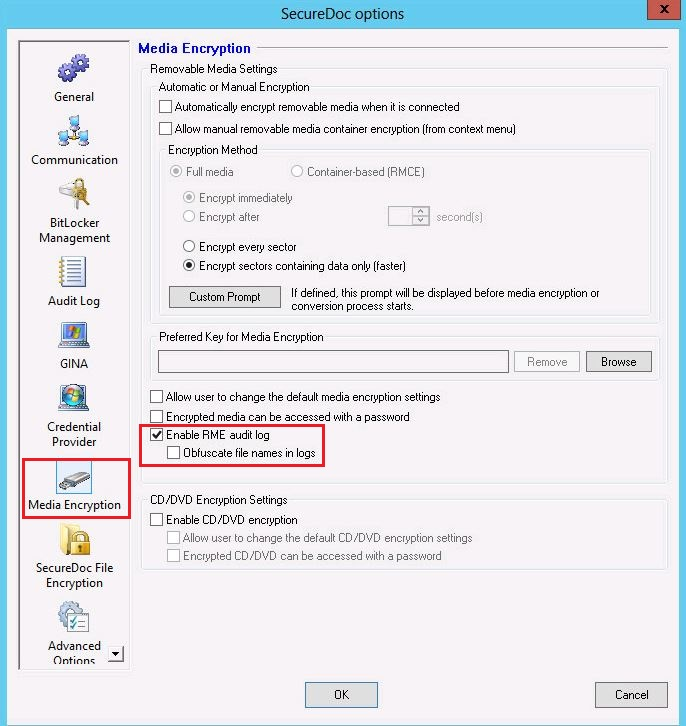
To enable RME log from SES server
In profile > General Options > Media Encryption > Select 'Enable RME audit log'
Pic1
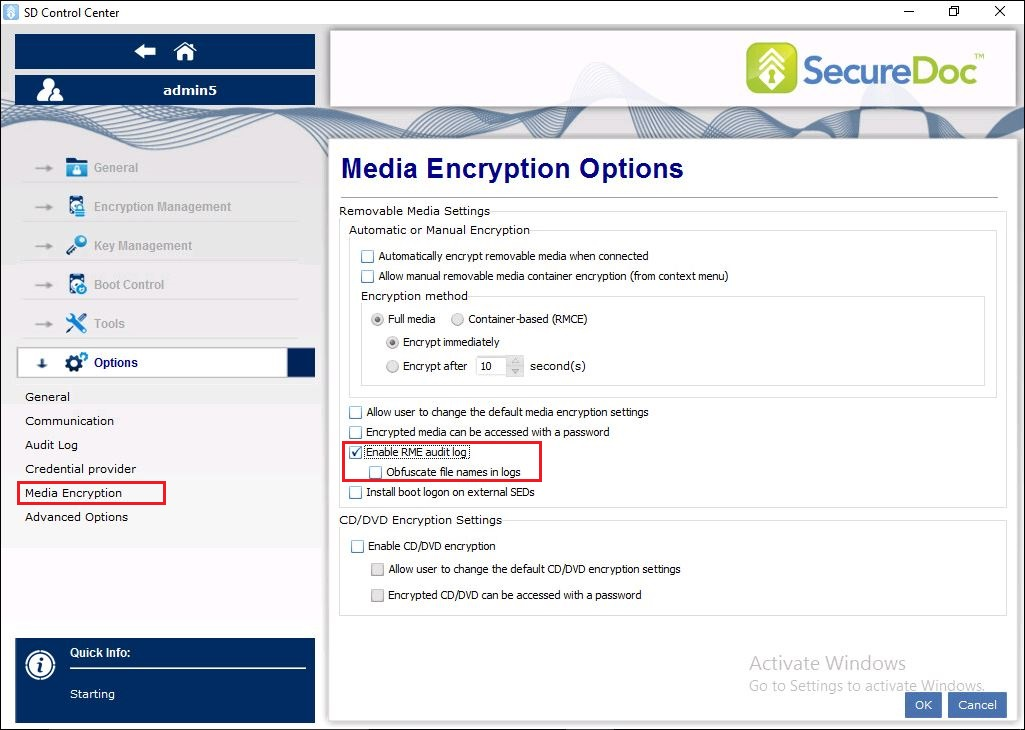
To enable RME log from SD control center
Log into the SD Control Center with an Admin account > Options > Media Encryption
Enable the option 'Enable RME audit log' > Click OK
Pic2
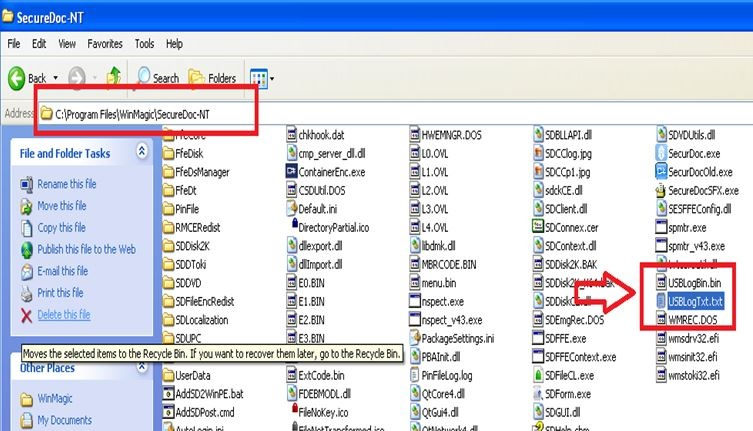
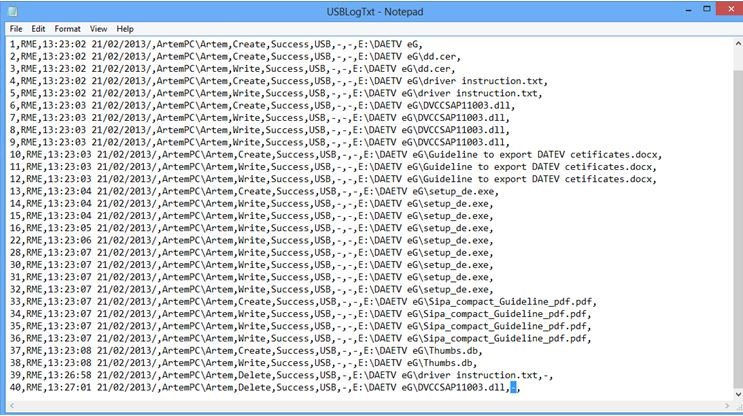
The file is called USBLogTxt.txt and it is in the folder c:\program files\winmagic\SecureDoc-NT.
Pic3
Note:
This logging will show Read/Write access to the USB only, as of where the source from for writing, or where will reading go, it’s unknown.
This is why it is tracked only locally and not sends back to the SES server. It is impossible to track where the data stream goes.
Pic4
Reference Material:
CRM 295