Topic:
Customers may choose to setup RMO (Removable Media Only) setup for USB encryption or container encryption. Customers can install SD Control Center without encrypting the device. Container encryption is convenient to the customers as they do not have to install media viewer on a non-SD device in order to access and view the data.
Product version affected:
All SD versions
Environment:
All Windows OS and devices
Steps to follow:
- Create a new profile or modify an existing profile.
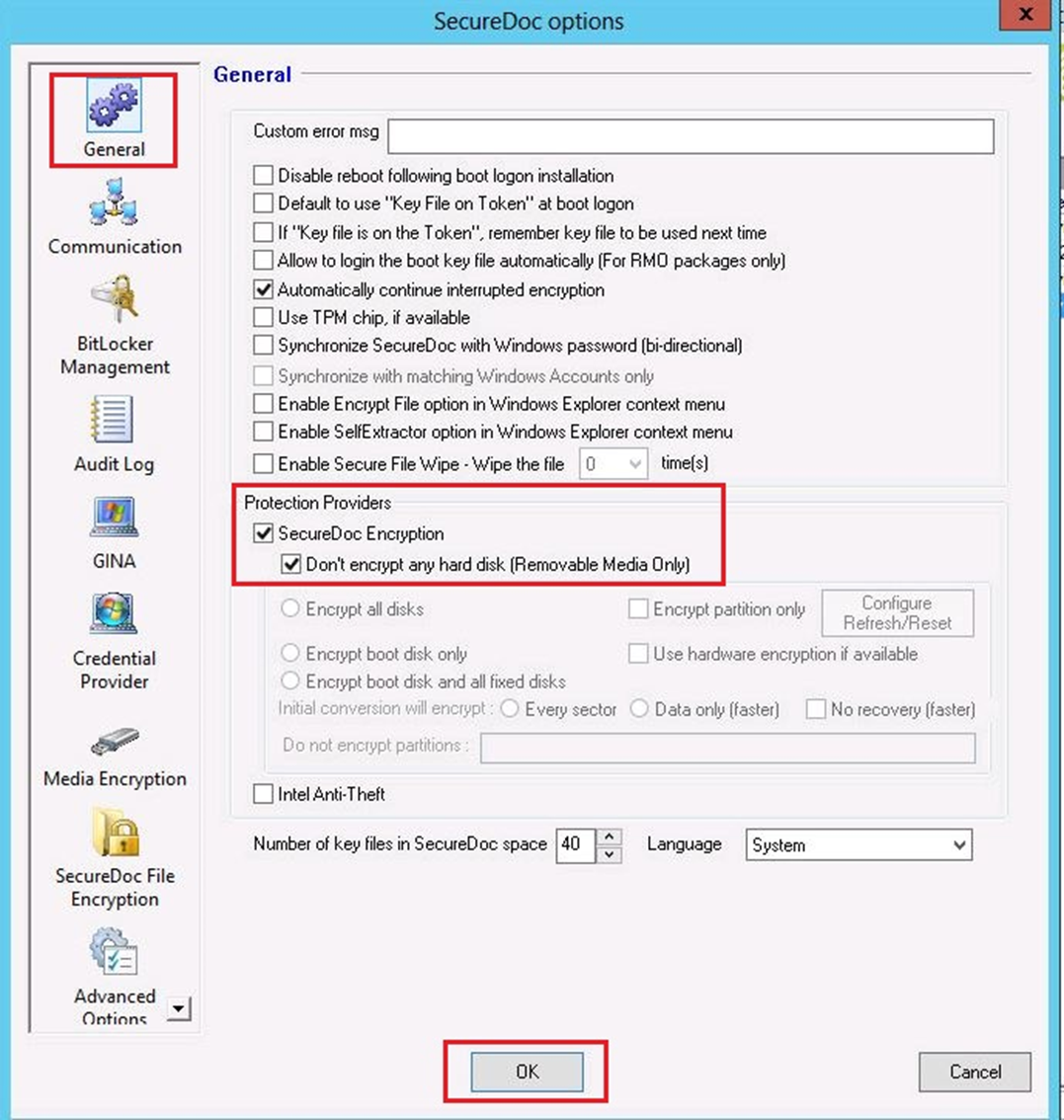
- General Options > General > Select the option, 'Don't encrypt any hard disk (Removable Media Only)' under Protection Providers
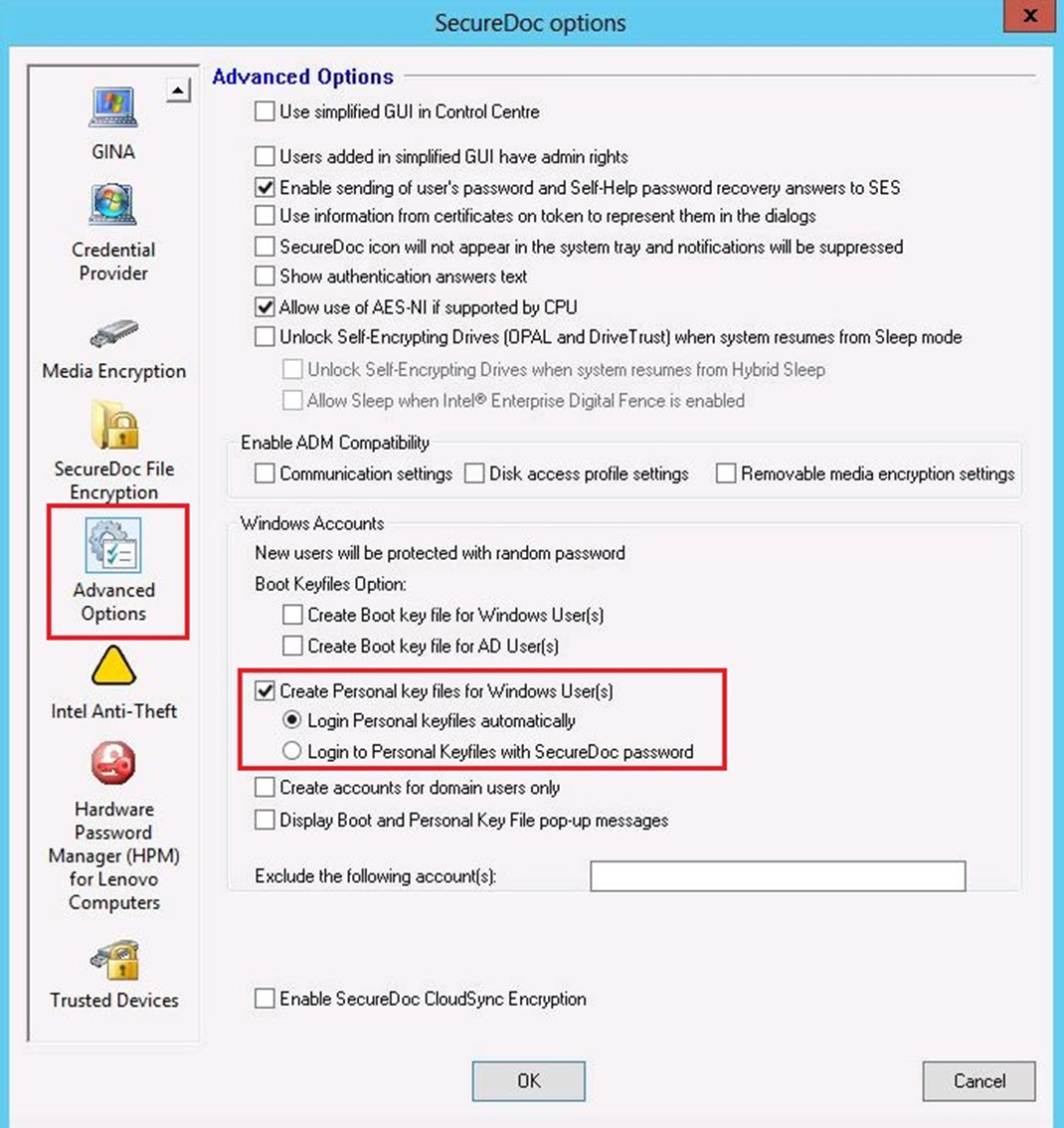
- Click on 'Advanced Options' > Enable the option 'Create Personal key files for Windows User(s)' and 'Login Personal keyfiles automatically'.
With this option an end user can log into Windows and be able to use the personal keyfile to do the encryption. The end user does not need to go into the SD control center.
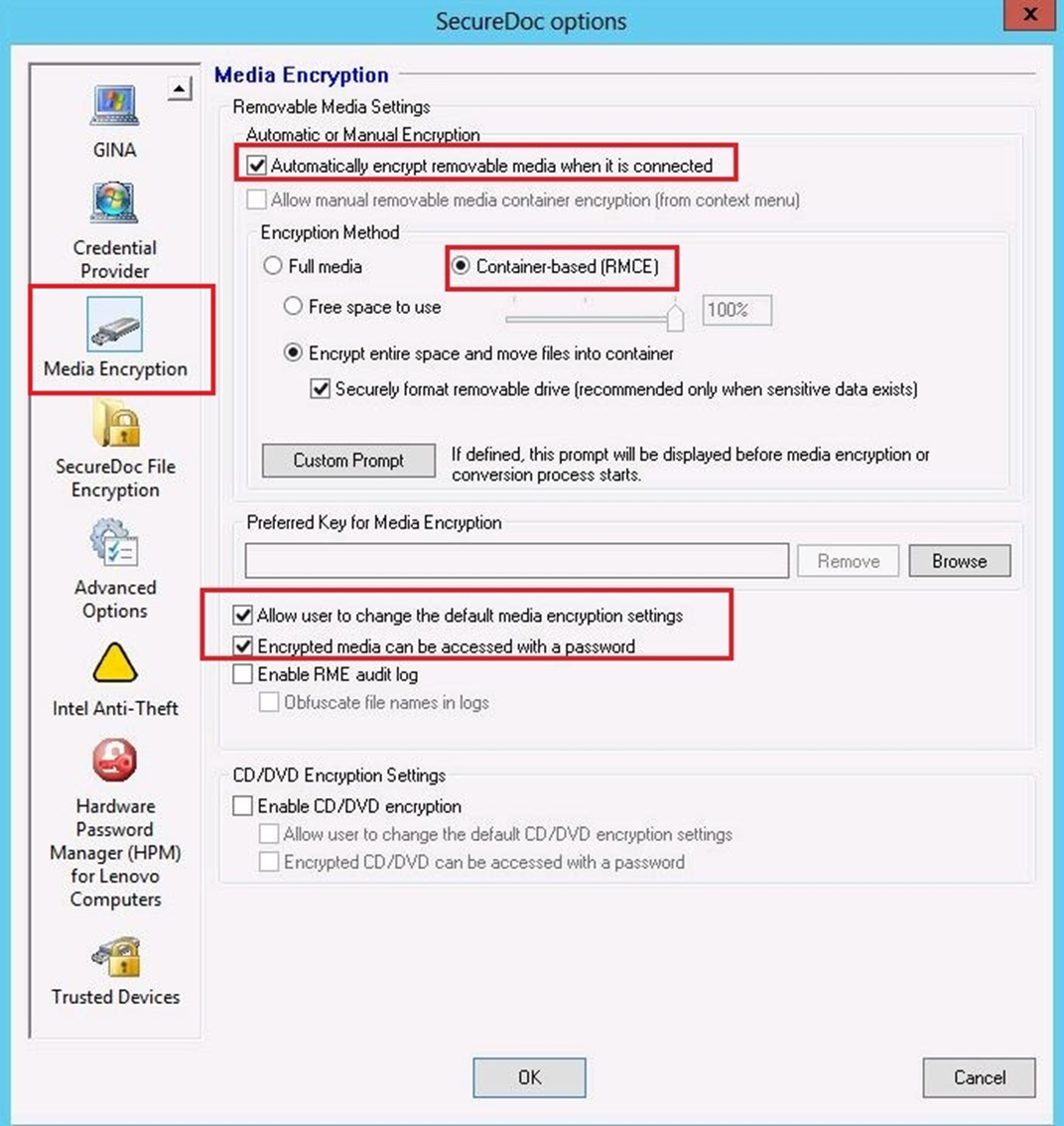
- From the Media Encryption > Select 'Automatically encrypt removable media when it is connected' > select either 'Full Media' or 'Container-based (RMCE)' > enable the following two options 'Allow user to change the default media encryption settings' and 'Encrypt media can be accessed with a password'.
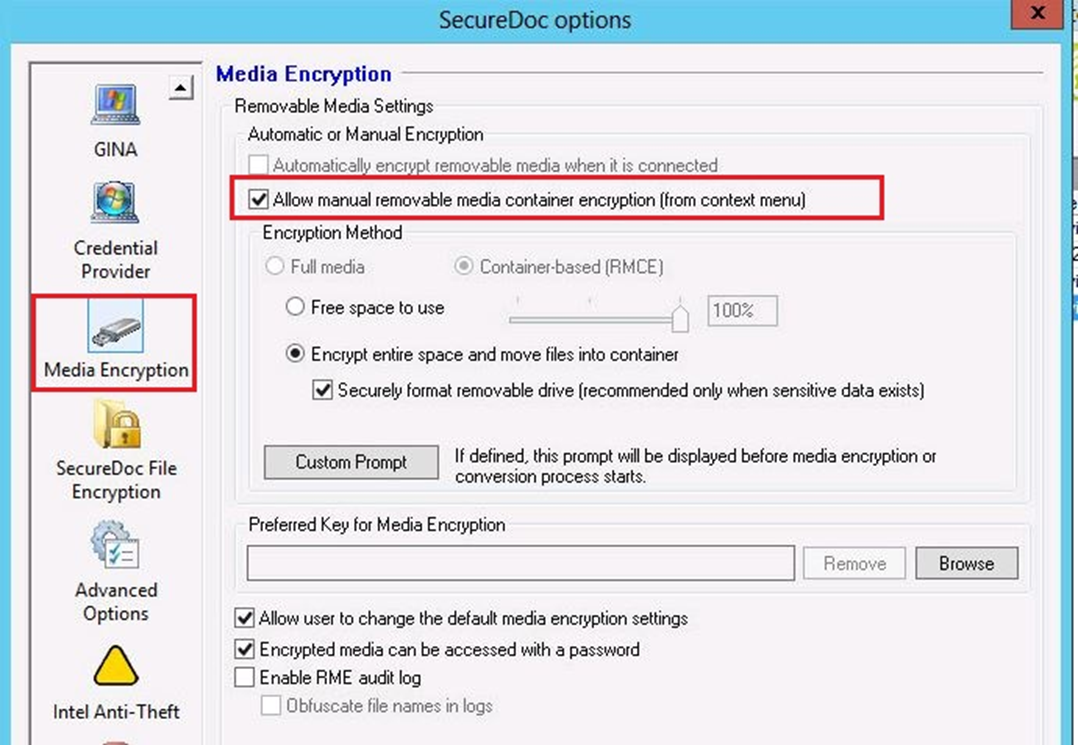
- Optional: Customer can select 'Allow manual removable media container encryption (from context menu)' option, to allow the end user to manually run container encryption at their convenient without encrypting the USB automatically.
- Assign the profile to the device, communicate with the server and then reboot the device in order to take effect.