Topic: This How-To article outlines the steps to provision rights to the SDWeb console for other administrators
1.1 Assigning a user SDWeb Admin access
1.2 Add AD Group or Local Group to ‘Role’
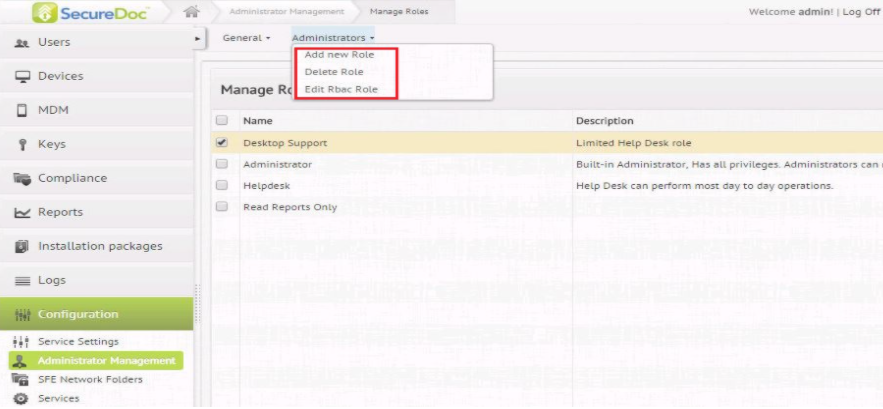
1.3 To create or manage a role
Product version affected: SES 6.1 and newer versions
Environment: Please refer to http://www.winmagic.com/support/technical-specifications for system requirements
Requirement:
Master SES admin login account with administrative rights to create admin users.
Access to the SES Web console
1.1 Assigning a user SDWeb Admin access
Steps to follow:
1. Login to SDWeb with the root administrator who has the right to create other admin users
2. On the left navigation menu, choose “Configuration”
3. Once in the configuration screen, choose “Administrator Management”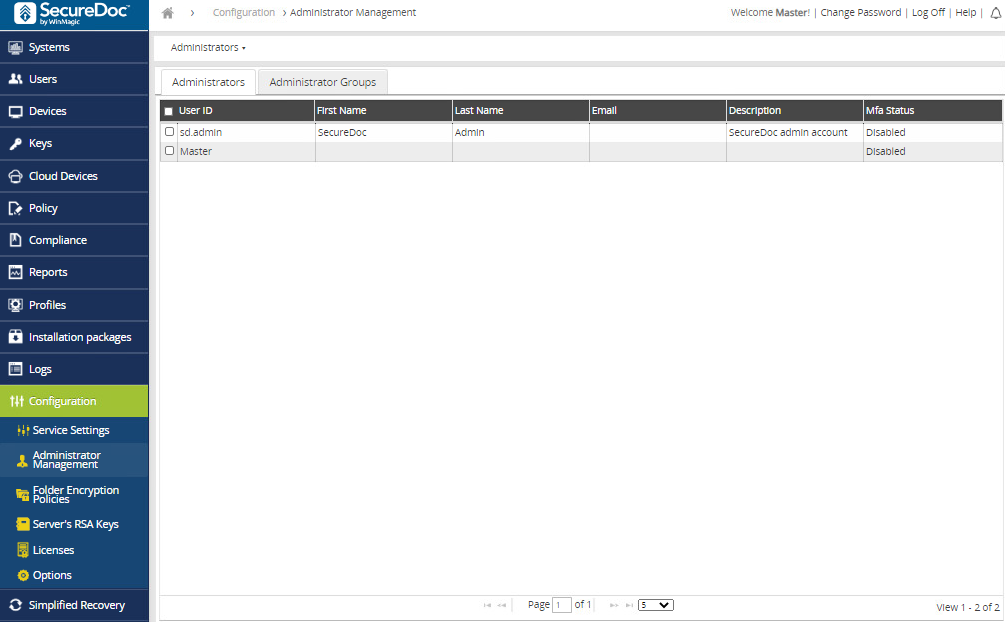
4. At the top, choose “Administrators” and then “Add New Administrator”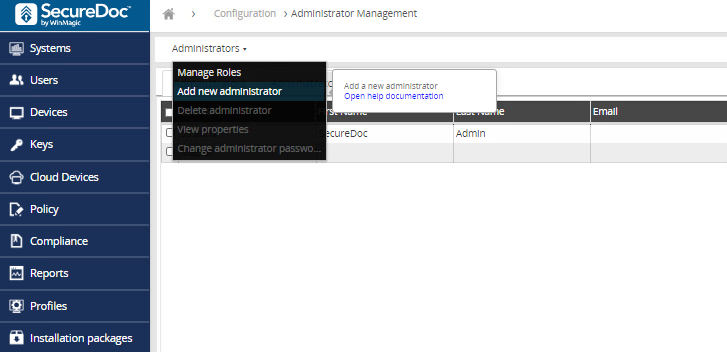
5. Select the user i.e., "AD Administrator" to have administrator access and press “Add” on the bottom right.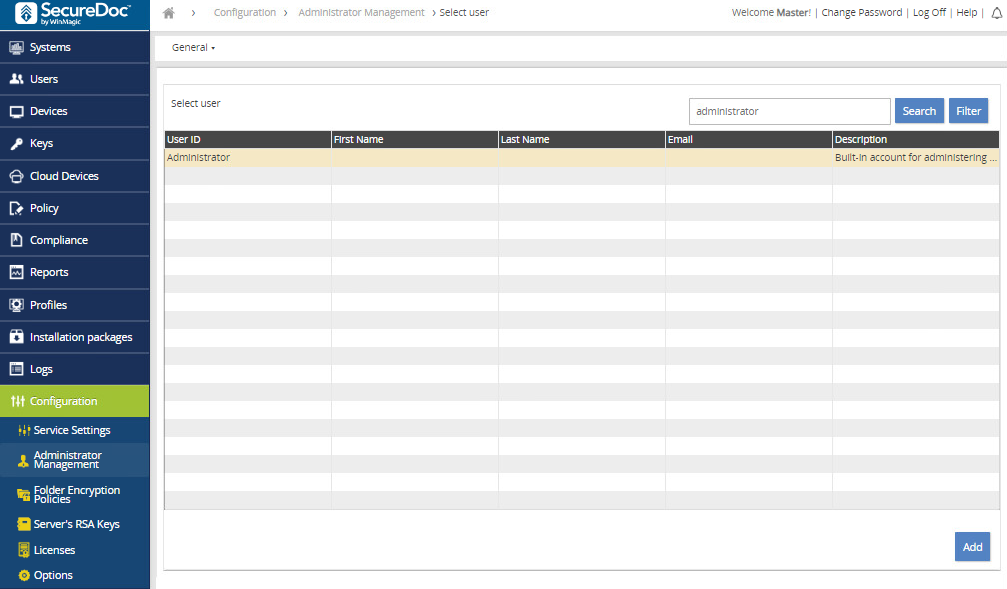
6. The user is now an administrator.
7. The next task is to assign the newly added administrator(s) to a role. (See the bottom of this document for further details)
8. Select the user that needs to be assigned a role and then choose Administrators and then View Properties from the top.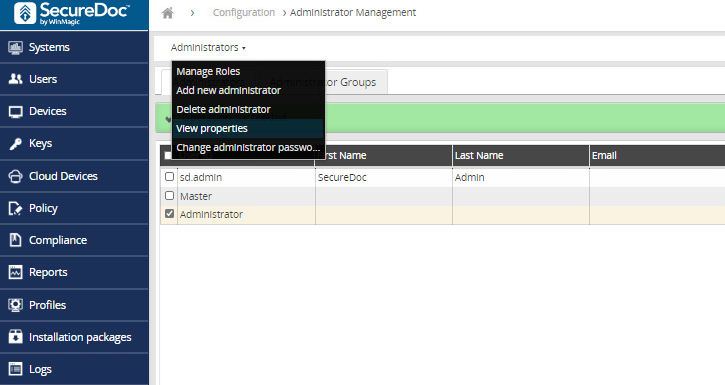
9. Now choose the “Permissions” tab
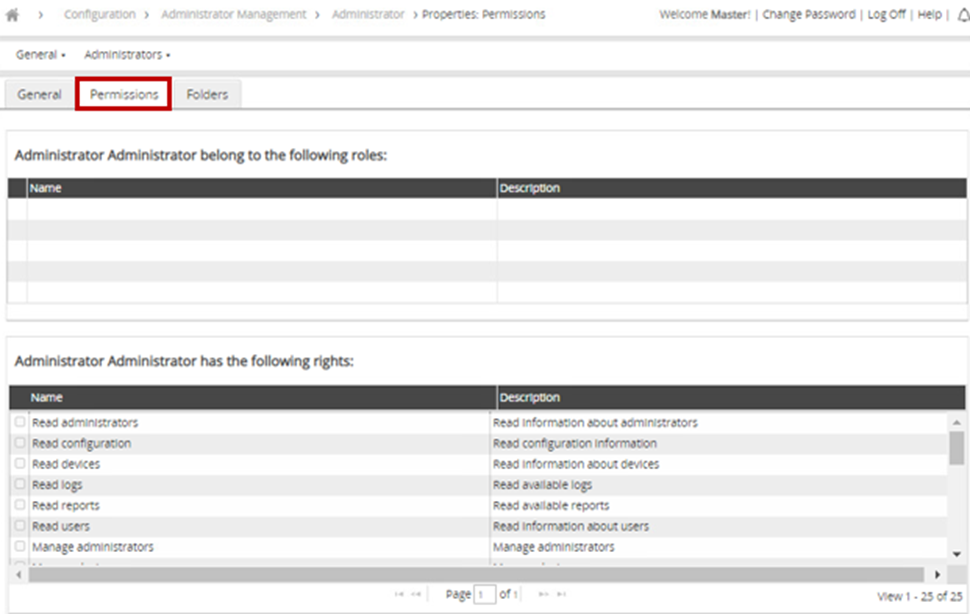
10. Choose “Administrators” and “Assign Role to Admin”.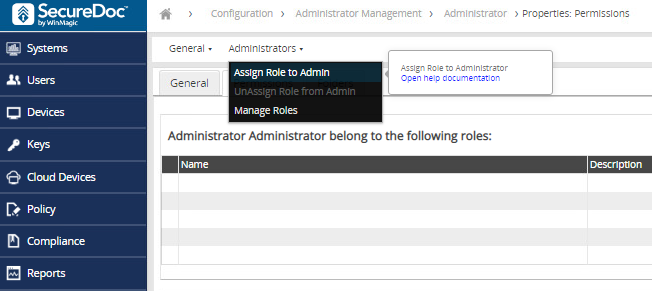
11. Choose the role you would like this administrator to have, and then press OK on the bottom right.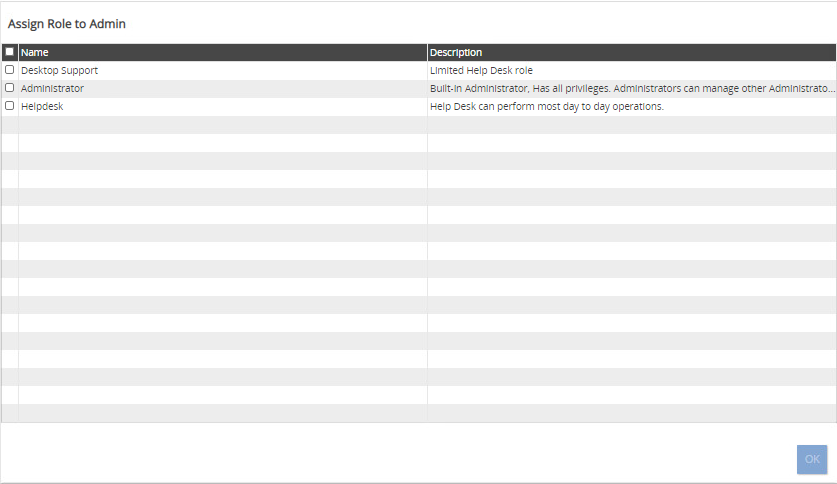
Congratulations! The task is complete. The user is now an SDWeb administrator.
1.2 Add AD Group or Local Group to ‘Role’
1. Choose Configuration on the bottom left, and then choose the Administrator Groups tab
2. Choose “Administrators” and then “Add administrator group.”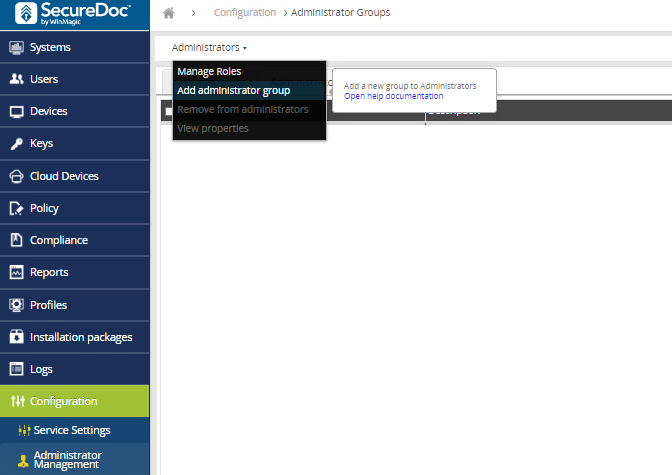
3. Now choose your Group, and then assign the role to the group at the bottom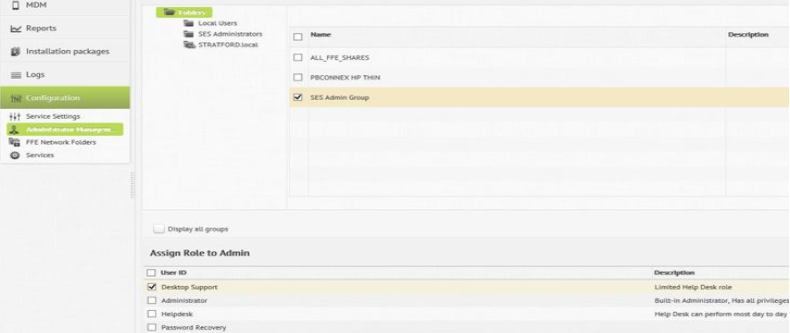
4. Now, any user assigned to that group will have admin access.
1.3 Create or manage a role
1. Choose Configuration in SDWeb > Choose Administrator Management
2. Go to Administrators > select Manage Roles at the top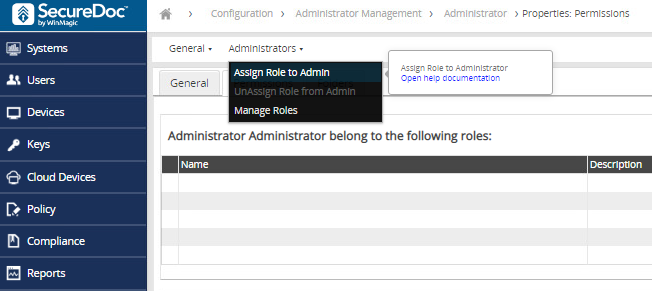
4. Here you can choose the role to manage or to create a new one, choose Add New Role from Administrators/Add New Role