Topic:
This How-To article provides the steps to:
- obtain the Bitlocker recovery key for a device from the SES
- Using the Windows Explorer in the SecureDoc WinPE tool to unlock a disk
- Using the Command Prompt in the SecureDoc WinPE tool to unlock a disk
Product version affected:
SES 6.4 or newer
Environment (OS/hardware/software):
Legacy and UEFI enabled devices
Windows 7, Windows 8(.1) and 10 OS
Requirements:
A Bootable WinPE USB. Please refer to KB 1540 – “How to Create a Bootable WinPE USB Tool” article
A disk the same size or greater than the Partitions that are going to be decrypted.
Obtaining the Bitlocker Recovery Key and Bitlocker Key Package:
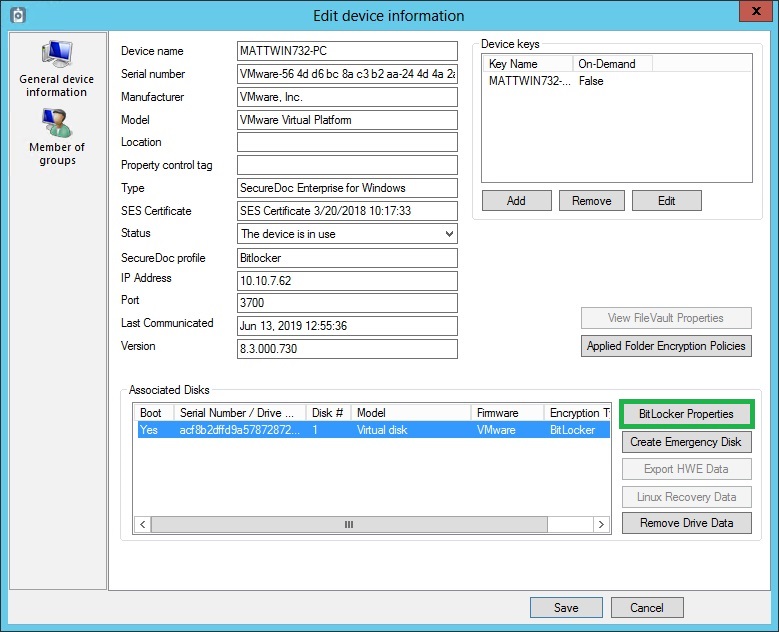
1) Navigate to the device in the SES to obtain the Bitlocker Recovery Key.
a. Double-click on target device in SES
b. Click on Bitlocker Properties
2) Click Bitlocker Properties
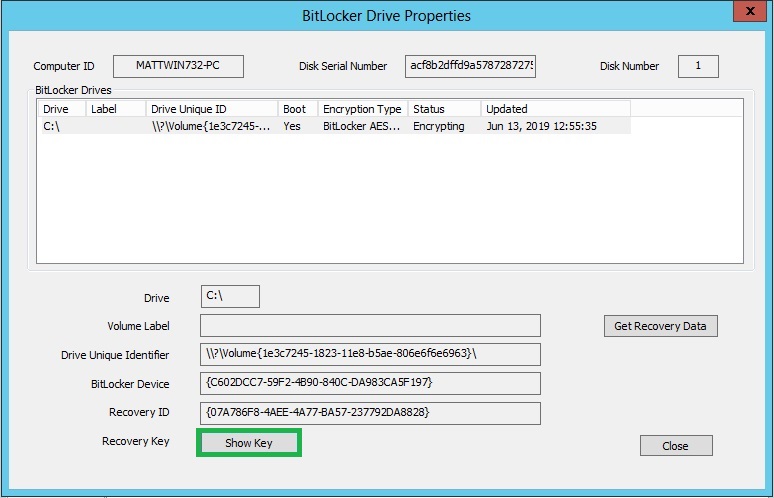
3) Click Show key.
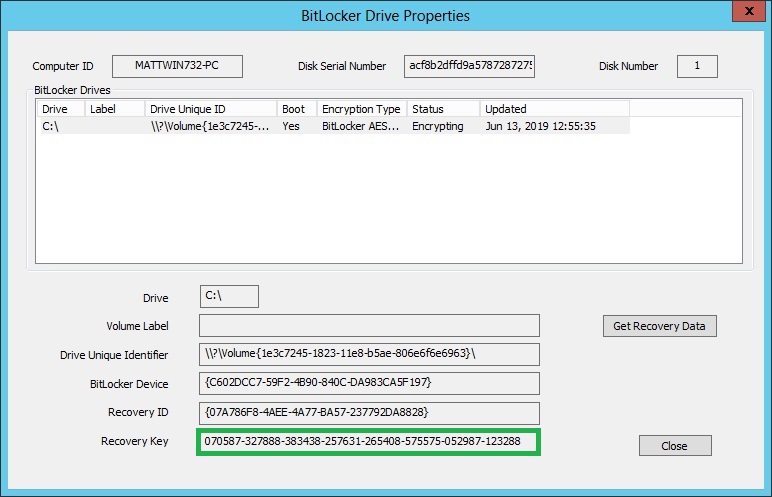
4) Document the key displayed for use later in the article.
5) Click Get Recovery Data
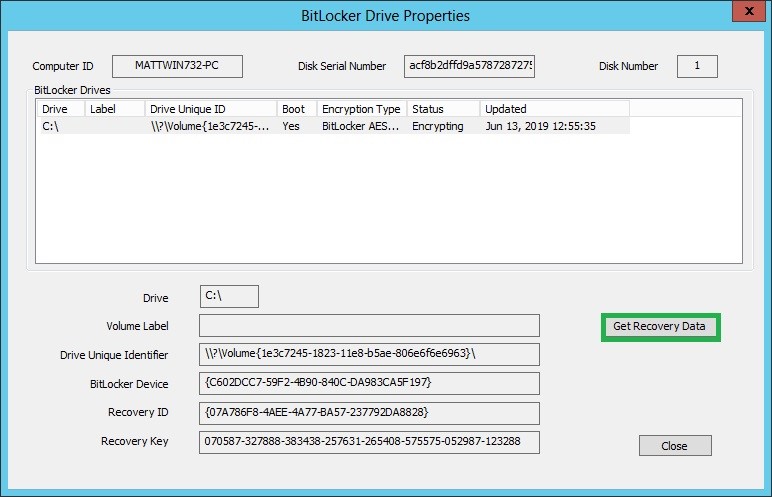
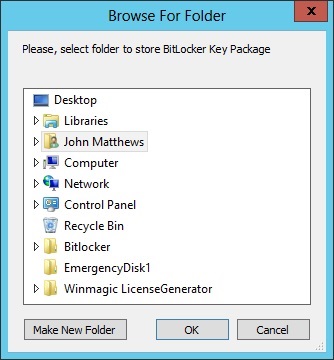
6) Navigate to where you’d like to store the Bitlocker Key Package and then click on OK
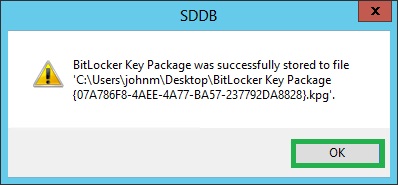
7) You will receive a success message, with the path and file name. Clock OK.
Note: This example the Bitlockerkey Key Package file is a KPG file, there may be instances where the file is saved as a BEK file.
Decrypting a Disk Using Command Prompt:
1) Boot the system using the SecureDoc WinPE tool.
2) Click on the Windows Explorer icon in the Task Bar.

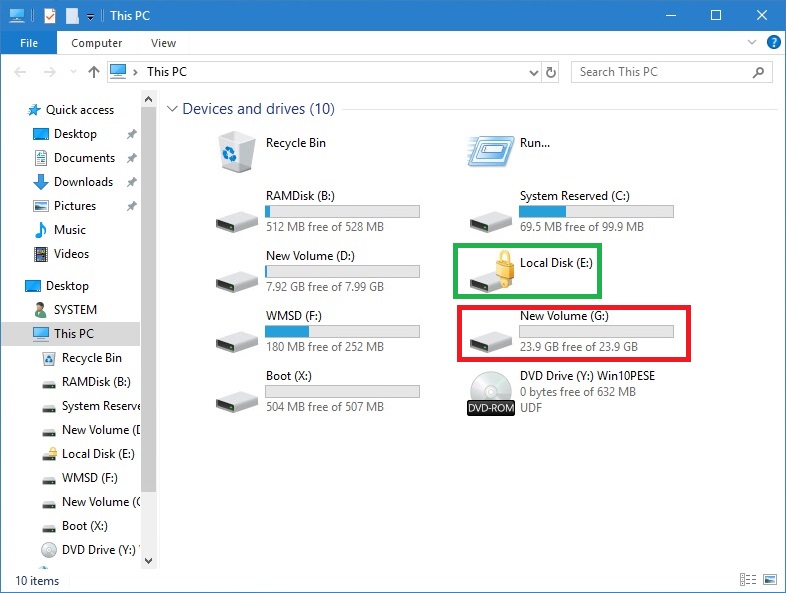
3) In the Explorer window, take note of the drives marked with a yellow lock, and the Disk you wish to use to decrypt too.
4) Click on the Command Prompt icon in the Task Bar.

5) Type
Repair-bde <Bitlocker encrypted drive> <Destination to Decrypt to> –kp <Path to Bitlocker Key Package> –rp <Bitlocker Recovery Key> -f and hit enter
Replace <Bitlocker encrypted drive> with the drive letter of the Bitlocker encrypted drive noted from step 3.
Replace <Destination to Decrypt to> with the drive letter of the disk you’d like to decrypt to noted from step 3.
Replace <Path to Bitlocker Key Package> with the full path to the Bitlocker Key Package.
Replace <Bitlocker Recovery Key> with the recovery key noted earlier in the article. 
The device will begin decrypting data to the attached disk.
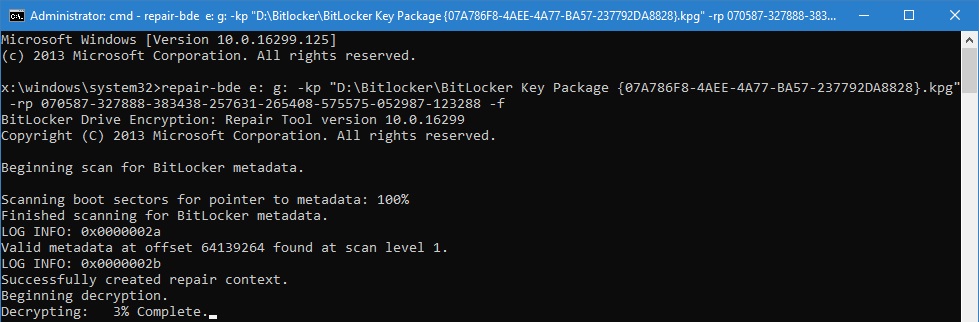
6) Once the process is completed, you will receive a message to complete a checkdisk against the drive the data was decrypted to.
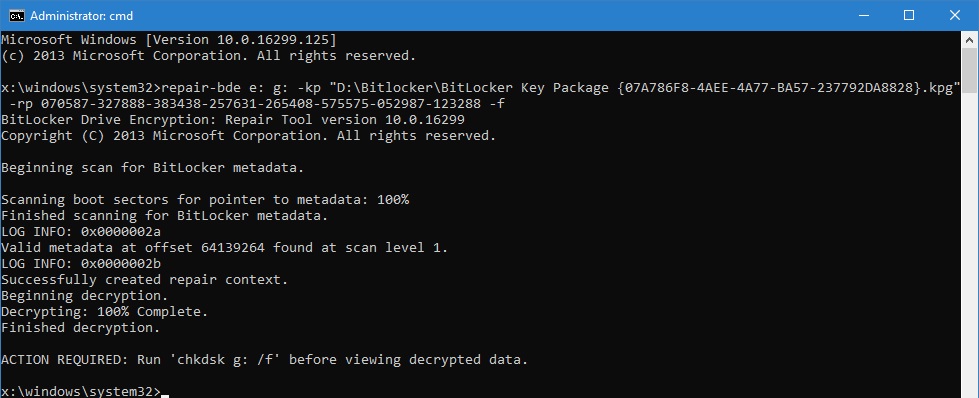
7) Type
chkdsk <Destination to Decrypt to> /f and hit Enter
Replace <Destination to Decrypt to> with the drive letter of the disk you’d like to decrypt to noted from step 3.
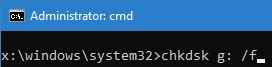
Once the chkdsk is complete, you can access the data on the new disk.