Topic: This How-To article provides steps to create an emergency disk from the SES console.
The SES database contains all the information necessary to create recovery media that Users can use if, for some reason, Boot Logon is missing, keys are lost, or other issues are encountered with their encrypted boot disk or any internal or external drives associated with the device.
Additional Information:
KB 1527 - How To Execute the Emergency Disk on an SD Device
KB 1544 - How to Create Emergency Disk from SDWeb Console
KB 1841 - How to Create a DOS Bootable USB Drive
Product version affected: All SecureDoc versions
Environment (OS/hardware/software):
All Windows OS
All Devices
Steps to follow:
1. From the SES console, under the Devices tab, right-click on the target device > select 'Create Emergency Disk'. This is the easiest method and should only be used for system with one encrypted drive.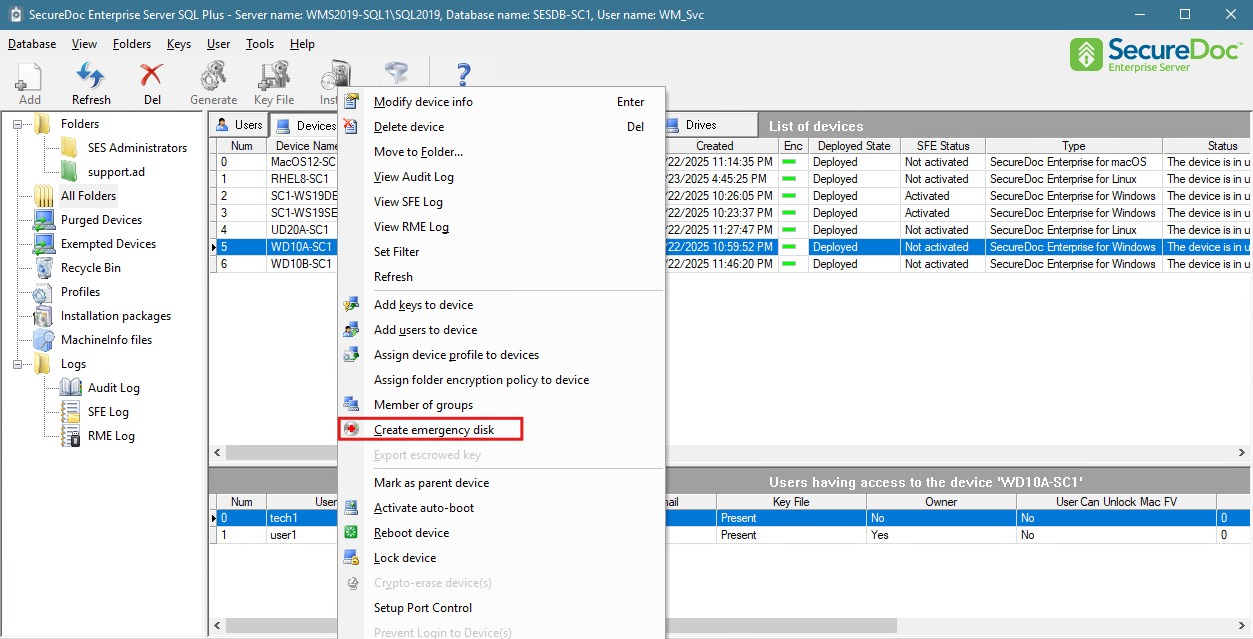
Note: Emergency Disk is unique for each device. Applying the emergency disk on the wrong device will potentially damage the machine.
2. For systems with multiple encrypted drives, double-click on the endpoint to open the Device Information 🡺 highlight the disk 🡺 click the create Emergency disk button. 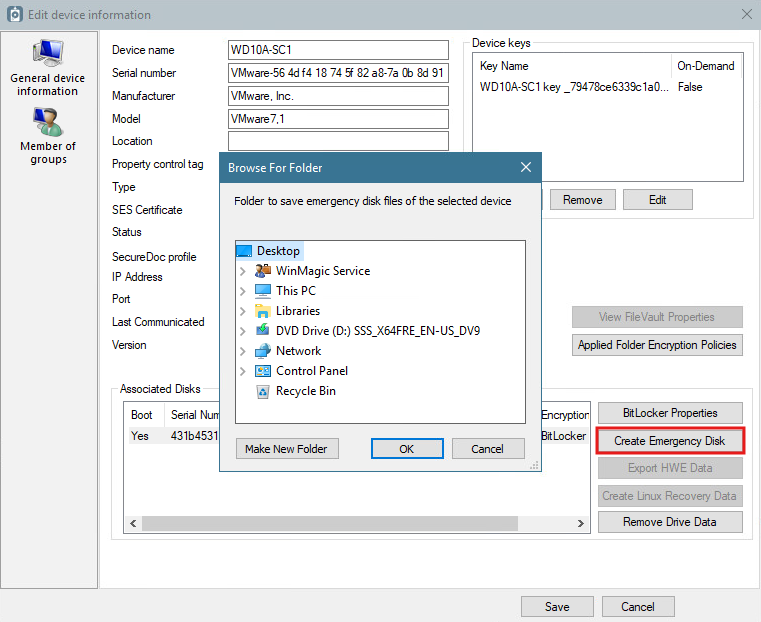
Browse to the location where the Emergency Disk folder will be created. For example, select Desktop > Click OK
3. If the Binary Boot Files are stored in a different location other than the default location of C:\Program Files\WinMagic\SDDB-NT\Binary boot files\Win.X.X.X.X\, you might be prompted to select the ed please specify a different directory. Otherwise, click NO.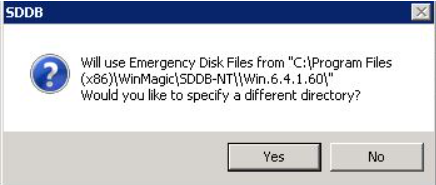
4. The EmergencyDisk1 folder will be created. Click OK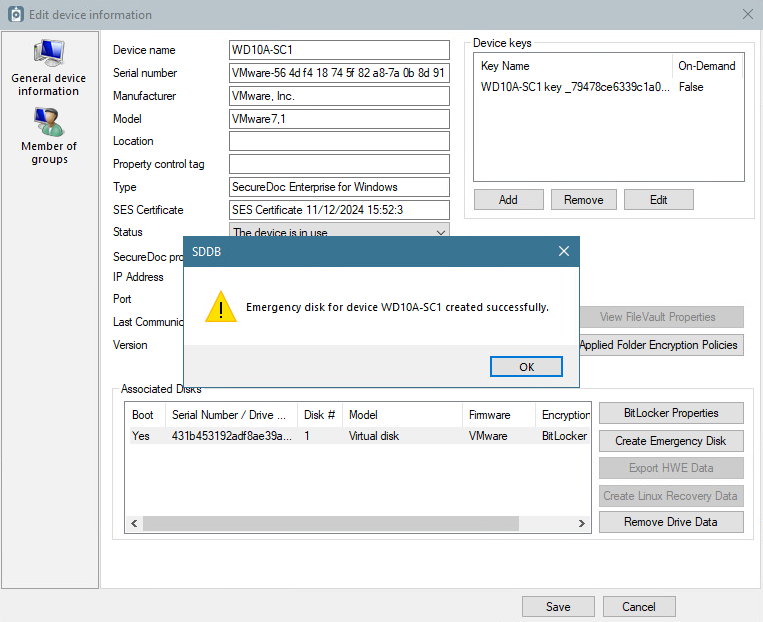
Contents of the Emergency Disk 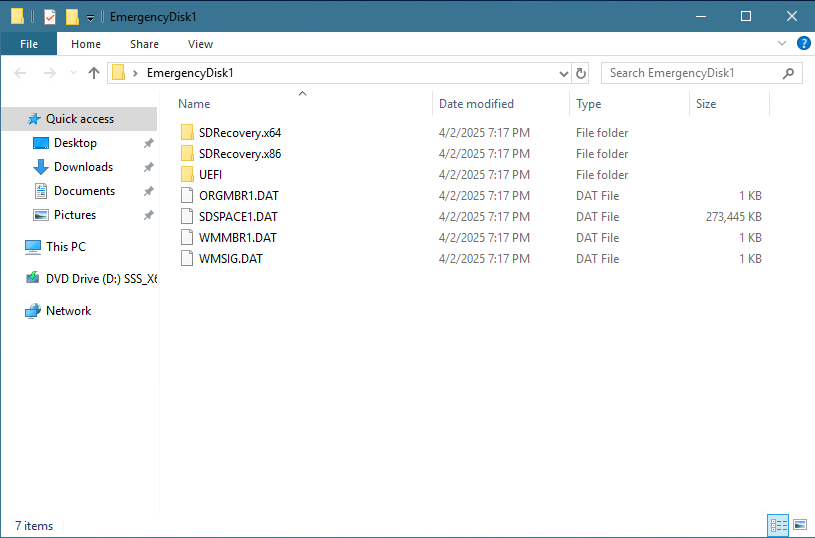
Executing the emergency Disk:
Note: Please refer to KB 1527 How to Execute the Emergency Disk on an SD Device
Refer to KBA 1841 on how to create a DOS bootable USB drive
Once the DOS bootable USB stick has been created, copy the six recovery files onto the media.
Plug the USB stick into the device and power up the PC. When it boots up, run the command "sdemgrec.exe /2” (The /2 switch is used to identify the hard drive because the USB is detected as the primary hard disk).
Once the command has successfully executed, unplug the USB stick and restart the device. The SD Boot Logon should appear.