Topic: This How-To article provides steps on how to create a bootable USB and repair the SecureDoc space using the emergency disk on an SD device.
Additional Information:
KB 1039 - How To Create Emergency Disk from an SD Standalone Device
KB 1543 - How To Create Emergency Disk from SES Console
KB 1841 - How to create a DOS bootable USB drive
Product version affected: All SecureDoc standalone and client/server versions
Environment: Windows 7 OS or newer
Steps to follow:
1. Create a bootable USB. Please refer to the KBA 1841 on how to create a DOS bootable USB drive.
2. The bootable USB will only contain 3 files that are hidden. To confirm please change the folder properties on the computer as in the figure below and then check the USB to see the files.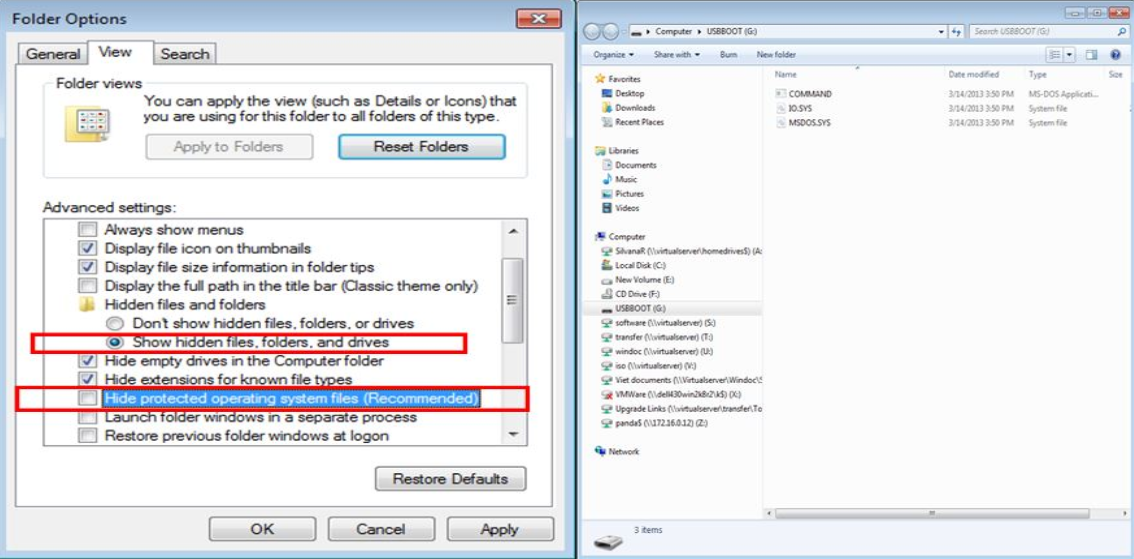
3. Copy the contents of the emergency disk (only the files not the whole folder) onto the USB after you complete step 1 and 2
4. Insert the USB into the computer you need to repair and boot from it
5. Type the following command: SDEmgRec.exe /2 and press Enter
6. Enter Y to continue on the screen below
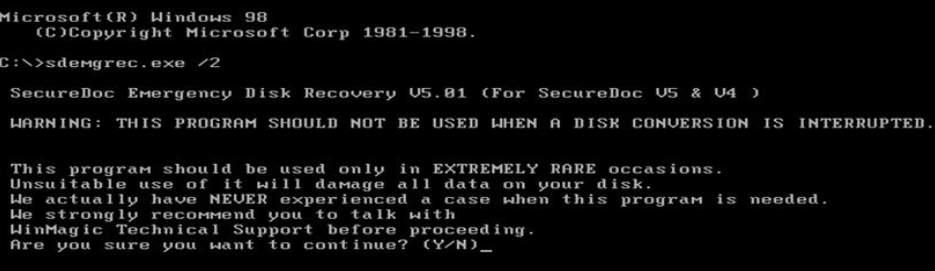
Enter Y to continue for the screen below
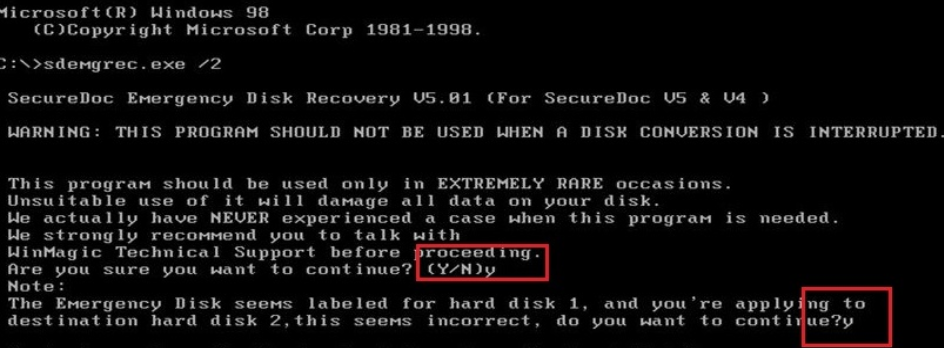
Enter Y to replace the SecureDoc space on the hard disk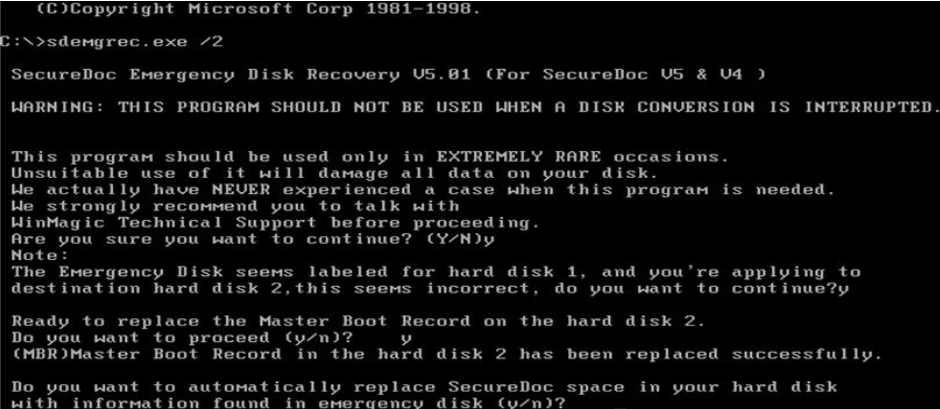
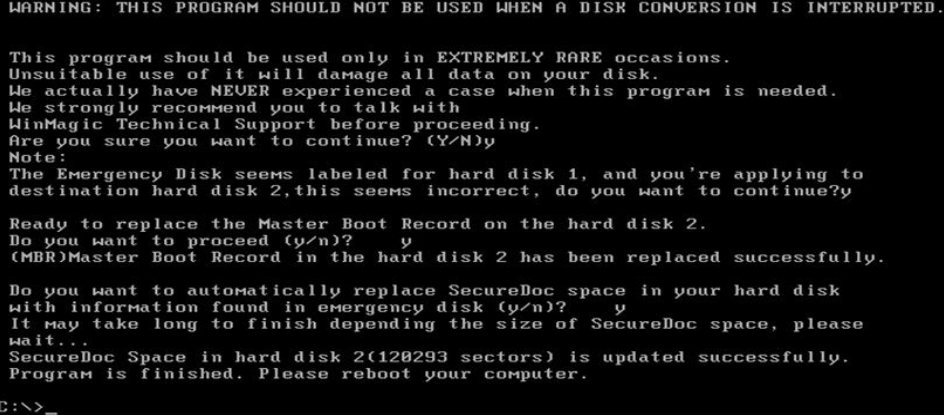
You will see the screen below. Give it some time to complete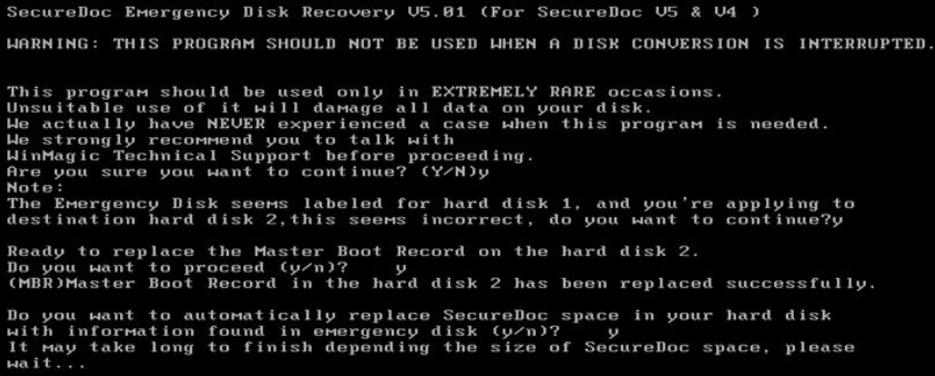
Here is the final screen:
Reboot the device and the SD Boot Logon should successfully appear on the device