How to create an emergency disk from SES server and recover a device (for SD 5.x and above)
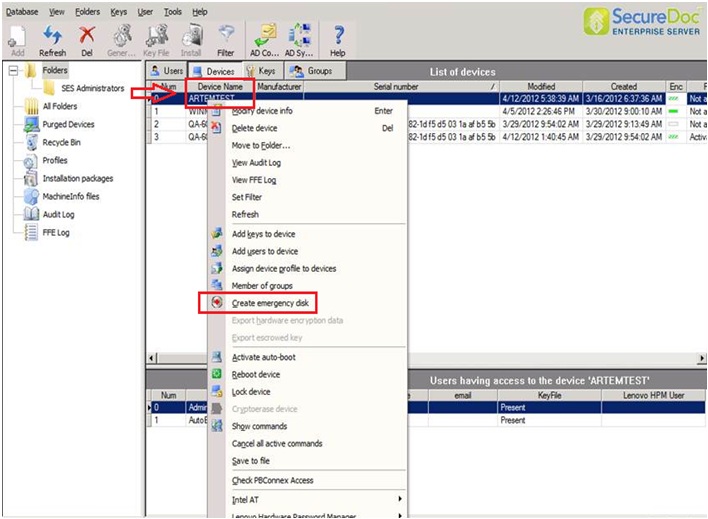
1. From the SES Server, right-click on the chosen device. 1b. From the context menu that will appear, select the "Create emergency disk” option, as shown in the image below.
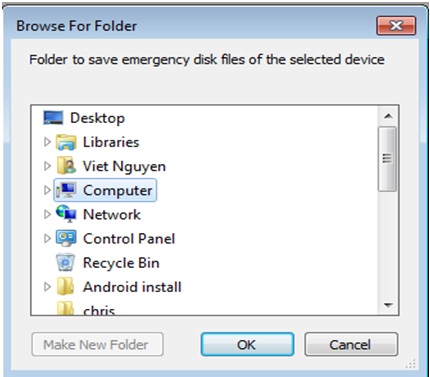
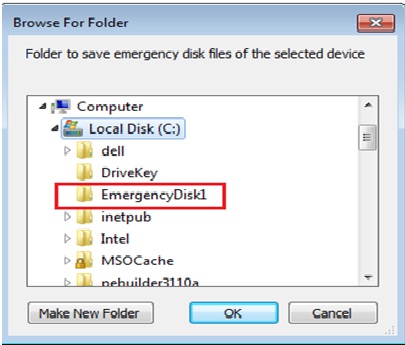
2. Choose where to store the emergency disk files.
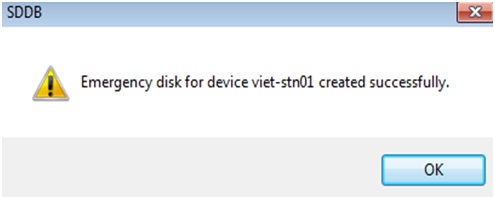
3. Click "OK" to continue.
4. Create a DOS Bootable USB Drive. Please refer to KBA 1841 on how to create a DOS Bootable USB drive.
5. Once the DOS-bootable USB stick has been created, copy the six emergency disk files created earlier onto the media.
6. Plugin the USB stick to the device and power up the PC. NOTE: You may need to force the device to boot from USB.
7. When it boots up from the USB memory stick, run the command "sdemgrec.exe /2” (you must use the /2 switch to identify the hard drive because the USB is detected as the primary hard disk).