Topic: This How To article provides instructions on how to create a WinPE tool. WinPE is an invaluable tool for Administrators, since it permits access to otherwise unbootable SecureDoc-encrypted/protected devices. WinPE is normally created either on a Bootable USB stick (the preferred, more universally-usable option) or on a Bootable CD or DVD (less desirable now that some devices ship without optical drives).
Product version affected: All SD versions
Environment:
All Windows OS versions including Windows 10
All devices
All SATA and OPAL 2 SED hard drives
Steps to follow:
Step 1: Please contact technical support for the latest custom WinMagic/WinPE download link. This link will provide you with an ISO image.
Step 2: Download and install the Rufus software: http://rufus.akeo.ie/
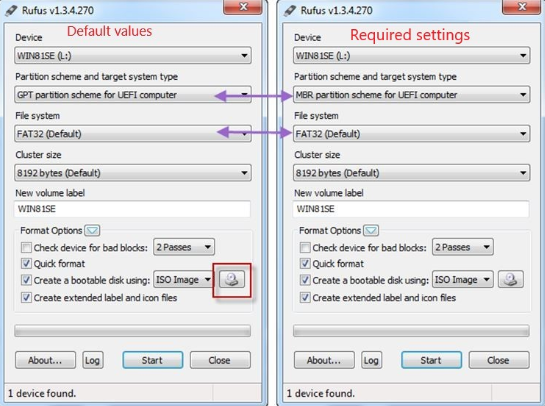
Step 3: Select the ISO image and Burn to the USB
Step 4: Configure Rufus as shown in the screenshot
a. Either set to GPT for UEFI or MBR Partition for UEFI
b. Format USB to FAT32
Step 5: Plug in to your machine and boot to USB.