Topic:
This How-To article lists the steps to import the AES encryption keys from one Key File into another Key File from an encrypted device, using the SecureDoc Control Center (SDCC) application.
Product version affected:
All SD versions
Environment:
All Windows OS
All devices
Requirements:
Administrative keyfile to log into the main device i.e. admin.dbk
Secondary keyfile to contain the exported AES encryption key i.e. tech3.dbk
Steps to follow:
Login into SD Control Center with the administrative keyfile
Key Management > Key File Management > Browse to the physical keyfile i.e. admin.dbk and enter the password for the keyfile > click Login button.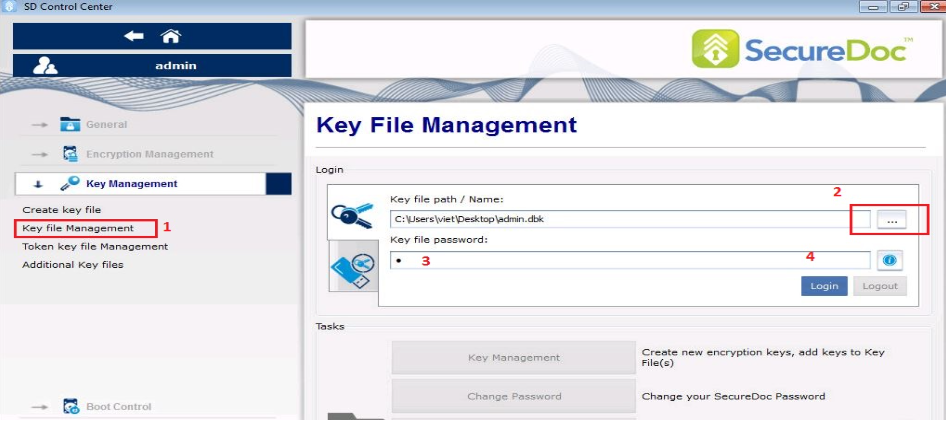
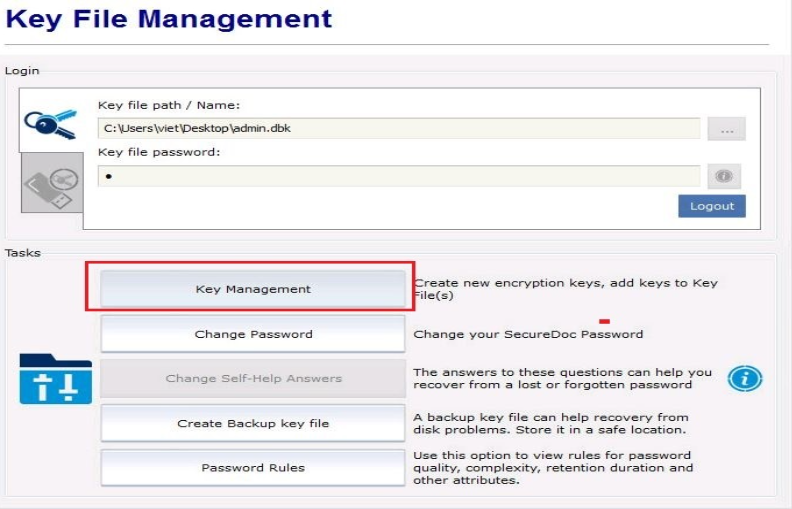
Click ‘Key Management’ button
Click ‘Import’ > browse to the secondary keyfile i.e. tech3.dbk and enter the password > click ‘Login’
Highlight the AES encryption keys from tech3.dbk file > Click Import Keys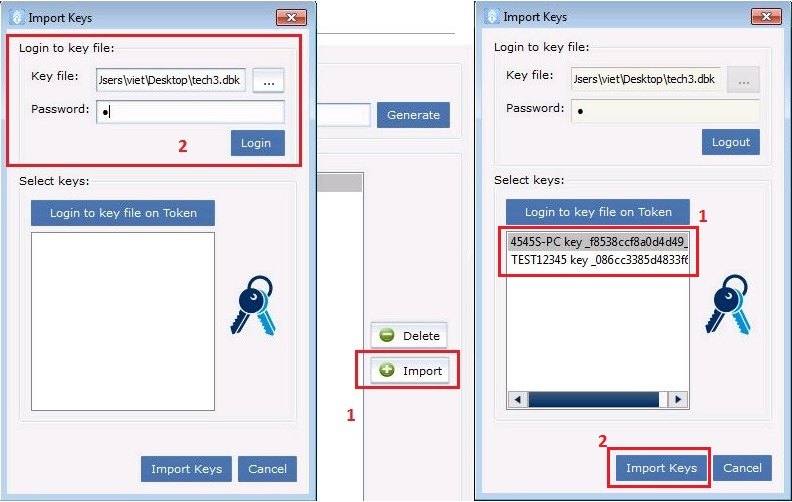
The admin.dbk file should now have the additional keys.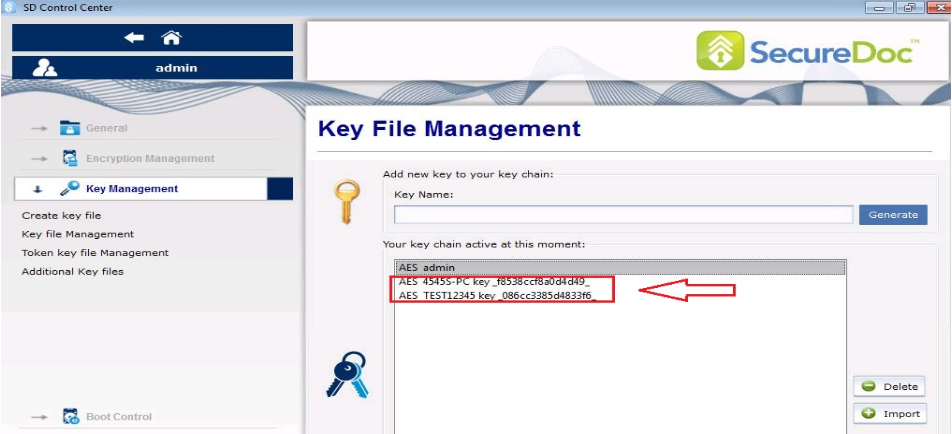
Customer will now be able to decrypt or encrypt drives with the additional keys available.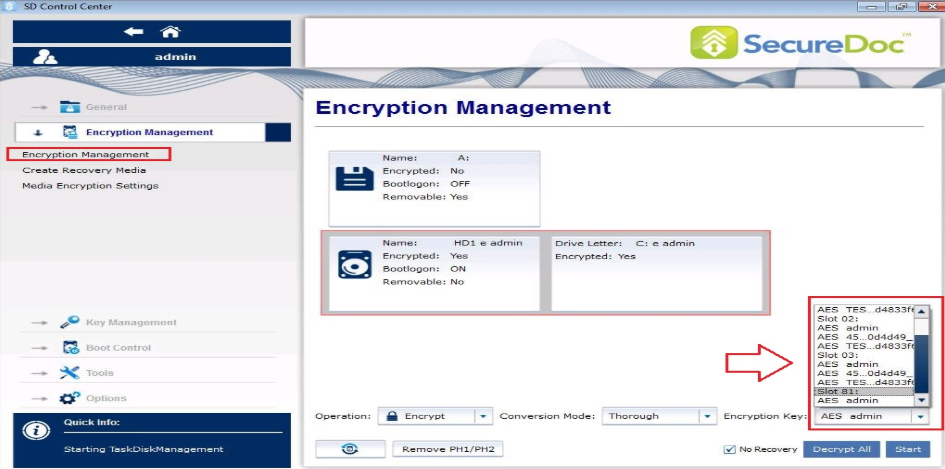
1530 How to Import Encryption Keys From one Key File to Another Key File Using SecureDoc Control Center
- Updated on Feb 6, 2026
- 1 minute(s) read
- VN
Was this article helpful?