Topic: This How-To article provides the process steps for creating and assigning a key file containing the key necessary for accessing a hard drive (de-crypting it or for data recovery) when that hard drive is slaved to another SecureDoc-encrypted device
Product version affected: All SD versions
Environment:
All Windows OS versions
All devices
Steps to follow:
From the SES console, right click on the device (it is the device that contains the defective hard drive which will be slaved to a primary device) > Select ‘Modify Device Info’ > determine what the Device’s AES encryption key is. For example: 4545S-PC key_f8538…..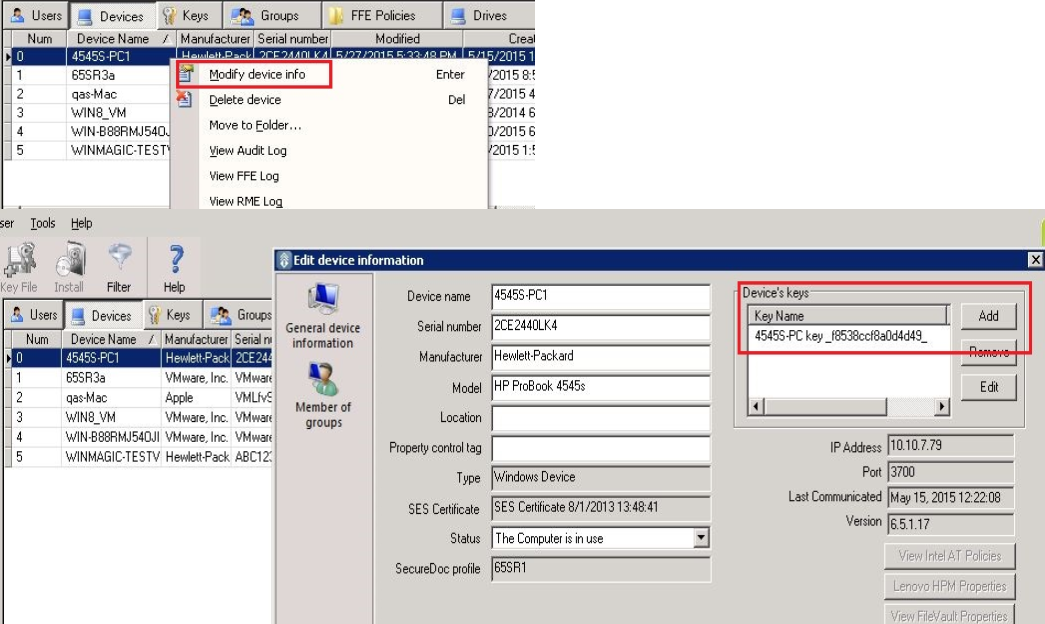
Two ways to assign the device’s key to a user:
1. Assign the device key to an existing account that has access to the primary encrypted device and will be used to perform decryption\repair\data recovery.
2. Create a new user account
Method 1: Assigning the AES device key to existing user
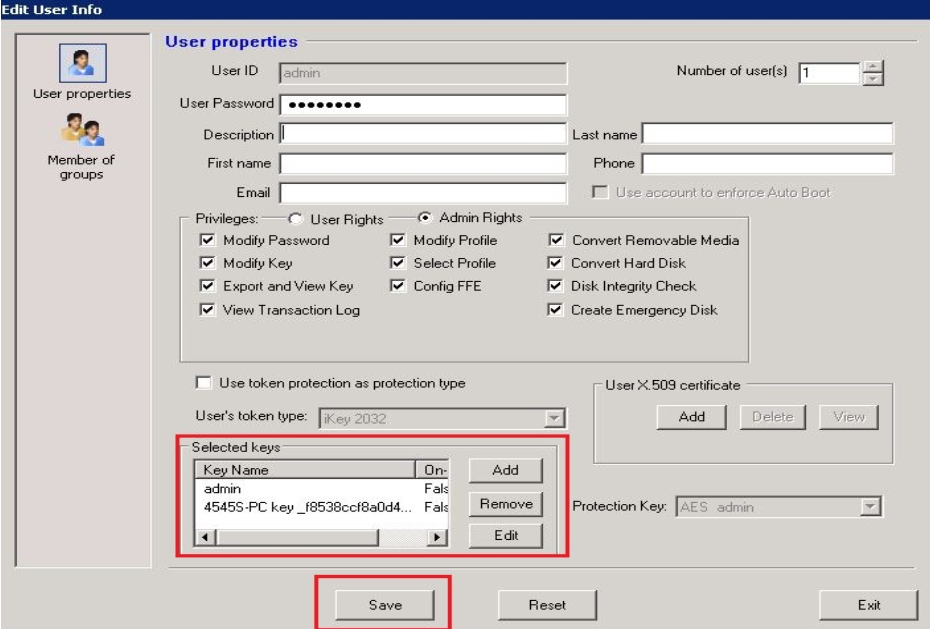
From the Devices Tab, select the device, in the lower pane, right click on the user account of the primary device i.e. admin > select ‘Modify User’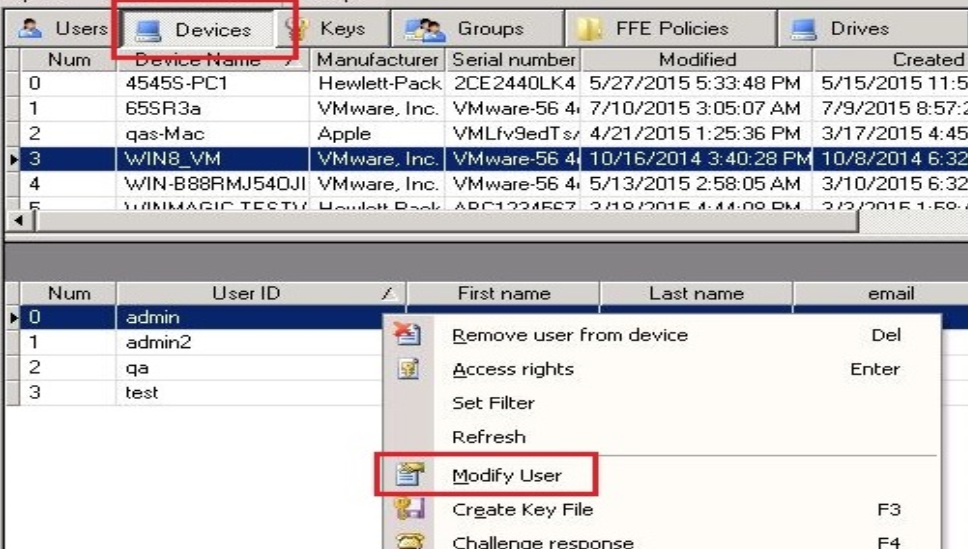
Ensure the user account has all the admin privileges with ‘Admin Rights’ and password enabled
Click on ‘Add’ from the ‘Selected keys’ section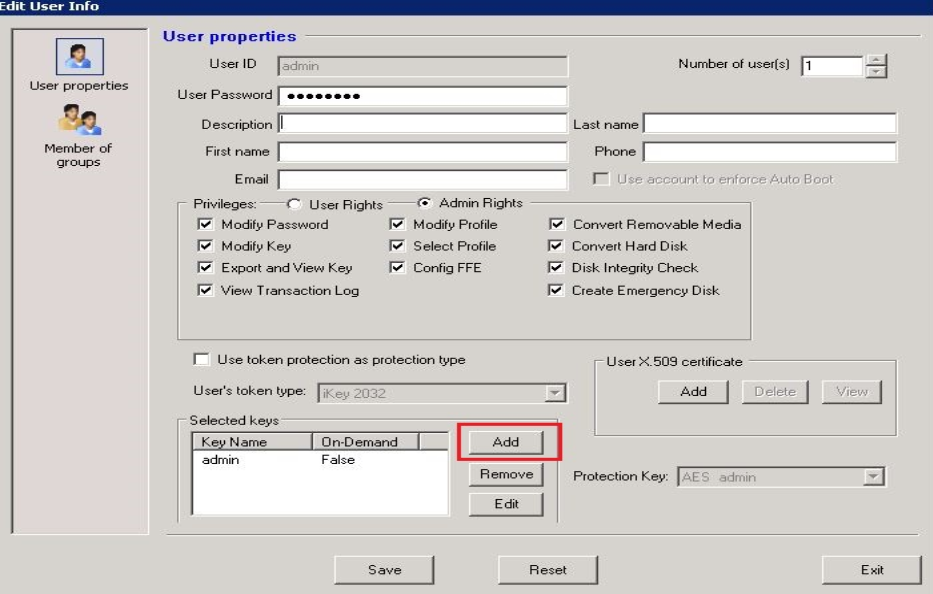
Enable the option, ‘Display items from all folders’
Highlight the encryption key i.e. 4545S-PC key_f8538…. and click OK
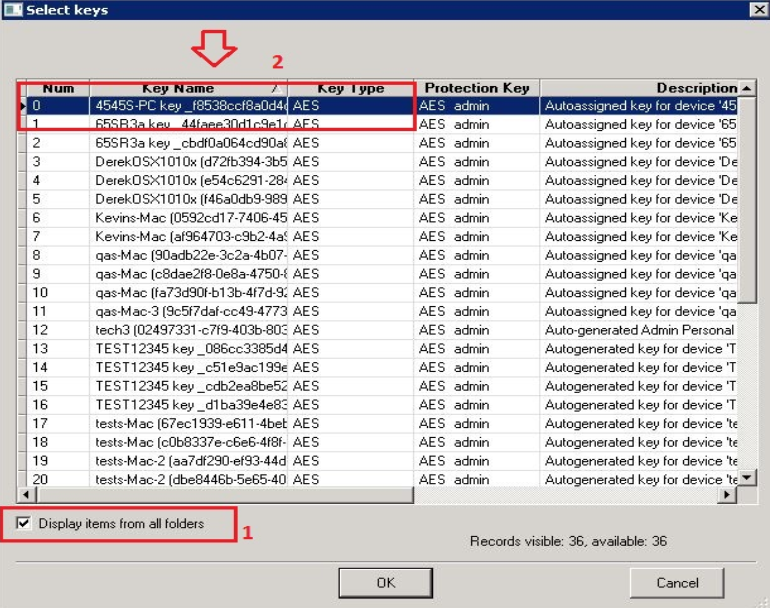
Verify that the encryption key has been added > Click Save.
Right click on the user under the device > Select “Create Key File” 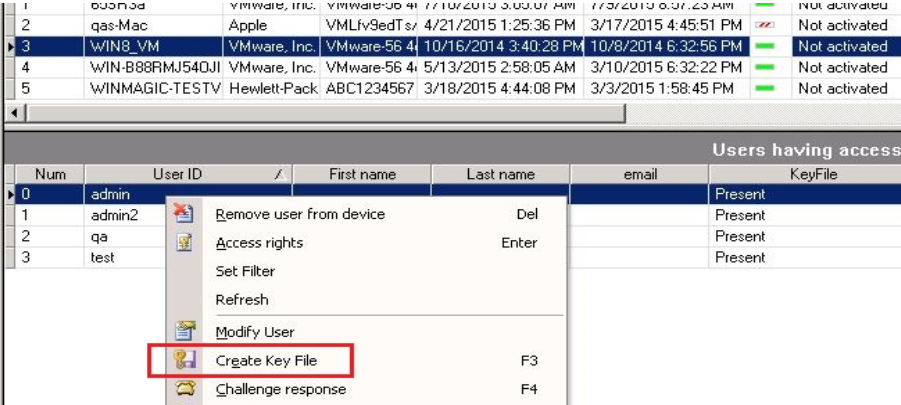
To push down the key file to primary device, click on “Apply user password from database”
Click OK.
Restart the device > log in with the admin account at Preboot login screen
Once in Windows, slave the defective drive to the device.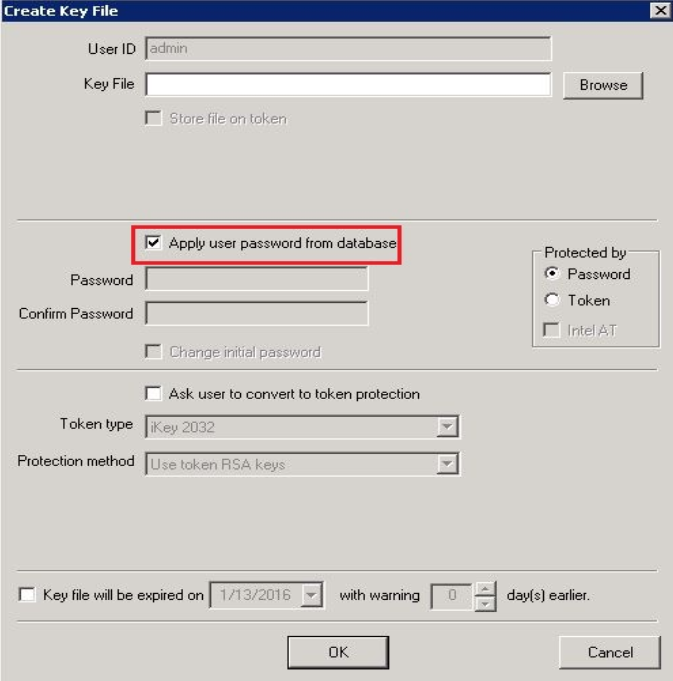
Method 2: Create a new user account
Navigate to the Users tab > right click to select ‘Add User’. Make sure that this user has a password, full administrative rights and import (Add) the AES device key for this user.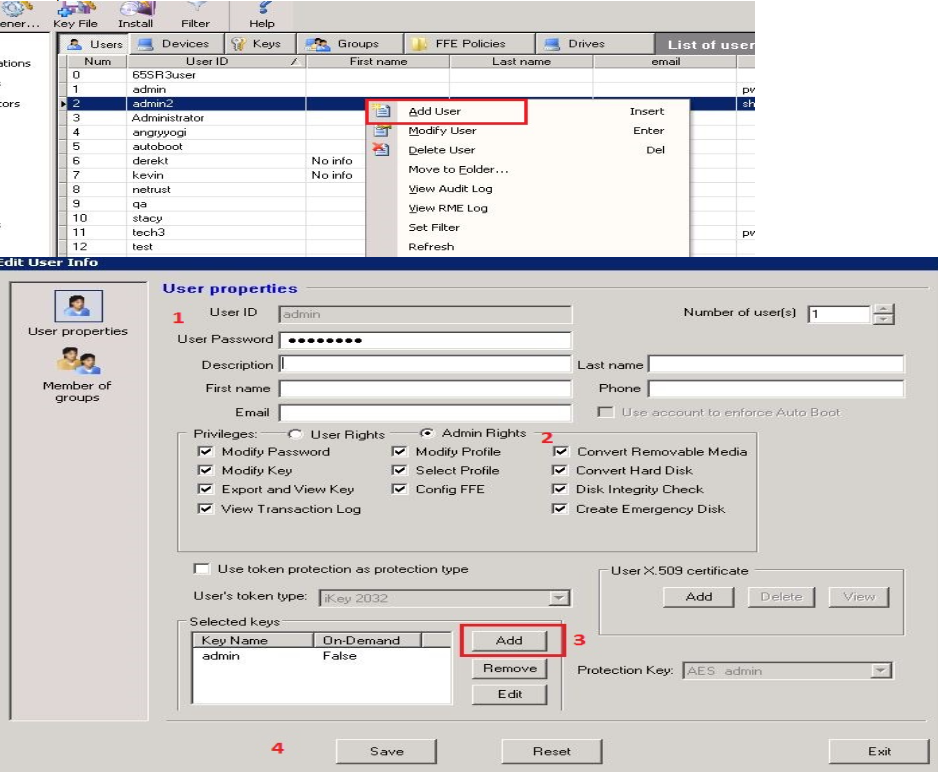
Click ‘Save’ button to save the user account.
Under the Devices tab, locate the encrypted device that needs decryption\repair\data recovery.
Right click on the device and select ‘Add Users to Device’ and select the user that has been created with AES Key for that crashed device.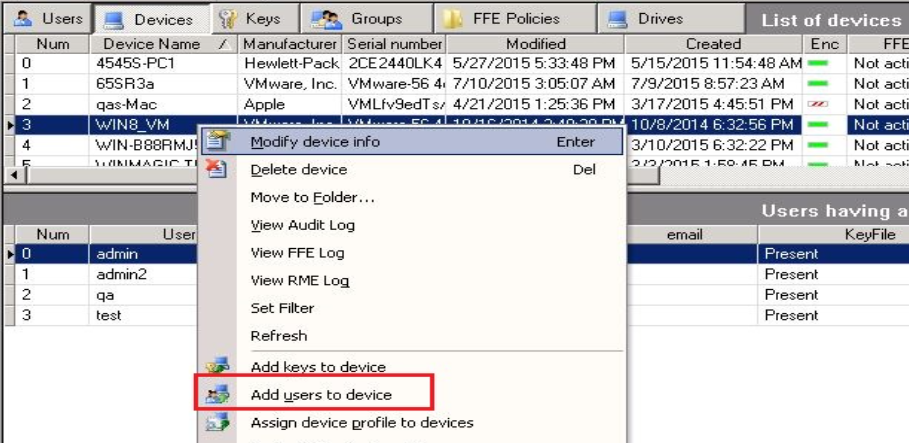
Once the user is added, have the device communicate with the server. Then right-click on device and select ‘Show Commands’ (Please wait till command is executed)
Restart the device and at the Pre-boot Login screen, use the new credentials to log in.
Once in Windows, slave the defective drive to the device.
Additional Information: KB 1534 - Connecting an encrypted drive as a slave