Summary
For one reason or another, at any point in time you may be faced with needing to log in to a key file on USB.
This can serve many purposes such as:
- unlocking a device, if the time changed more than 24 hours
- unlocking other key files in the Stand alone version, if they have become locked out
- just to log in to a key file with admin rights because there isn't one available on the device.
It’s possible to login to a key file from a USB on SecureDoc for Windows.
Instructions Steps:
Note for all platforms:
SecureDoc only supports USB Flash drives under the following scenario:
- USB is not encrypted
- the USB sticks must be formatted using FAT16 or FAT32
At boot logon:
SecueDoc follows the 8.3 filename standard for file structure:
- 1st part of the filename cannot be more than 8 characters in length.
- The filename extension cannot exceed 3 characters in length.
- (Format example: 12345678.123)
Tip: If you are using a flash drive that you use heavily in your environment, backup the data and run a quick format on the drive before copying the key file to the root of the drive.
Once you have the key file created and copied over to the drive:
- insert the flash drive into the affected device
- boot the system up.
V5/PBLU/PBU Boot Logon: Typically will display both Username\Keyfile and Password field.
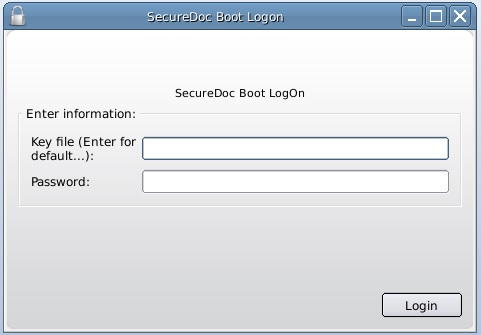
Type in the key file name with the .dbk extension at the end. This is case sensitive.
- Tab down to the Password field.
- Type in the password.
- Press Enter key, and the system should continue to boot.
V4 Boot Logon: To Access V4 Boot Logon (as long as it was not disabled in Profile>Boot Config), the user will need to tap the "a" key prior to Securedoc Boot Logon Screen booting up
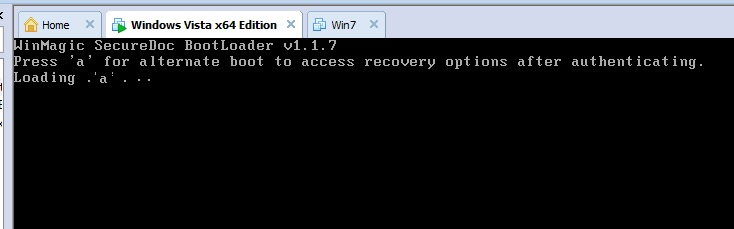
If version 4 is prompted, the user will see an older looking logon page with only one field.
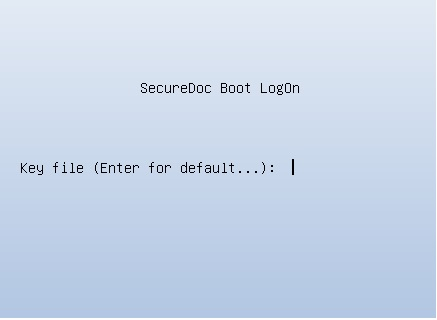
When the boot logon prompts for a key file or username:
- Type in U:\ and then the key file name with the .dbk extension.
Note: with V4 Boot Logon, the drive letter will always be U, even though the flash drive may detect as E or a different letter in Windows.
- Press Enter key to bring up the Password prompt.
- Type in the password.
- Press Enter key.
Special Note with V4: The may be scenarios in which you may run into difficulties with the V4 Boot Logon being unable to find the key file on the USB. If this occurs, you want to check the BIOS for USB Legacy Support and make sure this is Disabled. If your computer does not have USB Legacy Support option, it might include feature called “USB Emulation”. You can try enabling USB Emulation.
(These settings may be listed using different terminology, depending on the BIOS manufacturer for your device..)
- You may also have to try different variations of u: and the key file name.
- Try any of the following combinations if the above suggestion for the v4 boot logon does not work:
Replace <Key file> with the name of the keyfile in the following examples:
u:\<key file>.dbk
u:\<key file>
u:<key file>.dbk
u:<key file>
CAVEAT: In some cases, there can be certain make and model of USB sticks which cannot be properly detected or read successfully by Boot Logon. In the event you’ve attempted the above and noticed that you’ve unable to access the contents of the USB memory stick, you might want to consider trying a different make/model of memory stick to see if it can be successfully read.
Note: If necessary to sign in to the SecureDoc Control Center with the key file then follow these steps. Rename the key file i.e "admin.dbk" but the user ID name is "administrator" then login to SecureDoc Control Center with the user ID "administrator" with the password from the key file. If the key file name was shortened or renamed i.e. "admin.dbk" to make it easier to type at preboot, you will need to type the actual user ID "administrator" associated with the key file to sign in.
Copy Key file to the user data
Steps
1. Log in to Windows.
2. Copy the key file from the USB to the user data folder located at C:\Program Files\WinMagic\SecureDoc-NT\UserData for 32 bit or C:\Program Files (x86)\WinMagic\SecureDoc-NT\UserData for 64 bit.
3. Login to SecureDoc Control Center with key file from the USB.
Custom Fields
Operating System: All
Version: Affects all versions of SD