Connecting an encrypted drive as a slave
Topic:
This article provides a recovery procedure for connecting an encrypted drive as a slaved device (e.g. using a USB drive adapter, or via E-SATA) to an existing SecureDoc-protected device, in order to gain access to the data within the slaved drive.
Product version affected:
All SD version
Environment:
All Windows OS versions
All devices
Steps to follow:
Note: The machine hosting the slave hard disk requires SecureDoc to be installed in order to read the encrypted slave disk.
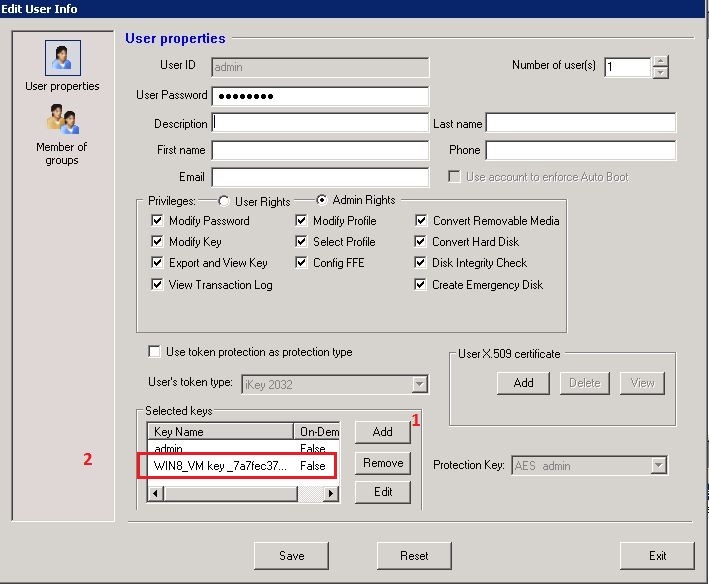
- Using the SES console, add the encryption key that is encrypting the (crashed) hard disk and the encryption key for the host hard disk to the administrator’s account that will be looking into this issue:
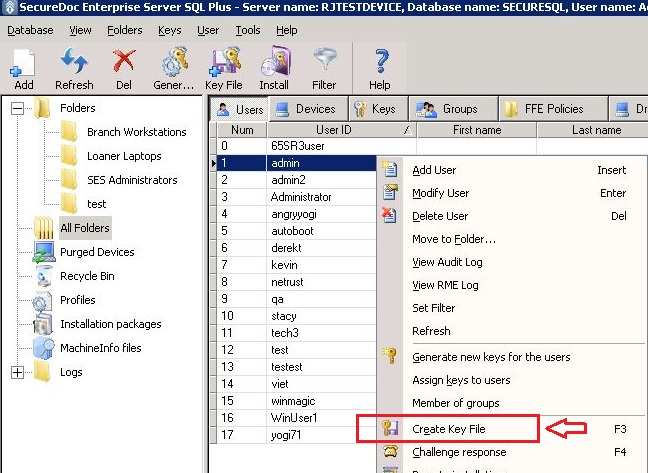
- After the encryption keys are added, right-click the administrator’s account and create a key file. Save this key file to a USB drive
- Power off the machine and connect the hard disk to be slaved.
- Plug in the USB, power on the machine, and log into your key file on the USB (using u:\keyFileName.dbk as the username)
- Upon logging into Windows, browse to the slaved hard drive. You will have the ability to access your data on this hard drive.