Topic:
This How-To article provides instructions on how to add or elevate User Admin privileges for Device by changing the definition of the user's rights, then transmitting those changed rights by sending down a new Key File to the affected device(s).
Product Version Affected:
All SD versions
Environment:
All Windows and devices
Steps to follow:
1) Open SecureDoc Enterprise server
2) Click on all folders view > select Device tab on your right hand side > find and highlight the device > on the bottom it will present all user having access to device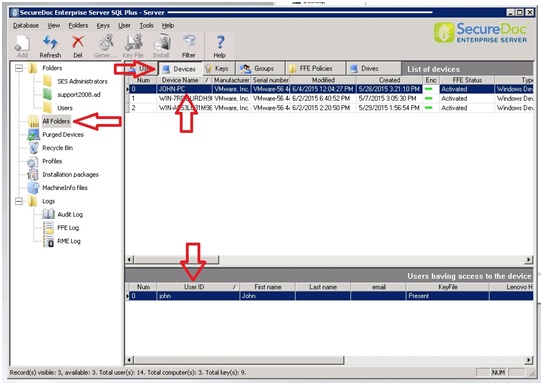
3) Double click on the user below and User access rights on device window will open
4) Select Admin rights > click OK 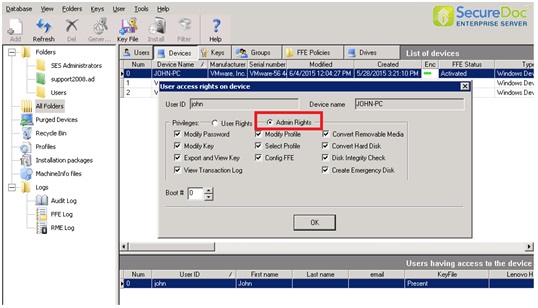
5) Right click on the user on the bottom > generate key file or press F3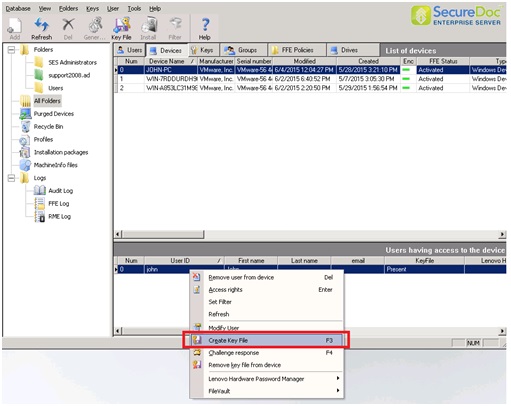
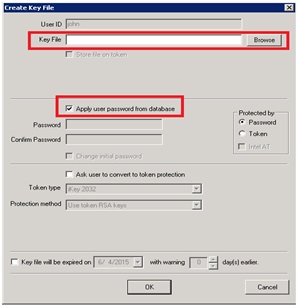 6) Select apply user password from DB. Note: There is no need need to specify the path for key file because it gets pushed to Device.
7) Force Device to communicate with SecureDoc server to receive the update
8) To verify if the Device has received an update > right click on device and select show commands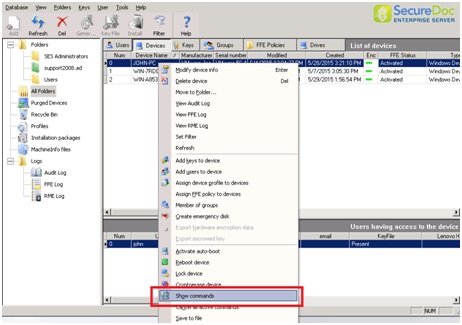
 9) Once we have verified that command has been executed on Device > Reboot or shut down your device go through Pre-boot authentication and our User should have Admin rights.
1444 How to add or elevate User Admin privileges for Device
- Updated on Feb 11, 2026
- 1 minute(s) read
- VN
Was this article helpful?