Key file with new User Rights sent to device from SES did not yield a change in rights on client machine
How to correct issue where the SES Administrator, having made changes to the user’s privileges and then requesting that a new Key File be pushed down (sent over the network), determined that the new functionality was not reflected in the user's capabilities within the Control Center (the user was not able to access the newly-authorized features).
There is often confusion in the minds of new SES Administrators regarding where and how the Rights settings apply. This is not surprising, as the set of checkboxes shown below appears in a number of places throughout the SES console, and the differences in behavior and where each set of rights will take effect is somewhat subtle.
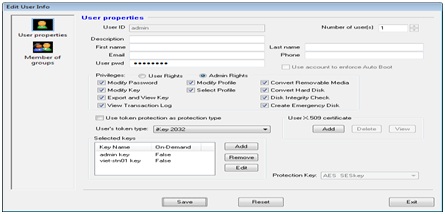
NOTE: This cannot be accomplished simply by right-clicking on the User to access User Properties, as in the image below. The rights defined in the User Properties panel apply ONLY when the user is being added to new devices on which the user has not (to this point) had a Key File on that device.... changes here will not alter the user's rights on any machines on which the user already has a key file).
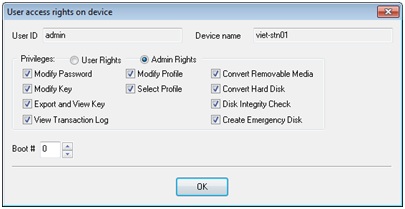
To produce the desired change in User Rights, the Administrator must double click on the user in the lower panel of the Devices view (ie. a device has been chosen in the upper panel, and now the Administrator is administrating the rights of the user on the device in question. Make the desired changes in this panel (as in the image below).
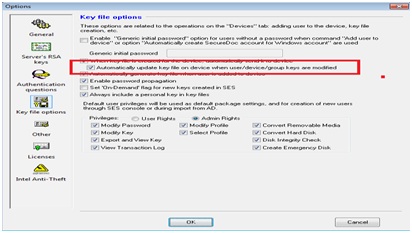
RECOMMENDATION: To simplify subsequent management and automate deployment of new Key Files: In the Application Menu, sect "Tools" | "Options" and then select the Key File Options navigation to display that panel. Check off "Automatically update key…”, as is highlighted in the image below.
That option will cause new key files to be generated and sent automatically to users when their rights are changed on any device.