Topic:
This How-To article provides steps to configuring Single Sign On and Credential Provider on an SES device through settings defined in a SecureDoc Device Profile, using the SES Console.
Product version affected:
All version of SecureDoc client
Environment(OS/hardware/software):
All Devices and Windows 7 OS or newer
Steps to follow:
1. Ensure the device has a Windows user account. If not please create a Windows account (local or AD).
2. Have the end user logs into windows at least once with the Windows user id because it needs to create a Windows profile.
3. Restart the device
4. From the SES console, either right click to ‘Add profile’ or ‘Modify profile’ > Select ‘General Options”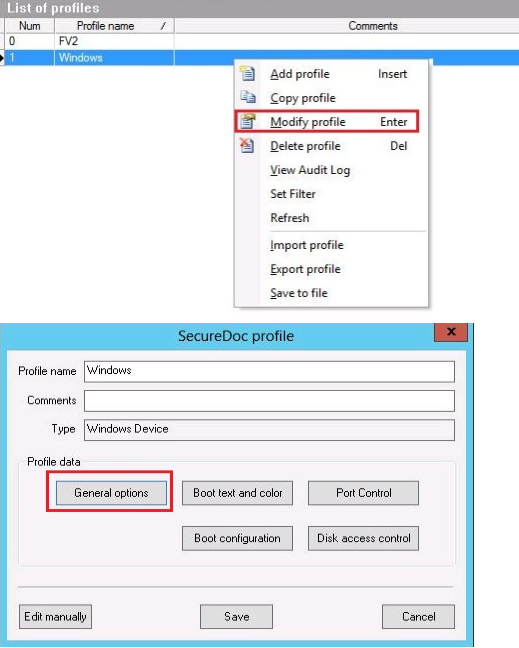
5. Under the ‘General’ button, please enable the following options:“Synchronize SecureDoc With Windows Password (bi-directional)" and “Synchronized with Matching Windows account only”.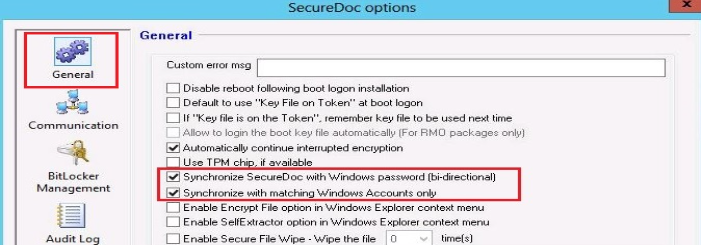
6. Under the Credential Provider section, select the option, “Automatically log in to Windows with Credentials entered at Boot Logon”
Optional: Customer can decide whether or not to use the option, “Use SecureDoc credentials to logon into Windows” or not. Please determine which options are suitable to the customer environment.
Note: It is designed to prevent another Windows user from logging into the system.
The client logs in at Boot Logon and then into Windows > Logs off > then someone else logs into Windows.
Without the SD account, the unauthorized user will not get access to the OS.
7. Click OK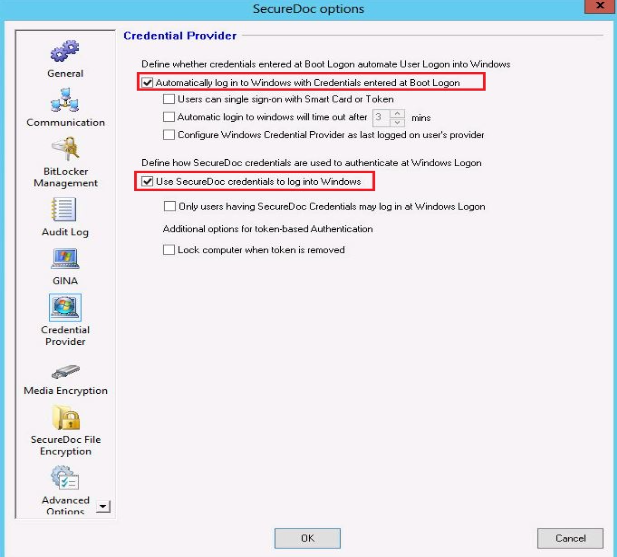
8. From the SES console > Highlight the All Folders > under the Devices Tab, Right click on the device > Select ‘Assign device profile to devices’ 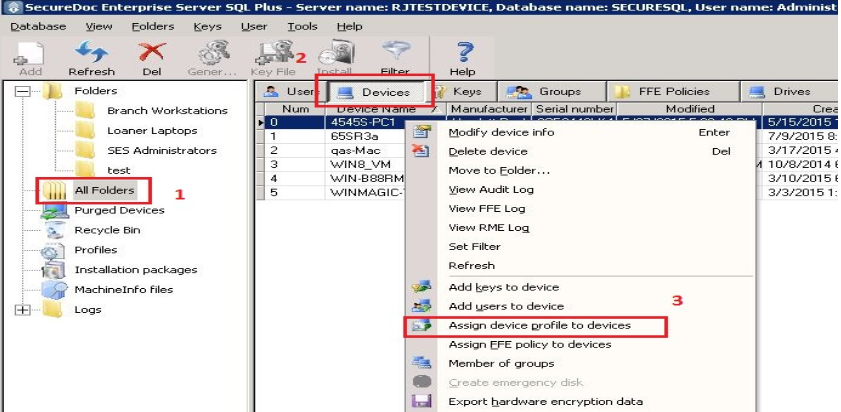
9. Select the profile, ‘Windows’ > Click OK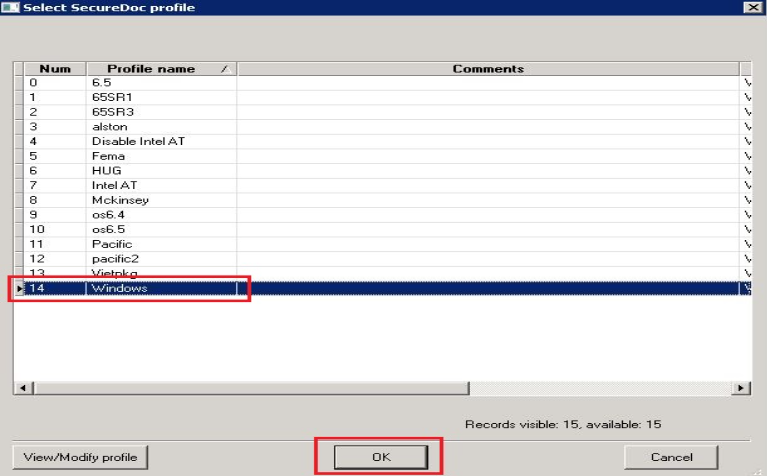
10. Force a communication with the server from the device side by right clicking on the SD icon ‘Communicate with server’.
11. From the SES server side, right click on the device and select “show command”. When you see the execution status is executed and OK > Restart the device.
12. Have the end user log back in to the device using the SD account.
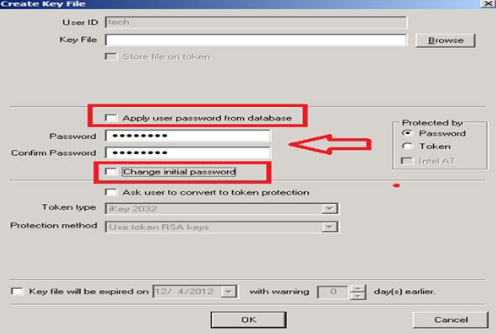
13. To push down a new key file to the user, right click on the User Id and > select Create key file > Enter a password but remove the check mark for “Apply user password from database” and “change initial password” > click ok. Have the device communicate with the server and then restart the device.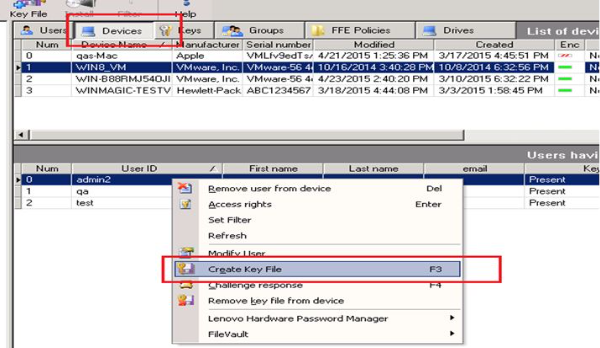
14. Log in at SD boot logon and then sign into Windows using their own password. A SD synchronization screen appears asking to enter the SD and Windows AD password.
15. Reboot the computer. The end user should then be able to log into Windows with the AD password only.