Topic: This How-To article provides instructions to changing the boot slot of the primary default user at boot logon.
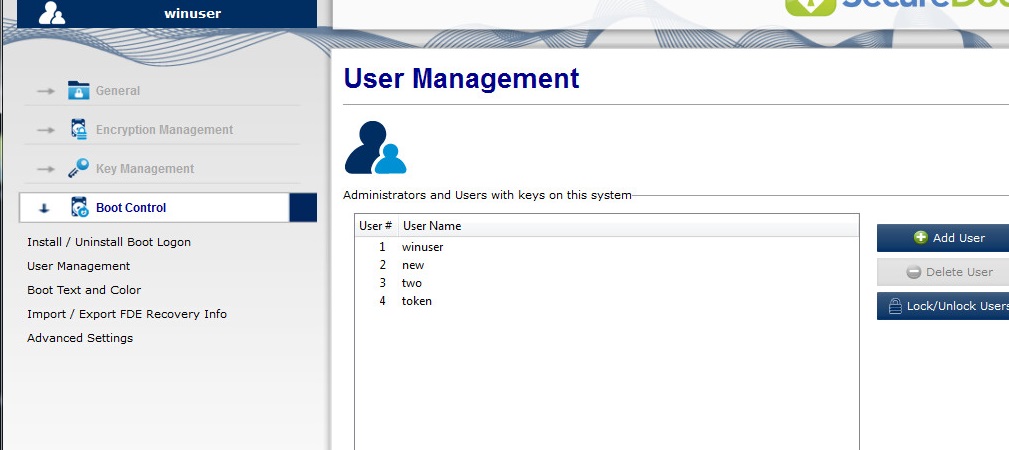
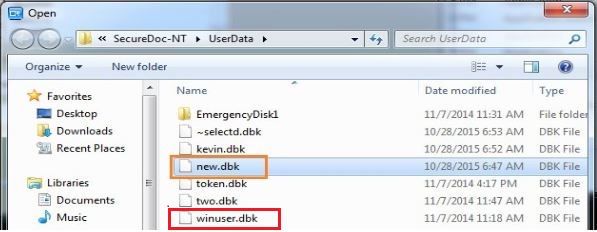
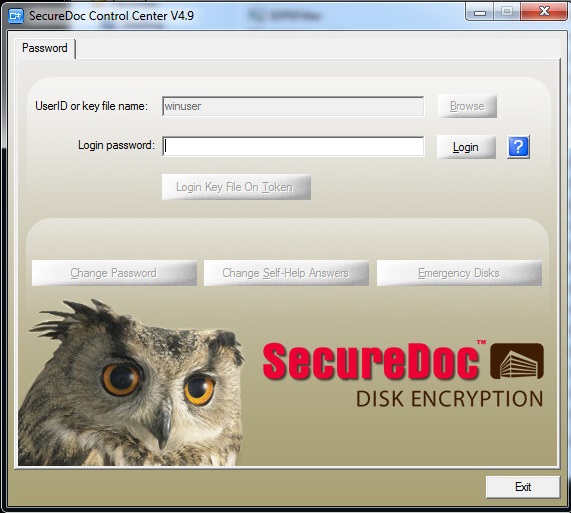
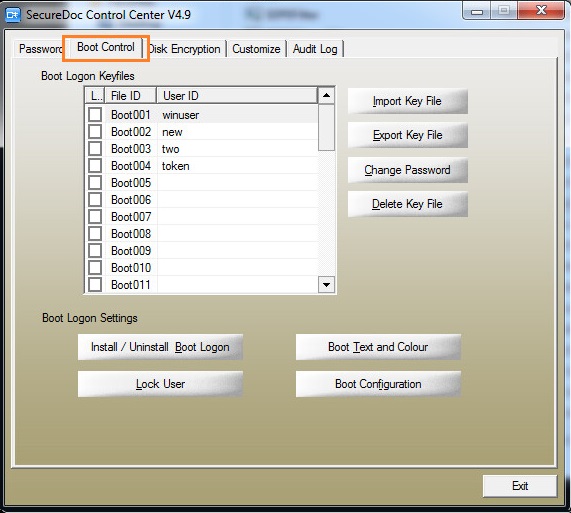
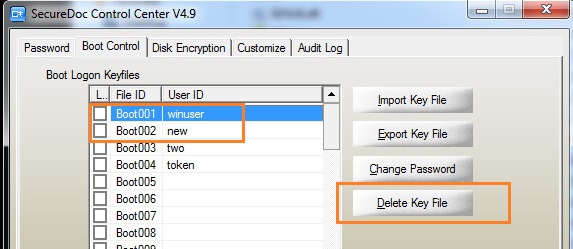
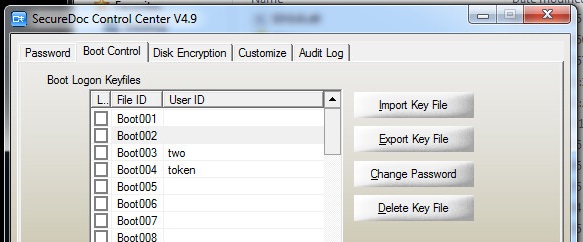
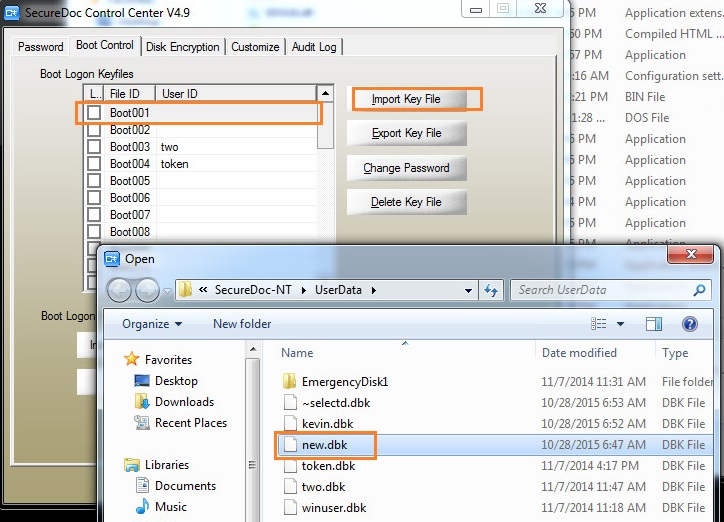
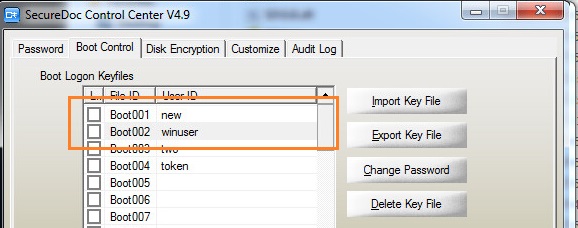
The screenshots below shows an example of switching the boot order of “Winuser” and “new” user accounts in the SD Control Center so that “new” account becomes the default account and will be the first on the list to boot from. Step1: Ensure that the two physical keyfiles are stored locally on the device before begin this process. i.e winuser.dbk and new.dbk files. Please see the screenshot below: Step2: Go to the c:\program Files|Winmagic\secureDoc-nt folder and run the SecurDocOld.exe file. Please authenticate at preboot using an admin user key file. (example: winuser) Step 3: Select the Boot Control Tab. Step 4: Highlight and delete both key files that you want to switch positions From the screenshot below, two boot slots are blank. Please Do not reboot!!! Otherwise the user will have issues of not getting access into the device. Step 5: Now import the keys again into the correct slots. Select the top slot. And import the user key. Then the second slot and import the admin key. It should look like this. Step 6: Reboot and the default account will now be the account in the first slot, In this case it is the “new” account.