How to change Boot Slots in SES
INTRODUCTION
The procedure outlined in this document explains how to change the boot slot for a user to become the default user on a device.
A default user in this context means the user does not have to type the userid at Preboot.
Disclaimer:
Although this allows for user convenience, a number of security administrators have expressed the view that is could be a security issue as it allows an attacker to easily obtain the ‘userid’ of the person by invoking the Challenge Response menu.
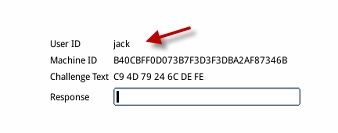
As such, WinMagic has also an option in the profile to force the user to type in his/her userid.
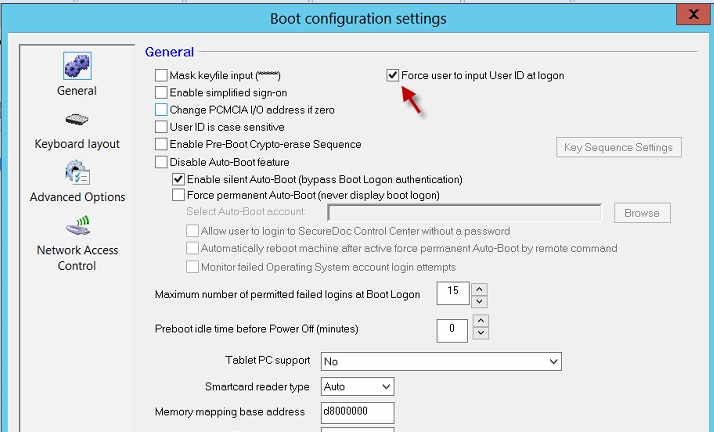
PROCEDURE
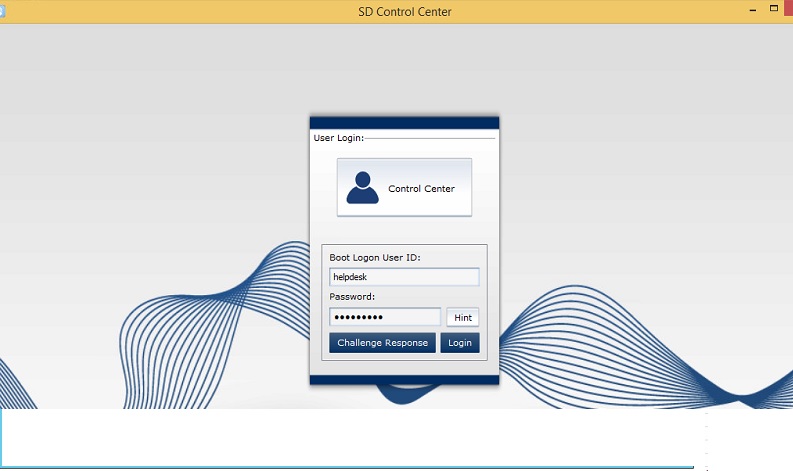
From the device side, login to the device as the ‘helpdesk’ admin account at Preboot and into Windows. Please ensure at this point that there should be only one SecureDoc account on the device
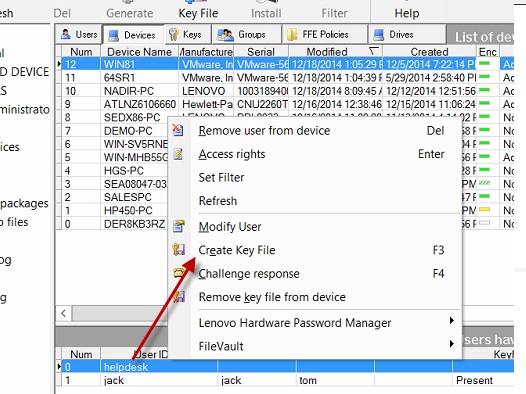
2. From the SES console, remove ‘helpdesk’ KeyFile from device (see highlighted option) and wait for the command to execute. If you do not have access to the SES console, please consult with your SES administrator to complete this step.
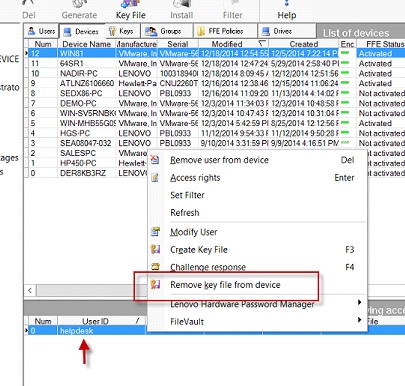
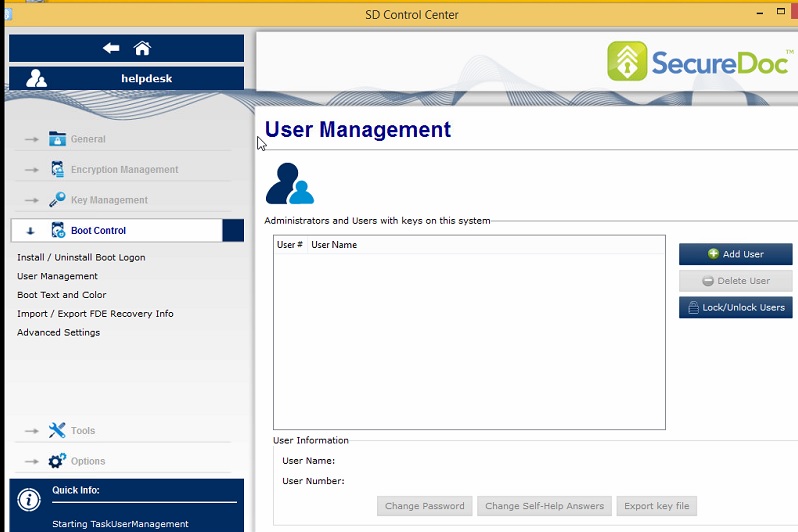
3. You will still be able to login to SDCC (within the same Windows session)
User Management should show empty (do not reboot the device yet)
4. From the SES server, it will still display the ‘helpdesk’ admin account under the device (this is to be expected)
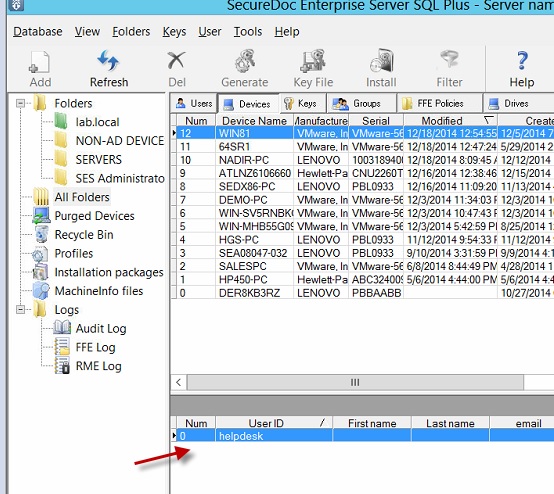
5. Under the Devices Tab, right click on the device and select “Add users to device”
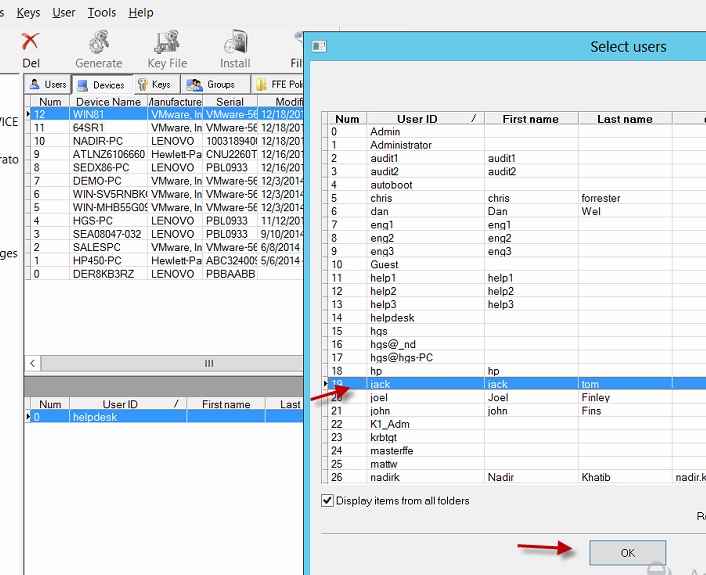
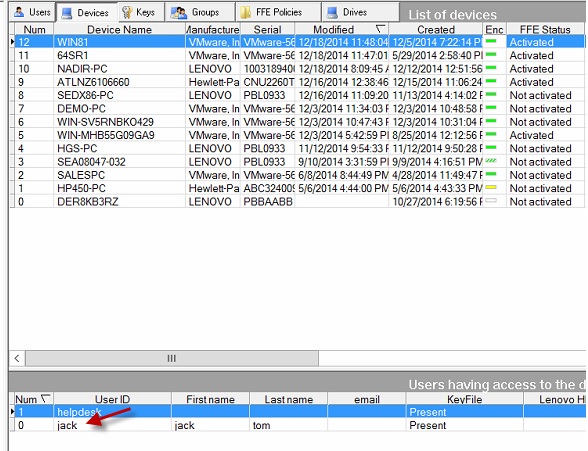
6. In this case, the user ‘jack’ will now be listed under the Device
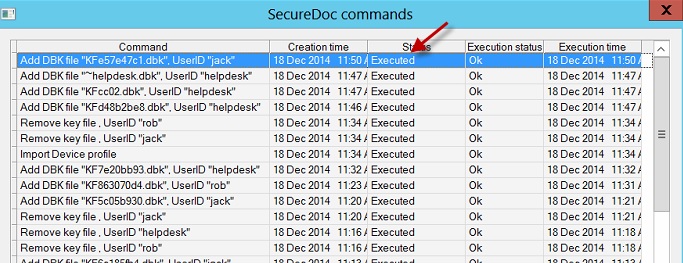
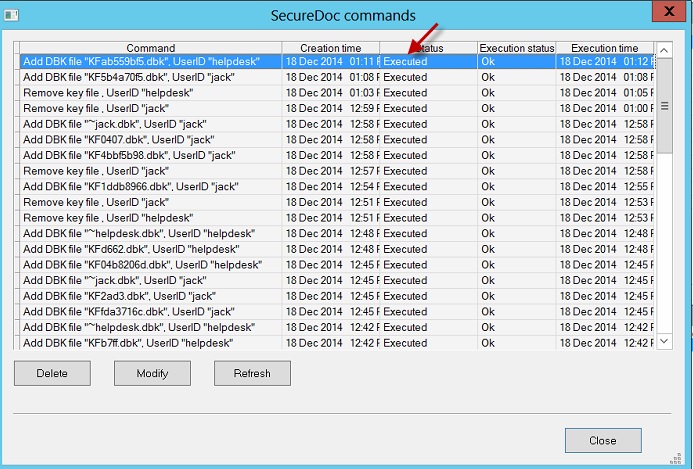
7. Right click on the device, and select “Show Commands”. Confirm the command has been executed
8. You will need to re-create the Key File for the ‘helpdesk’ admin user.
Right click on the “helpdesk” user and select “Create Key File”.
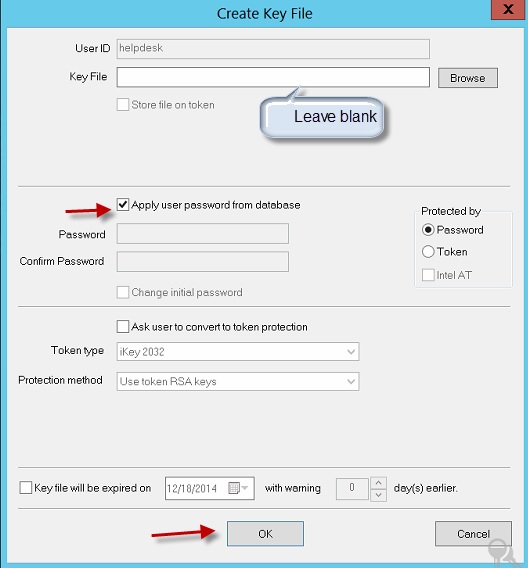
Only place the check mark on the option, “Apply user password from database”. Click Ok --> Ok
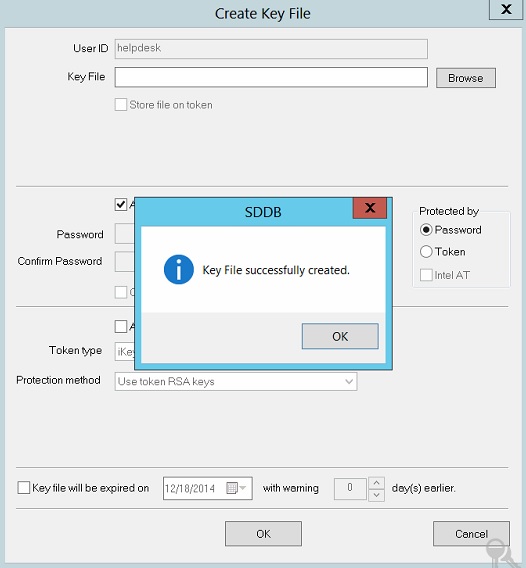
9. Right click on the device, and select “Show Commands”. Confirm the command has been executed
10. Reboot the device and then login back into SDCC as the ‘helpdesk’ admin account
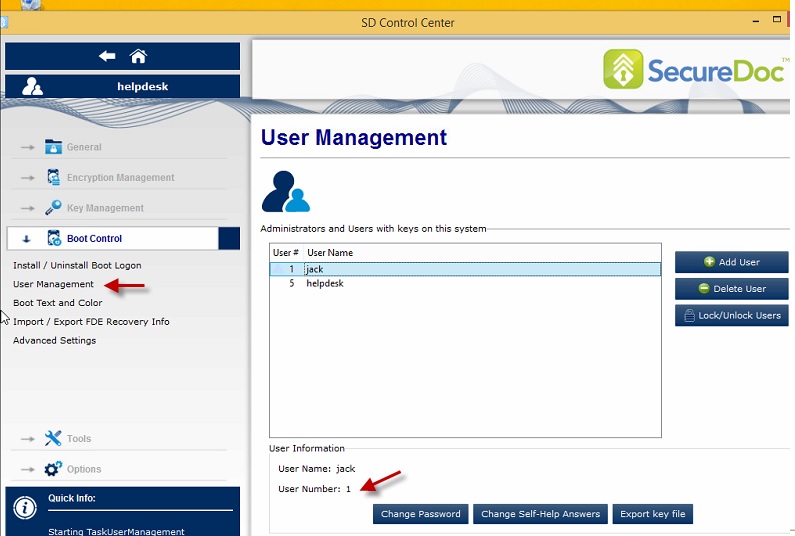
11. Check that the primary user is listed as ‘User Number 1’ which means Default user
Custom Fields
Article ID: 410
Operating System: Windows
Product_Documentation: Yes
Version: Affects all versions of SD