1384 How to perform a fixmbr and fixboot
How to perform a fixmbr and fixboot
The hard-drive can be repaired by the following steps: - Boot from WinPE disk
- Please contact WinMagic Support to obtain the WinPE tool
- Unlock the encrypted drive
- Open SDRecovery Application
- The encrypted drive will be listed. Click on 'Unlock'
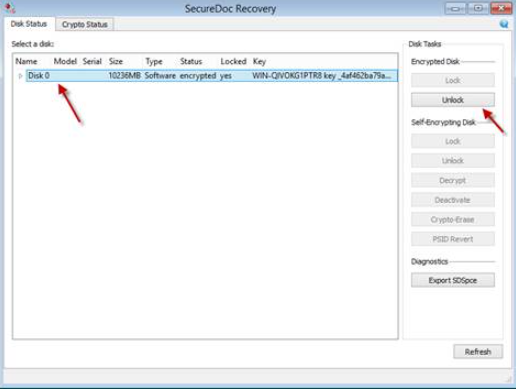
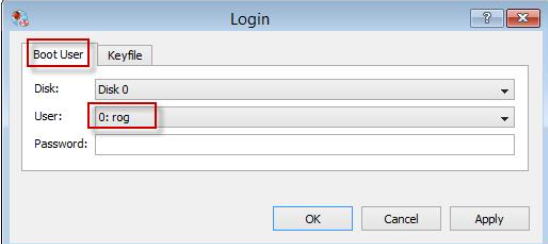
OPTION 1: Login to Local Key File - If a local key file is present from the drop-down, type in the password to authenticate and unlock the drive
OPTION 2: Login to External Key File - If the password to local keyfile is not known, then export a key file from SES.
- First identify and highlight the target computer in SES.
- Select a valid account under the target device.
- <style="text-align: center;"="">
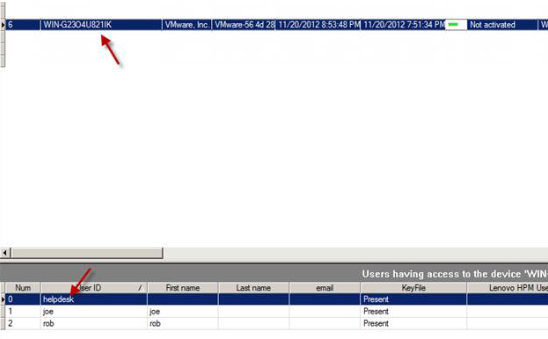
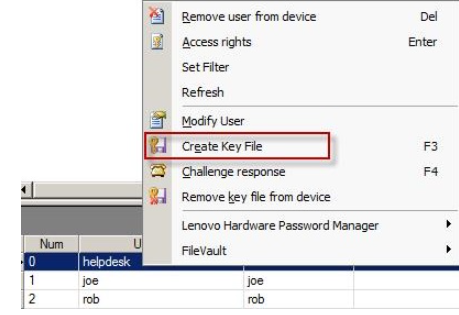
- Right-click on a the selected account and choose Create Key File
 - Browse to a USB Media and type in a password. This password will be used to authenticate to the extracted keyfile to unlock the target drive.
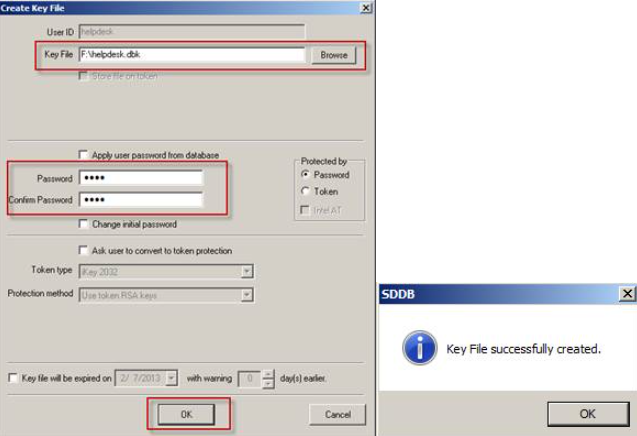
- Insert the Media to target device, which is still booted up with WinPE CD.
- Click on Keyfile tab and browse to the USB Media, select the DBK file created previously and authenticate with known password.
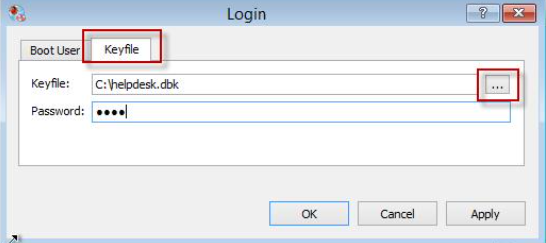
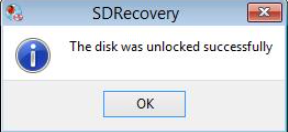
- A prompt confirms drive has been unlocked
- Run offline repair with the command below on a cmd window
- "sfc /scannow /OFFBOOTDIR=e:\ /OFFWINDIR=e:\Windows\”
- If error comes up saying a reboot is pending rename the ‘pending.xml’ file as below
- "move e:\windows\winsxs\pending.xml e:\windows\winsxs\pending.xml.old”
- When sfc completes, rename ‘pending.xml.old’ back to ‘pending.xml’
- Reboot system
|
Custom Fields - Operating System: Windows
- Version: Affects all versions of SD
|
Was this article helpful?
Related articles
Knowledge Base Articles > Recovery Solutions > WinPE Solutions
Knowledge Base Articles > Recovery Solutions > WinPE Solutions
Knowledge Base Articles > SD Client > Installation