How to modify SecureDoc's boot parameters to support Microsoft Hyper-V virtual machines
Symptom
When the user installs SecureDoc inside a Microsoft Hyper-V Virtual Machine, the VM-hosted Virtual Machine will Blue Screen after Pre-Boot Authentication and is not able to boot into Windows at all
Cause
A modification is necessary in SecureDoc's boot options to allow compatibility with VMware's Hyper-V Virtual Machine platform, which is referred to as a Hypervisor, and runs inside Windows 2008 Server.
Resolution
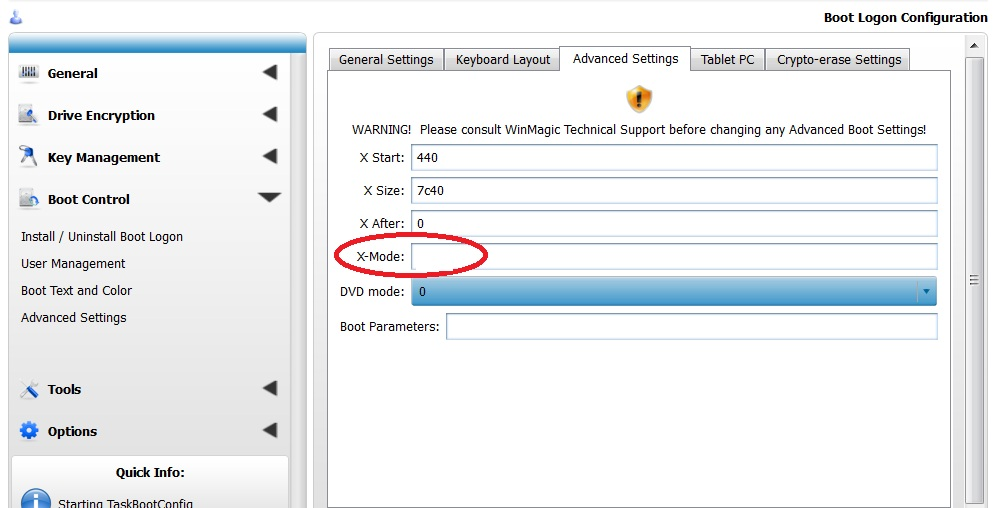
The work-around for this situation is to set the X-mode in Pre-Boot Authentication to a value of '6'.
This can be done via the pre-boot configuration menu, via SecureDoc Control Centre or via the SES profile.
Once this is done, SecureDoc continues to work without any further issues inside a Hyper-V-hosted Virtual Machine.
Method 1: via pre-boot configuration
At the boot logon screen, enter the username and password for the user (must be a user with administrative privileges) and press F8 to enter the configuration menu.
Press F5 to get into advanced configuration. Navigate to the x-mode field and change the value to 6
Method 2: via SecureDoc Control Center
Login to the SDCC with administrative user credentials, click on Boot Control, then Advanced Settings, then Advanced Settings again.