How to troubleshoot a Blank Screen (with a blinking cursor at top left) after Pre-boot Authentication
Issue:
Having authenticated to the Key File at Pre-Boot, instead of going into the Windows desktop, the computer instead shows a blank or black screen, with a blinking cursor near the top left corner of the screen.
Cause:
This issue typically arises where there are difficulties between the SecureDoc Pre-Boot environment (often at Version 5 which is Linux-based) "handing off" control to the Windows environment.
Resolution:
It could be that this issue will not reoccur when using the V4 Pre-Boot environment, so this is worth testing - largely so that the device can be brought up into the Windows Environment, after which it can communicate to SES and be managed by the SES server, or an Admin-level user can access the SecureDoc Client Control Center application.
- Shutdown the device.
- Power up the device and start tapping the "a" key, which will cause the "alternate" (or in this case the Version 4) Pre-Boot environment to be displayed.
- Enter user id and password and then press "Enter".
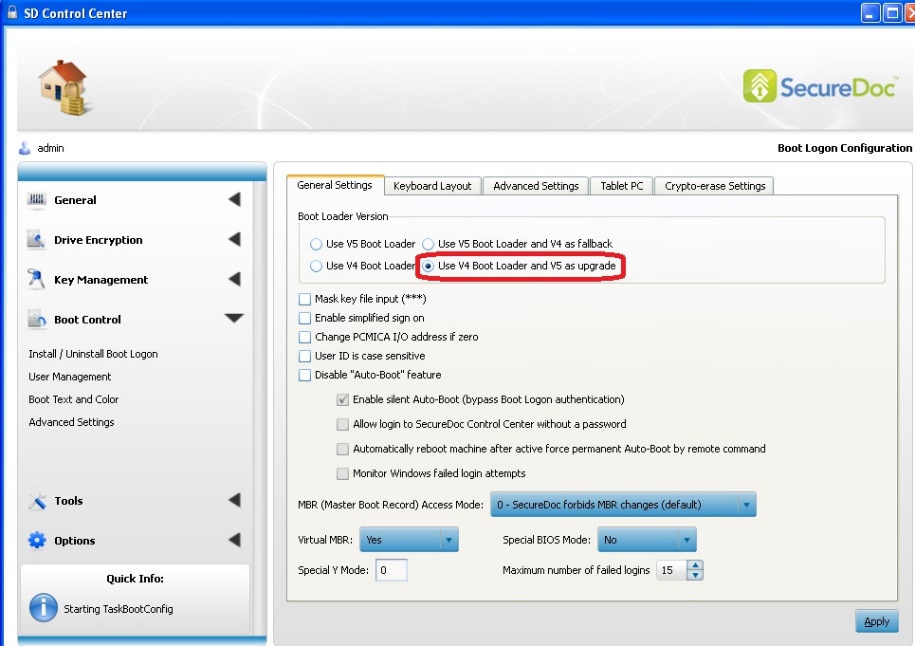
Once the Windows desktop appears, you can permanently configure the V4 boot loader to be the default within the Secure Control Center.
- Log into the SecureDoc Control Center
- Click on "Boot Control", and then go to "Advanced Settings"
- Under the boot loader version, choose "Use V4 Boot Loader and V5 as upgrade"
- Click "Apply" to save the changes.
Custom Fields
Operating System: Windows
Product_Documentation: Yes
Version: Affects all versions of SD