Modifying X‑Mode, Y‑Mode, and Other Pre‑Boot Settings in SecureDoc
Summary
This article explains how to access and modify X‑Mode and other pre‑boot configuration options in SecureDoc. These settings can help resolve issues related to problematic hardware or situations where the system is unable to boot normally.
Important:
Changes to X‑Mode or related settings should only be made when instructed by WinMagic Technical Support. Incorrect configuration may prevent the system from booting properly.
Screenshots referenced in this article may differ slightly depending on your SecureDoc version, but the functionality remains consistent.
Accessing Pre‑Boot Modification Options
Step 1: Enter Username / Boot User
At the SecureDoc pre‑boot login screen, type your Username or Boot User.
Step 2: Enter Password (Do Not Press Enter)
Type your password, but do not press Enter yet.
(See Figure 1.1)
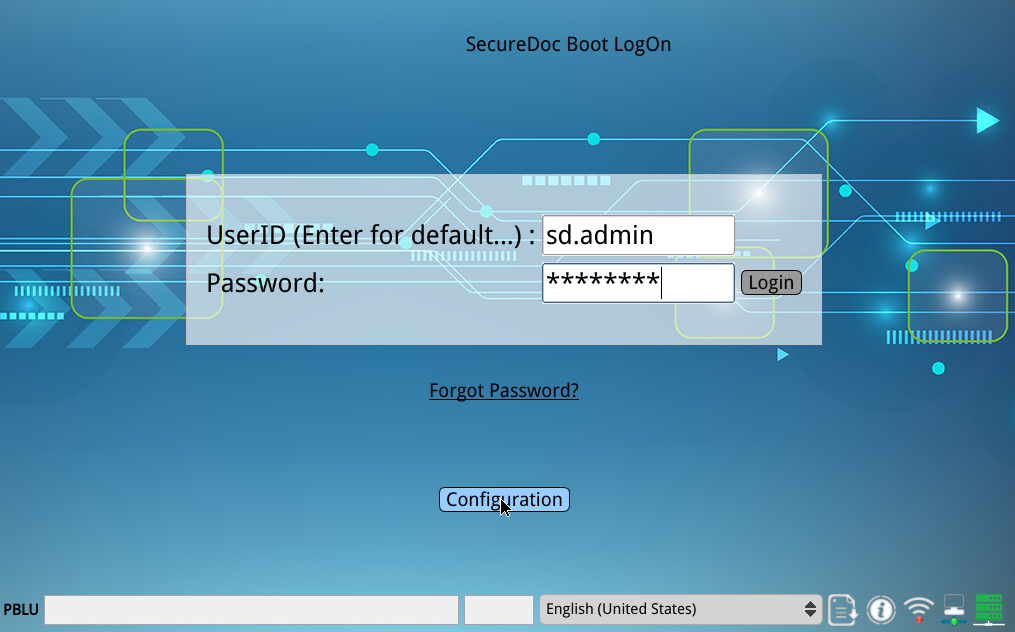
Opening the Pre‑Boot Options Menu
Step 3: Press the F3 key to reveal the Configuration button. Click it to open the advanced pre‑boot options menu.
Step 4: : Within the options menu, press the F5 key to access X‑Mode and related configuration settings.
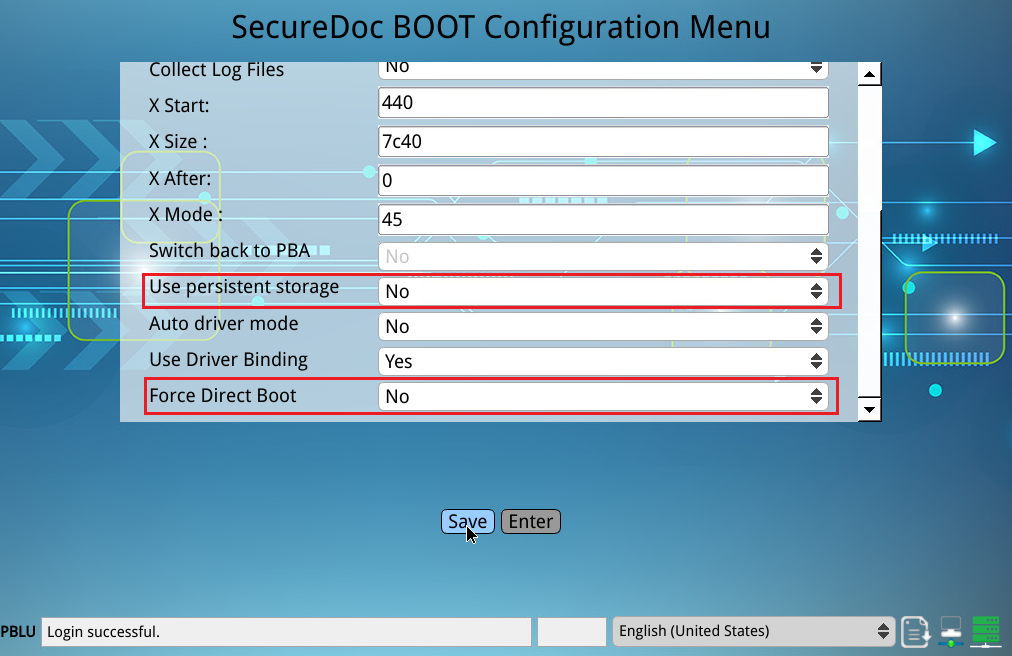
Modifying X‑Mode
Step 5: Adjust X‑Mode as Instructed
Change the X‑Mode value according to the guidance provided by WinMagic Technical Support.
(See Figure 1.3)
After making the required changes, continue with the normal boot process.