Installing the SD Boot Logon on a Device
Overview
This article describes the procedure for installing the SecureDoc (SD) Boot Logon on a device. This process is particularly useful when "slaving" an encrypted drive to a computer in order to decrypt it and/or extract data.
Product Versions Affected
- All SecureDoc versions
Environment
- All Windows operating systems and devices
Requirements
Before beginning, ensure you have the following:
- The Key file belonging to the device/HDD in question (used to install the Boot Logon)
- The Key file password
- The device’s AES encryption key information
Procedure
Step 1: Create a Key File
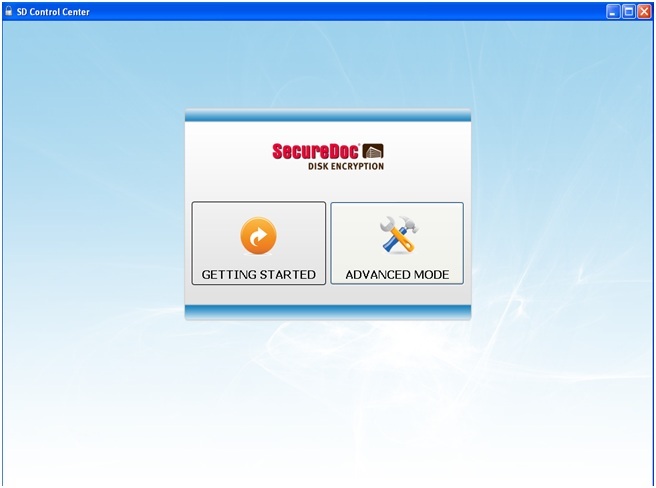
- Launch the SecureDoc installer.
- On the first splash screen, select Advanced Mode → Key Management → Create Key File.
Step 2: Configure the Key File
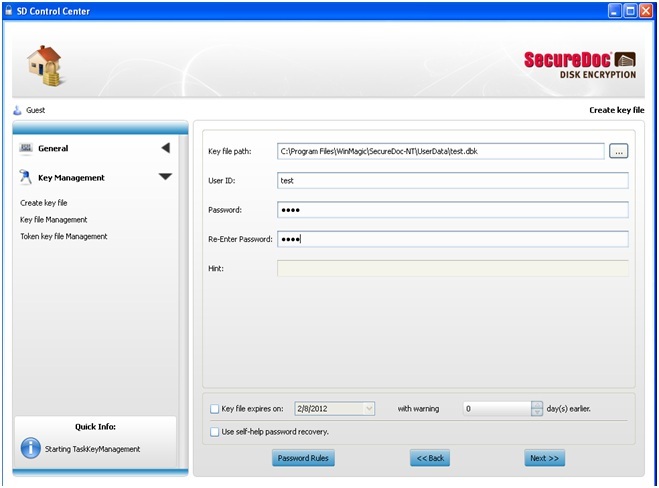
- Enter the Key file path.
- Create a User ID and Password, then click Next.
Step 3: Add Encryption Key
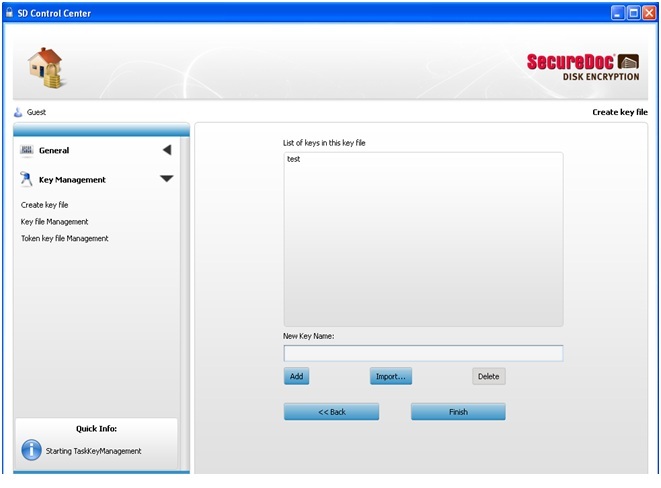
- Type the desired name for the encryption key.
- Click Add, then Finish.
Step 4: Log in with the Key File
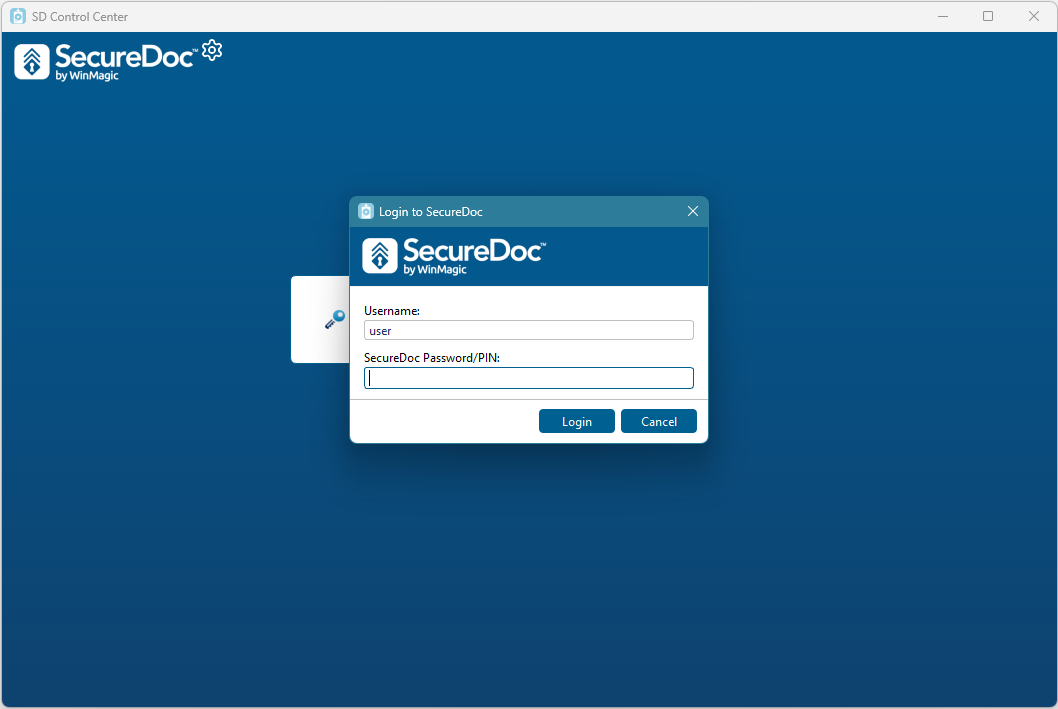
- Open the SecureDoc Control Center.
- Log in using the Key file you just created.
Step 5: Install Boot Logon
- Navigate to Boot Control.
- Select Install/Uninstall Boot Logon.
- On the Install tab, check HD1.
- Click Install to add the Boot Logon component.
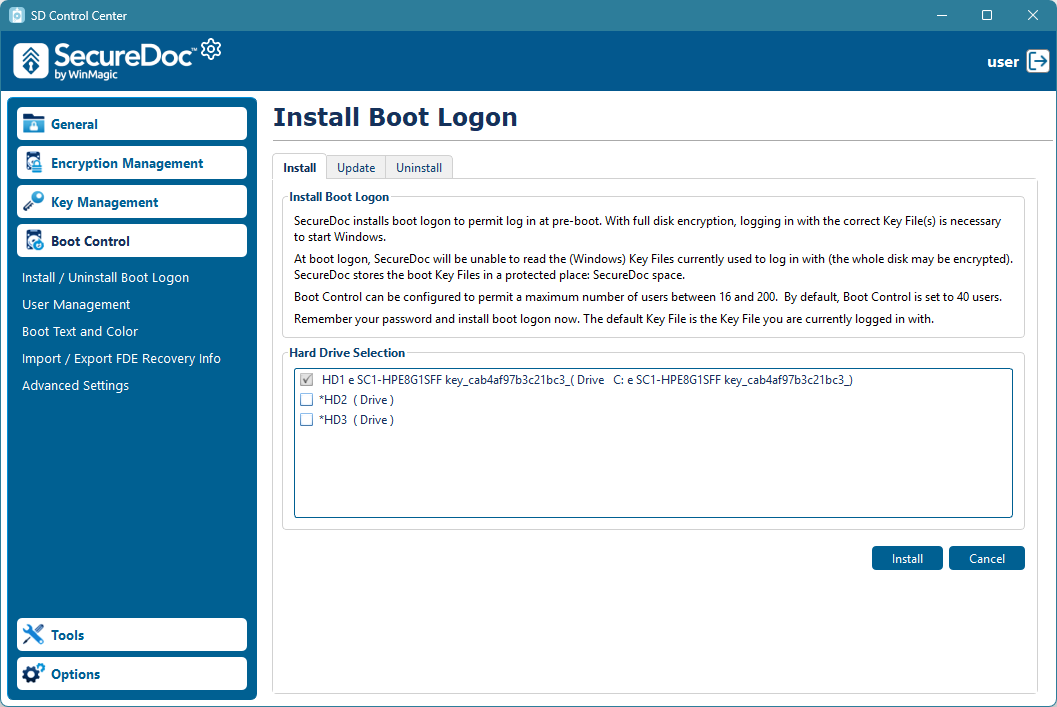
✅ Result: The SD Boot Logon is successfully installed on the device, enabling access to encrypted drives for decryption or data extraction.