How to decrypt and uninstall SecureDoc from a client machine?
KB 1408
This article provides instructions on how to decrypt and uninstall SecureDoc from an encrypted system. The step-by-step guide explains how to decrypt a given device's disk(s) and then remove SecureDoc encryption protection from that device.
The process also requires:
- specific elevated authority (accessed through logging into a Key File having Administrative
rights) followed by..
- a series of steps that must be performed within the SecureDoc Client Control Center (SDCC) .
Once these steps are complete, the device can be rebooted and the product can be removed.
Important: Restart only when instructed to. Once completed the decryption process, do not restart before removing the boot logon, as the device will re-encrypt due to our policy-based encryption which mandates that devices must remain encrypted while SecureDoc is installed.
Product Version affected:
All SD versions
Note – This article was created based on SecureDoc 7.1 SR6
Environment:
Windows Base OS
All devices
Instruction Steps:
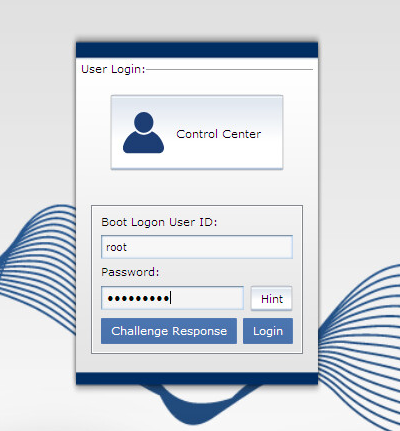
- Log in through SecureDoc Preboot with an account with SecureDoc Admin privileges. Then log into Windows with a Windows Admin account.
- Launch the SecureDoc control center from the system tray and login with a SecureDoc account with SecureDoc admin rights.
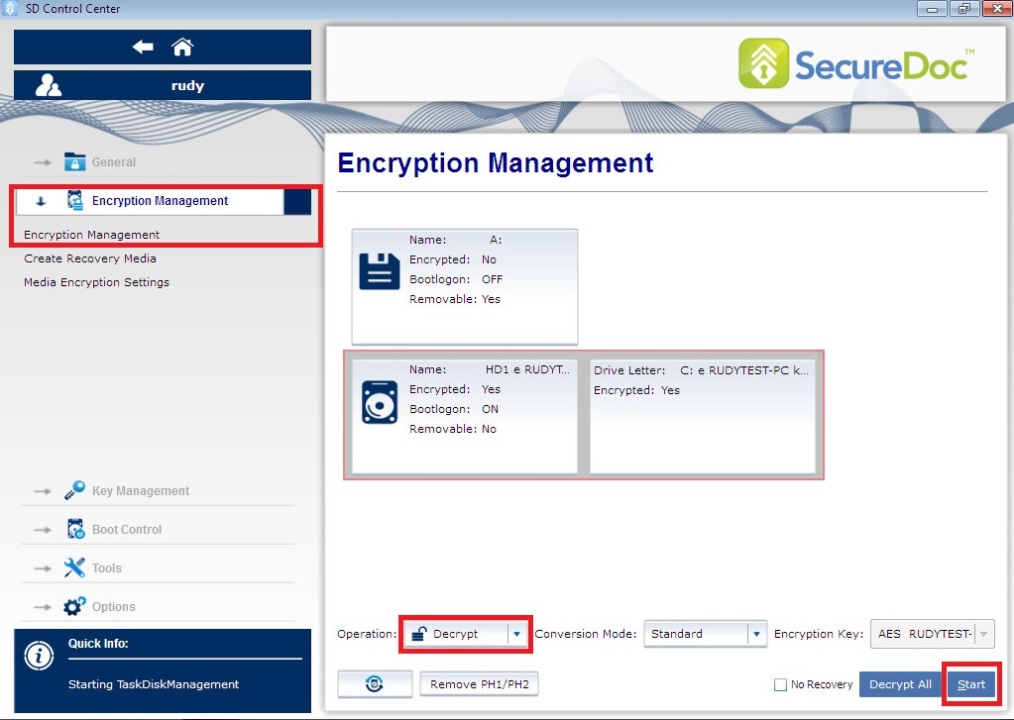
- Click on Encryption Management menu, then Encryption Management sub menu.
Select the drive to decrypt:
- From the Operation Drop down, select “Decrypt”
- Click Start
Note: If there are more than 1 encrypted drive, this process will have to be repeated for all encrypted drives.
The hard disk will start to decrypt; it will take the same amount of time it took to encrypt, please wait.
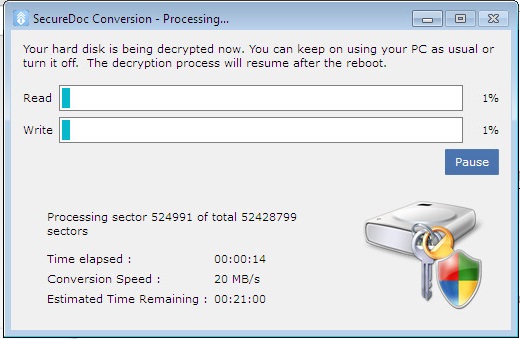
Once decrypted, a message will be displayed indicating Conversion finished successfully.
- Next, remove the Boot Logon portion of the software from the system:
*If using a Self Encrypting Drive (SED) , skip this step and proceed to step 5.
- Select the Boot Control Menu and then “Install/uninstall Boot Logon”.
- Select the Uninstall tab on the center pane.
- Check checkmark box for HD1(Drive C:) and click Uninstall near bottom of the page
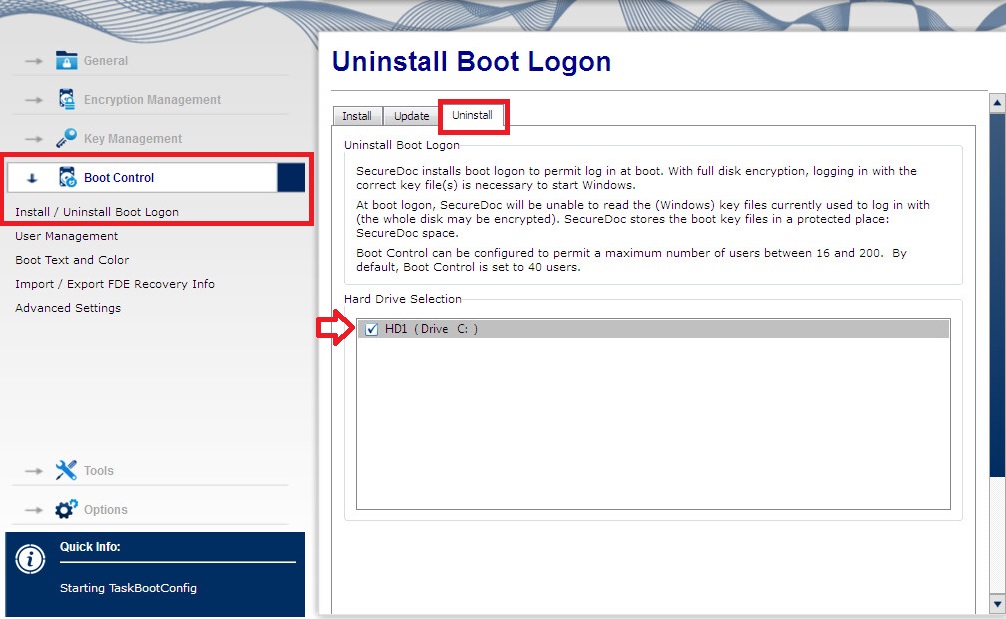
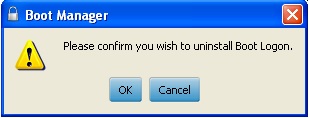
- Click on OK to confirm uninstall of Boot Logon
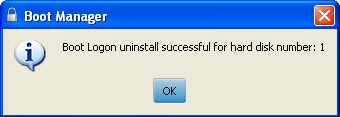
- After Boot Logon has been uninstalled, please click on OK
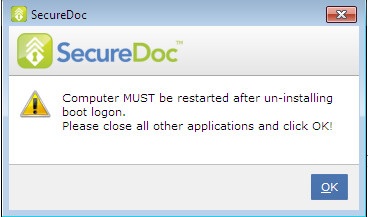
- Click on OK to reboot the client machine.
Now when the system reboots, the SecureDoc preboot logon will not be displayed. Only the Windows Login window.
- Log in with a Windows Administrator account.
After the Windows Desktop loads, you can continue to uninstall SecureDoc program from the Windows Add/Remove program or Windows Programs and Features within the Windows Control Panel