To allow SDLinux to be installed on a system with Secure Boot enabled, Secure Boot will need to be disabled temporarily to allow the installation and encryption process to complete, after which Secure Boot may be re-enabled after. Typically disabling Secure Boot can be done through your systems’ UEFI/BIOS settings, however if access to this is not possible you can use the mokutil utility to disable Secure Boot
I. Disabling Secure Boot with mokutil
Open terminal and run
mokutil --disable-validation
Choose a password between 8 and 16 characters long. Enter the same password to confirm it.
Note: the password you provide here is a temporary, one-time password used to authorize access to MOK management during the next boot.
Reboot the client machine after the password has been set.
On start-up, the user should see the MOK management prompt. Press a key to perform MOK management.
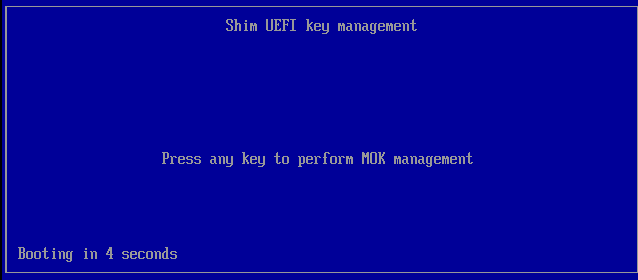
Select “Change Secure Boot state”
Enter each requested character of your password to confirm the change.
Note: You do not enter your entire password on this screen. Instead it will prompt you with a number for which you would enter the corresponding character in your password and then press Return/Enter for each character (it will prompt you to enter 3 characters of your password).
Example:
When you are first initially prompted to enter password it will appear as follows.
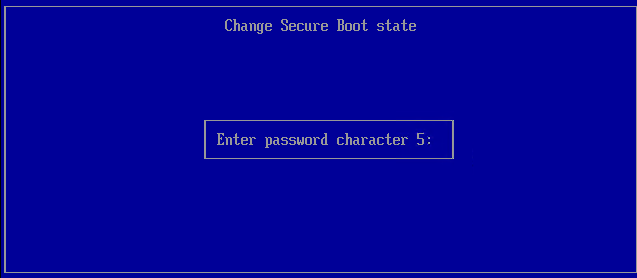
The above means, that you should enter the 5th character of your password (the one you have set-up in step #2). So if your password was set as “password1”, the 5th character would be “w”
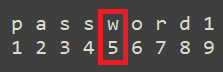
Enter the character “w” and then press Return/Enter. Repeat this step 2 more times.
Once successful, Select “Yes” to disable
Select “Reboot”
After reboot, you can open terminal once more and run the following command to check if SecureBoot has been temporarily disabled:
mokutil --sb-state
The output would be something like

When you reboot the system, you would also see a “Booting in insecure mode” on the console output
II. Install SDLinux
For detailed installation instructions, please refer to the “SecureDoc for Linux Endpoint Deployment – pg. 39, Run Installation on Linux Client”
Copy the Linux Package to the client machine
Extract the tar.gz installer package
Navigate to the extracted ‘winmagic’ folder and run the install script: ./install.sh -s
Once the initial install process is successful the system should automatically reboot
After the reboot, login to the OS and complete the Primary Ownership prompt.
To check the current encryption status, open Terminal and run the following command as root:
/usr/local/WinMagic/secdoc-cli.py
Wait for the encryption to complete on the system
III. Re-enable Secure Boot
Important: The following should only be performed once the client machine has been fully encrypted
Open terming and run
mokutil --enable-validation
Choose a password between 8 and 16 characters long. Enter the same password to confirm it.
Reboot the client machine after the password has been set.
On start-up, the user should see the MOK management prompt. Press a key to perform MOK management.
Select “Change Secure Boot state”
Enter each requested character of your password to confirm the change.
Select “Yes” to enable
Select “Reboot”