KB Article 2545: Editing Encrypted Photo Files on Windows 11 Using SecureDoc SFE
Summary
When working with encrypted photo files on Windows 11, users may encounter issues such as greyed‑out File Explorer windows or the inability to edit photos using the default Photos application.
Users may encounter the following error message, “It looks like we don’t support this file format”. This occurs when SecureDoc File Encryption (SFE) restricts application access to photo.exe.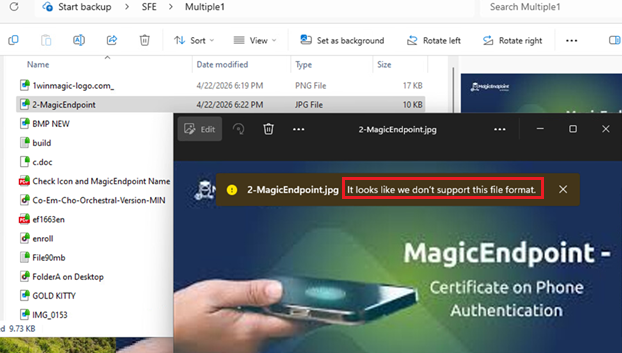
The behavior(s) may vary depending on SD versions and SFE policy configuration. This article provides a couple of workarounds to enable photo editing for encrypted files.
Applies To
Windows 11
SecureDoc SFE 9.0 SR1 and newer
SecureDoc Client with SFE + PE enabled
Prerequisites
SecureDoc (SD) client installed
SFE and PE features enabled
Workaround 1:
Create an encrypted Folder:
a. Ensure the profile is setup for SecureDoc File Encryption with the following features: See below screenshot.
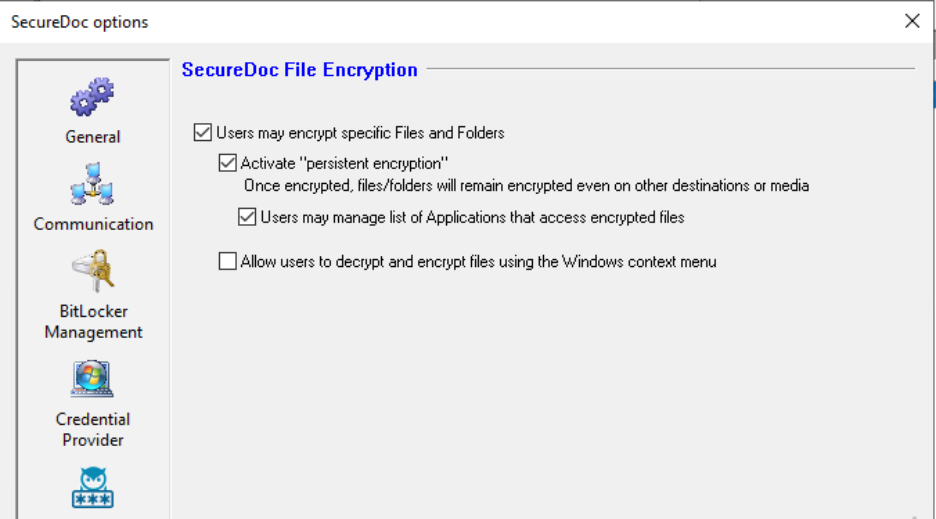
b. Create an encrypted folder on the client
c. On the SD Client, an existing folder named ‘multiple’ is encrypted by SFE successfully.
Example SFE path: C:\Users\...\Desktop\SFE1\multiple
Once encrypted, a green lock icon appears on the folder/files, confirming encryption.
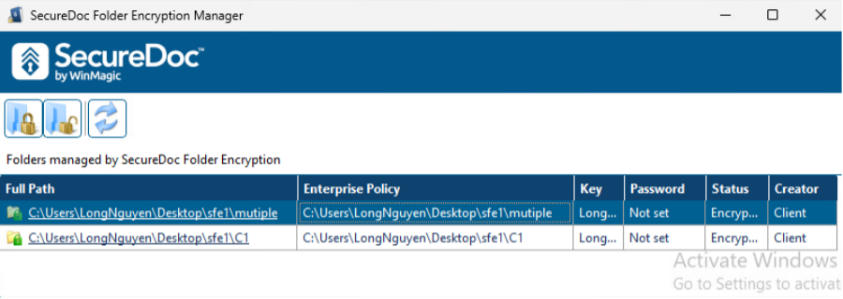
1. Allow the Photos Application in SFE
a. Open SDPin. 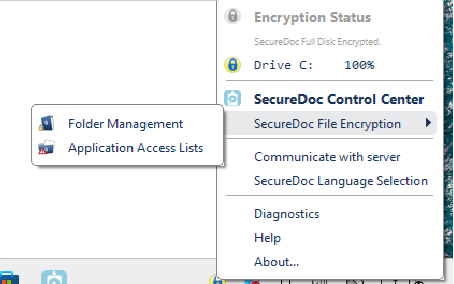 b. Navigate to: SecureDoc File Encryption → Application Access List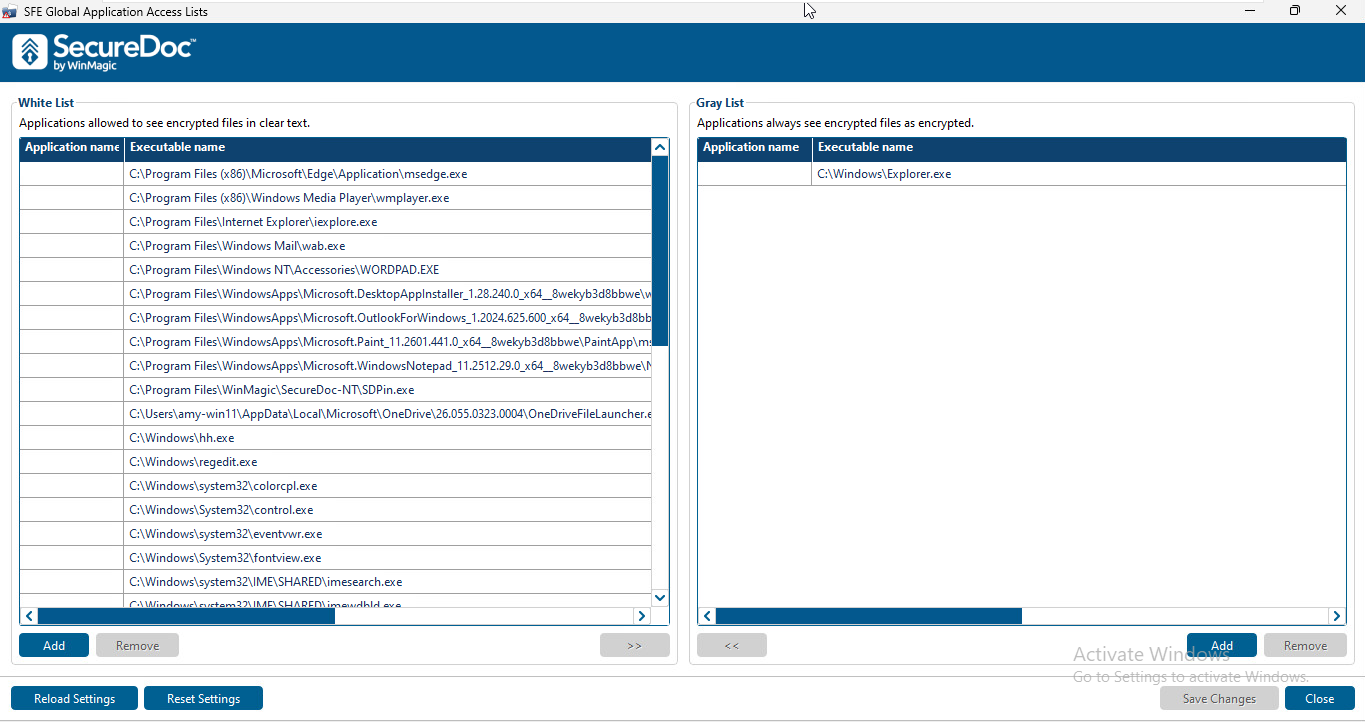
c. Add Photo.exe and explorer.exe to the whitelist.
You may add it manually or reset the list to default.
d. Save the changes.
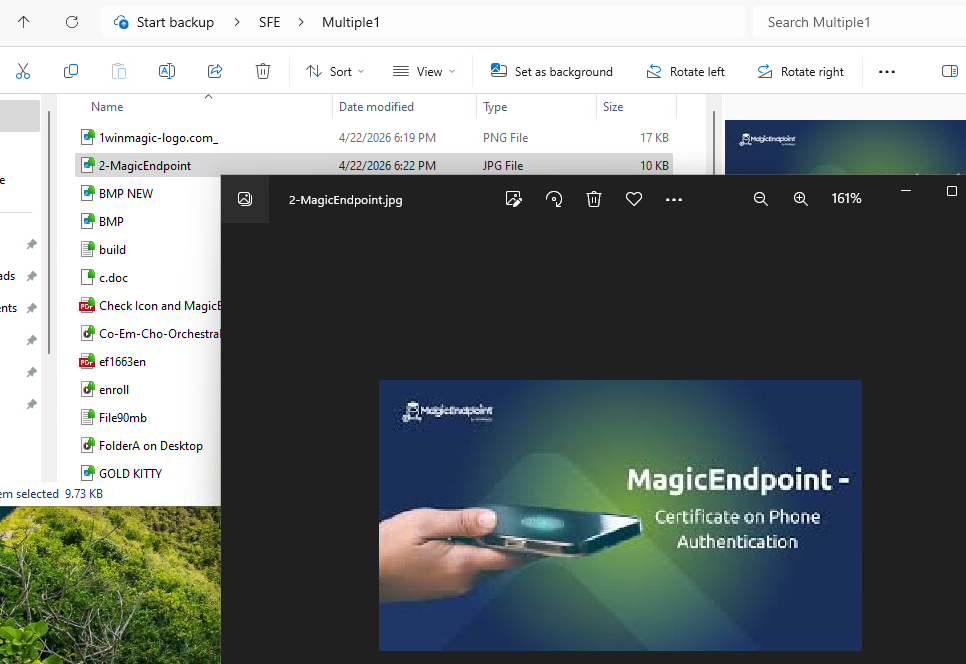
2. Open the Encrypted Photo File
a. Navigate to the encrypted folder (e.g., C:\Users\...\Desktop\SFE1\multiple).
b. Open the desired photo file.
The photo should now open without errors.
Workaround 2:
Note: Some users may prefer to use Microsoft Legacy photo app with its built-in editor over the newer Microsoft Photo app. You can still use menu “Edit with Photos” to edit file.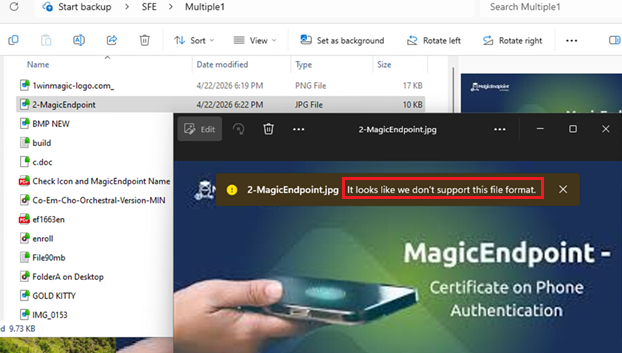
1. Editing Options
Case 1: Editing Using the Legacy Photos App
Open the photo using Photos.
Select the ⋯ (three dots) menu.
Select Settings.
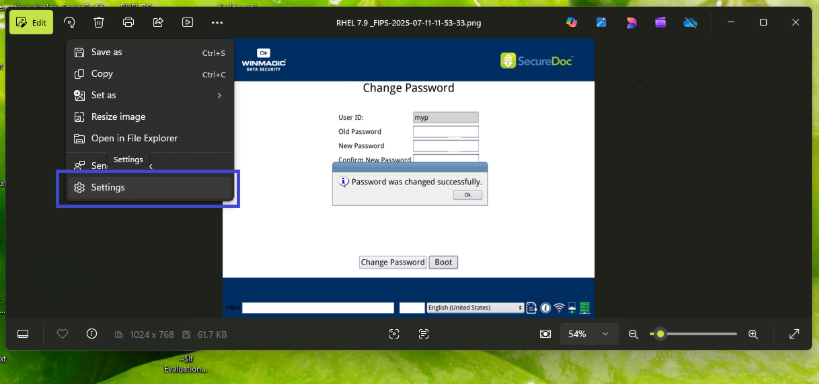
Enable Use Legacy Photos app.
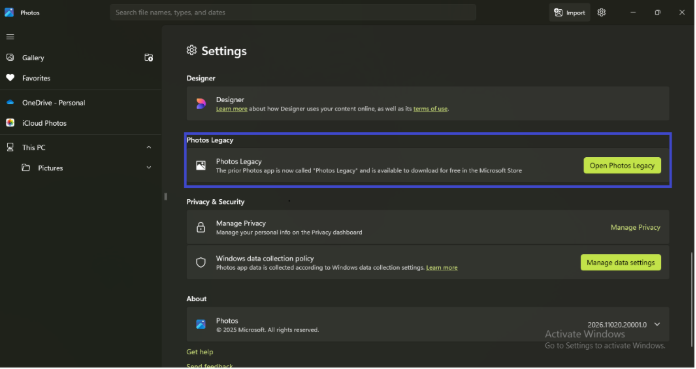
Reopen the photo using Legacy Photos.
Edit and save the photo successfully.
Case 2: Editing a Downloaded Encrypted Photo
Download the encrypted photo to the client.
Note: The photo does not automatically decrypt after downloading.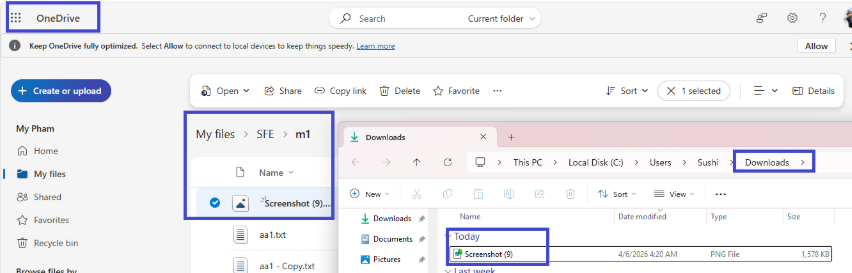
Use the SFE Utility to manually decrypt the file.
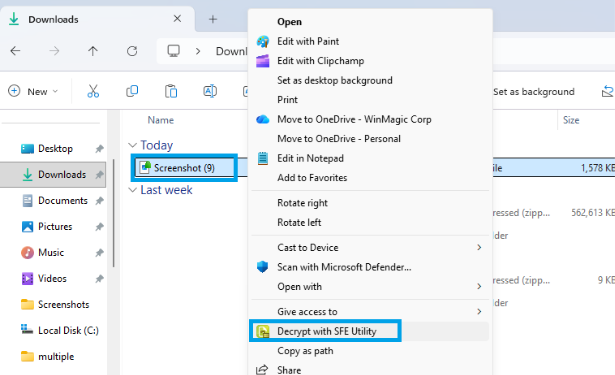
Open the decrypted photo.
Edit and save the photo successfully.
References:
SD-52264 & SD-52337