Title: Unable to complete authentication via Bluetooth to user’s mobile device… Ensure Bluetooth is enabled on both devices
Topic: Unable to complete authentication via Bluetooth to user’s mobile device… Ensure Bluetooth is enabled on both devices
Background:
This affects Google Pixel devices. One of the default apps that is installed on Google Pixel devices is the Pixel Tips app which provides tutorials on how to use the many features on the Pixel device. This app may ask for the Nearby Devices permission when run for the first time.
Scenario 1:
When attempting to sign into Windows using the Magic Endpoint Android App, the error message “Unable to complete authentication via Bluetooth to user’s mobile device… Ensure Bluetooth is enabled on both devices” is displayed on the Windows screen, when the prompt to provide your thumbprint, or pin pops up on your Google Pixel phone.
Scenario 2:
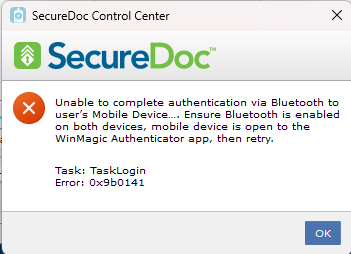
When attempting to sign into the SecureDoc Control Center using the MagicEndpoint Android App, the error message “Unable to complete authentication via Bluetooth to user’s Mobile Device… Ensure Bluetooth is enabled on both devices, mobile device is open to the WinMagic Authenticator app, then retry. Task: TaskLogin Error: 0x9b0141” is displayed on the Windows device, when the prompt to provide your thumbprint, or pin pops up on your Google Pixel phone.
Environment (OS/hardware/software):
Windows 10/11
Google Pixel devices
SecureDoc 9.0 SR4 and up.
Workaround:
We recommend removing the Nearby Devices permission from the Pixel Tips app.
Go to Settings
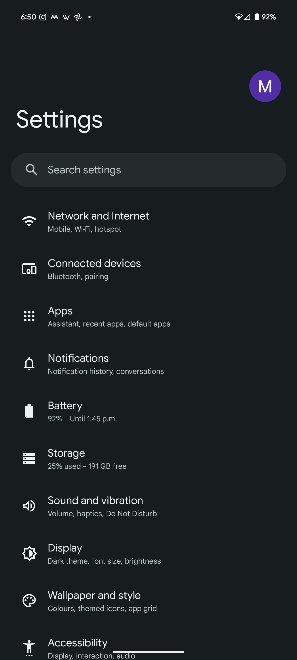
Search for “Permissions Manager”
Select it from the list.
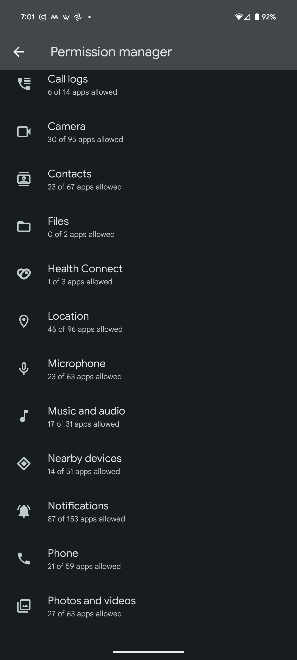
In the list of Permissions, select “Nearby Devices”
In the list of Apps, scroll down and select “Pixel Tips”
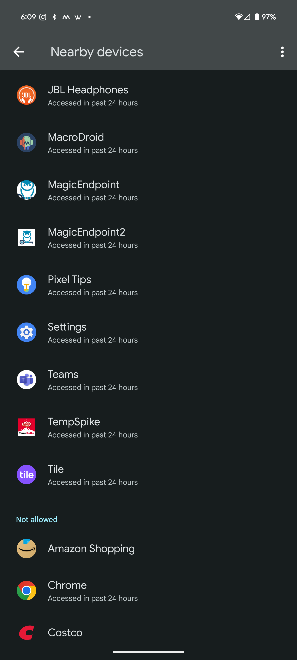
Select the “Don’t Allow” radial button
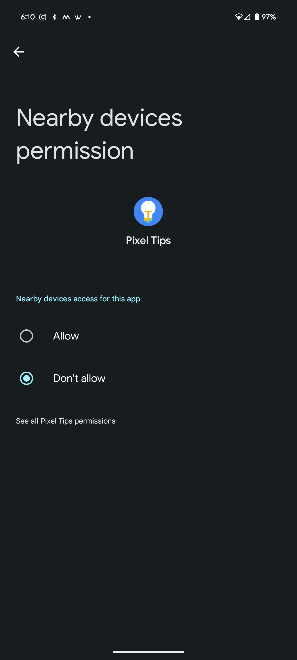
Select Back 4 times to go back to your Home screen.
Attempt to sign in again using the Magic Endpoint app.