Title: Troubleshooting Unable to complete authentication via Bluetooth to user’s mobile device… Ensure Bluetooth is enabled on both devices
Topic: Troubleshooting Unable to complete authentication via Bluetooth to user’s mobile device… Ensure Bluetooth is enabled on both devices
Background:
This affects Android Devices. It is sometimes possible for other Android apps to affect the BLE authentication between Windows and the MagicEndpoint app. If you have a Google Pixel device, please refer to kb 2024 before going through this article.
Scenario 1:
When attempting to sign into Windows using the Magic Endpoint Android App, the error message “Unable to complete authentication via Bluetooth to user’s mobile device… Ensure Bluetooth is enabled on both devices” is displayed on the Windows screen, when the prompt to provide your thumbprint, or pin pops up on your Google Pixel phone.
Scenario 2:
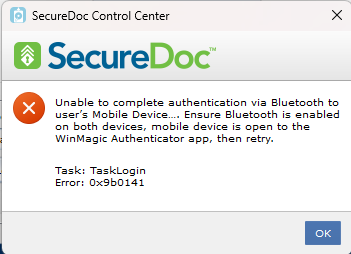
When attempting to sign into the SecureDoc Control Center using the MagicEndpoint Android App, the error message “Unable to complete authentication via Bluetooth to user’s Mobile Device… Ensure Bluetooth is enabled on both devices, mobile device is open to the WinMagic Authenticator app, then retry. Task: TaskLogin Error: 0x9b0141” is displayed on the Windows device, when the prompt to provide your thumbprint, or pin pops up on your Google Pixel phone.
Environment (OS/hardware/software):
Windows 10/11
Android Phones
SecureDoc 9.0 SR4 and up.
Known Apps that affect the Magic Endpoint BLE Authentication:
Pixel Tips (Default app installed on Google Pixel Devices, see KB 2024)
Troubleshooting Steps:
Permissions to use Bluetooth may be controlled by the Nearby Devices Permission, or if your phone does not have this option, it maybe be controlled by the Location permission. These steps assume the Nearby Devices permission is available, but still apply if only the Location Permission is available. We will remove all Apps from the Nearby Devices Permission to troubleshoot the issue. Apps will be given this permission one by one while testing authentication with the SecureDoc Control Center.
Note: These instructions were created using a Google Pixel 8 Pro, the process to get to the Nearby Devices permission list may differ from other brands that use the Android OS.
Go to Settings
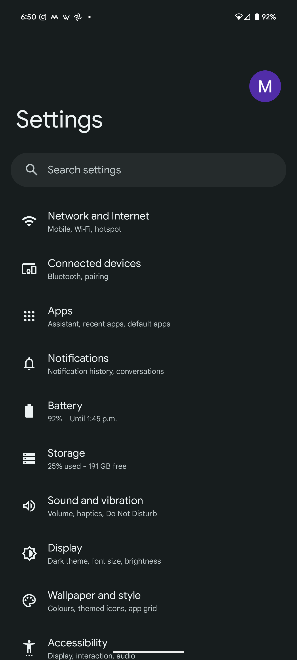
Search for “Permissions Manager”
Select it from the list.
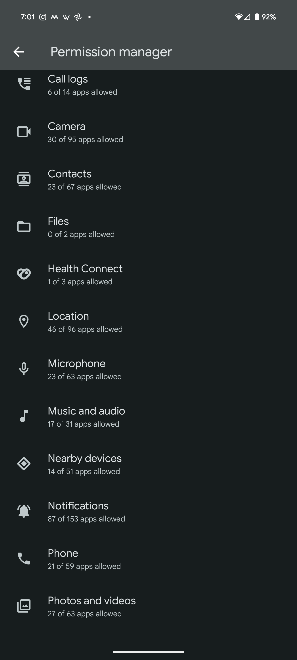
In the list of Permissions, select “Nearby Devices”
IMPORTANT: Document the list of Allowed Apps. We will remove the Nearby Devices App permission from all on this list except for Android Auto, Android System Intelligence, MagicEndpoin, MagicEndpoint2, and Settings.
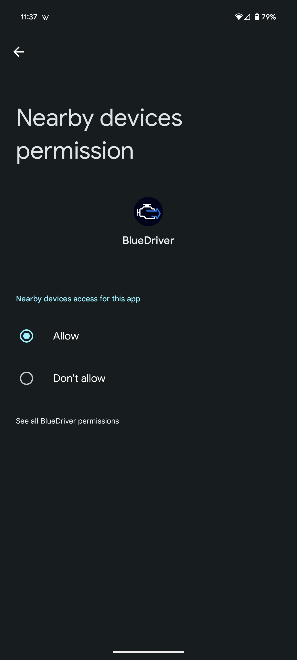
To remove the Nearby Devices permission from an app, select the app.
Select the “Don’t Allow” radial button
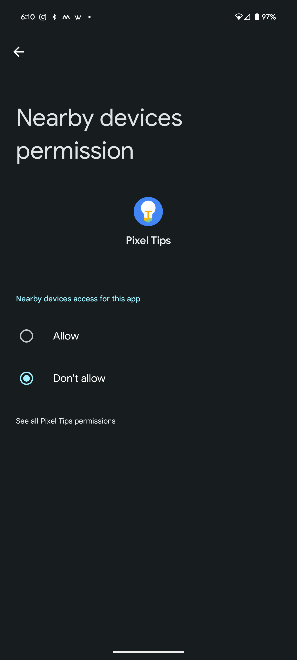
Select the Back button to go back to the list.
Repeat the last 2 steps for all Apps in the list, except for Android Auto, Android System Intelligence, MagicEndpoin, MagicEndpoint2.
Once completed, go to your Home Screen.
We now need to confirm that there are no issues with the login.
Open the MagicEndpoint or MagicEndpoint2 App
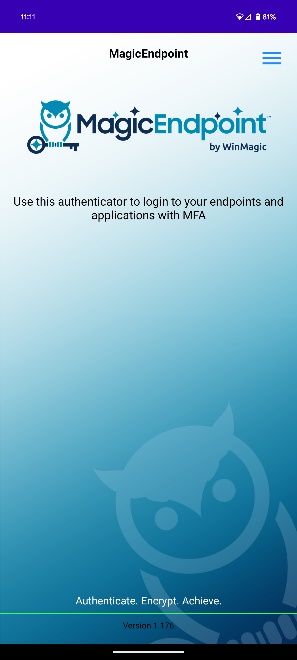
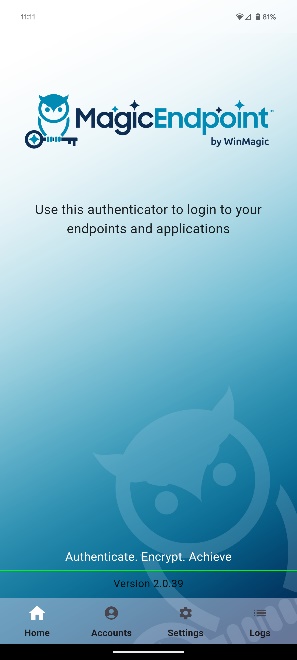
Open the SecureDoc Control Center on your Windows device.
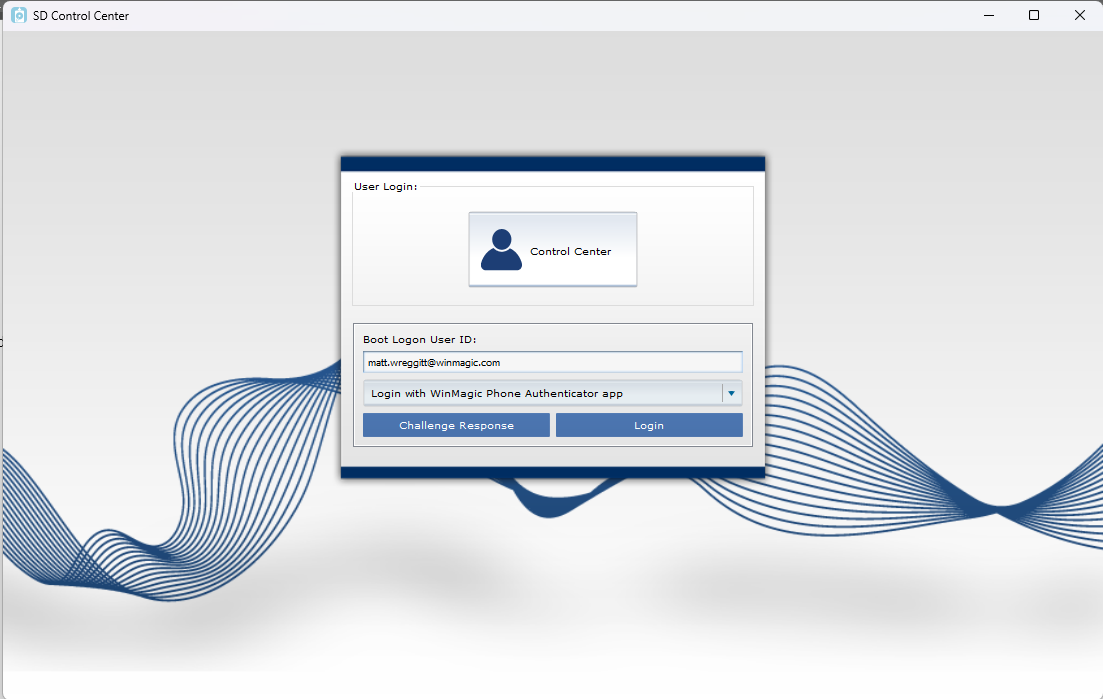
Click Login
Check your Android Device, and provide your Thumbprint when prompted.
If you experience the same error as above, contact WinMagic Support. You will need to provide Debug Logs for the Windows client and the MagicEndpoint App
If you are able to sign in successfully, click the back/Log Out button in the top left corner of the SecureDoc Control Center.
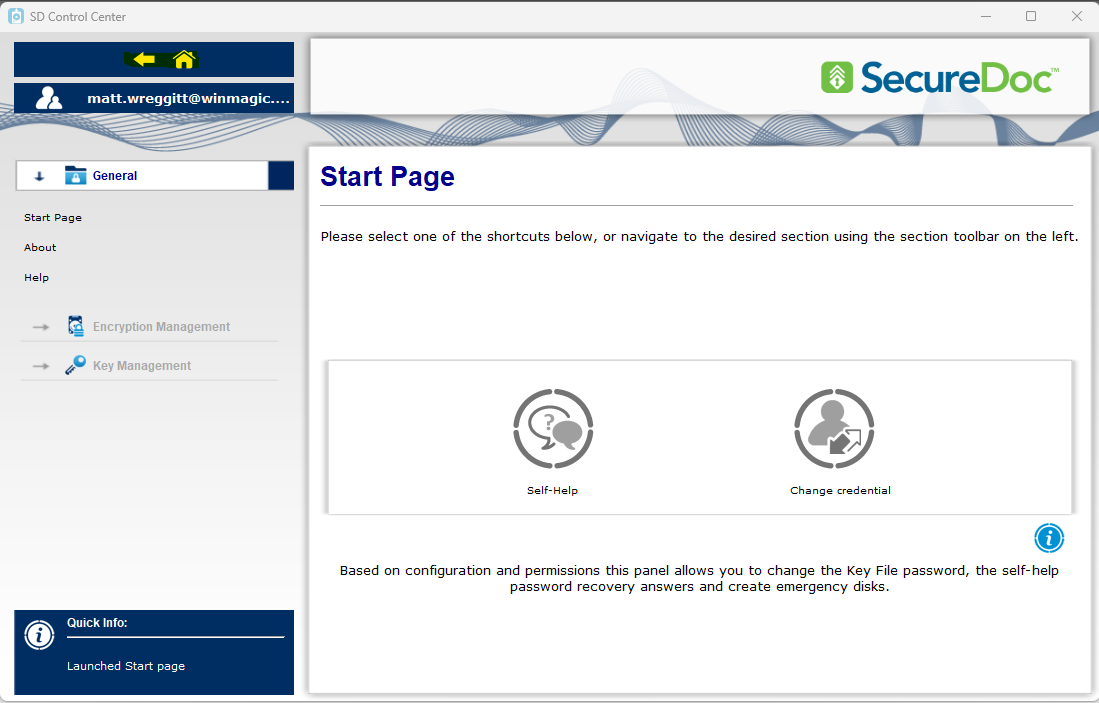
We now need to slowly Allow each App documented and then retest the login until the login fails.
Go back to the Nearby Devices Permissions list in the Settings app.
In the Not Allowed List, select the first app that you documented that was previously allowed.
Select Allow, and then select Back
Attempt to Sign into the SecureDoc Control Center again with the MagicEndpoint App.
Once you find an app that affects the sign in process, document the app and remove the NearBy Devices permission. Continue this process to ensure that the previously documented list of Apps do not affect the Authentication.
The workaround will be to remove the Nearby Devices Permission from the Apps affecting the MagicEndpoint BLE authentication.
Please provide the list of apps that affect the login to the WinMagic Support team.