- SES 9.0 SR2 and up
- Client has bluetooth connection
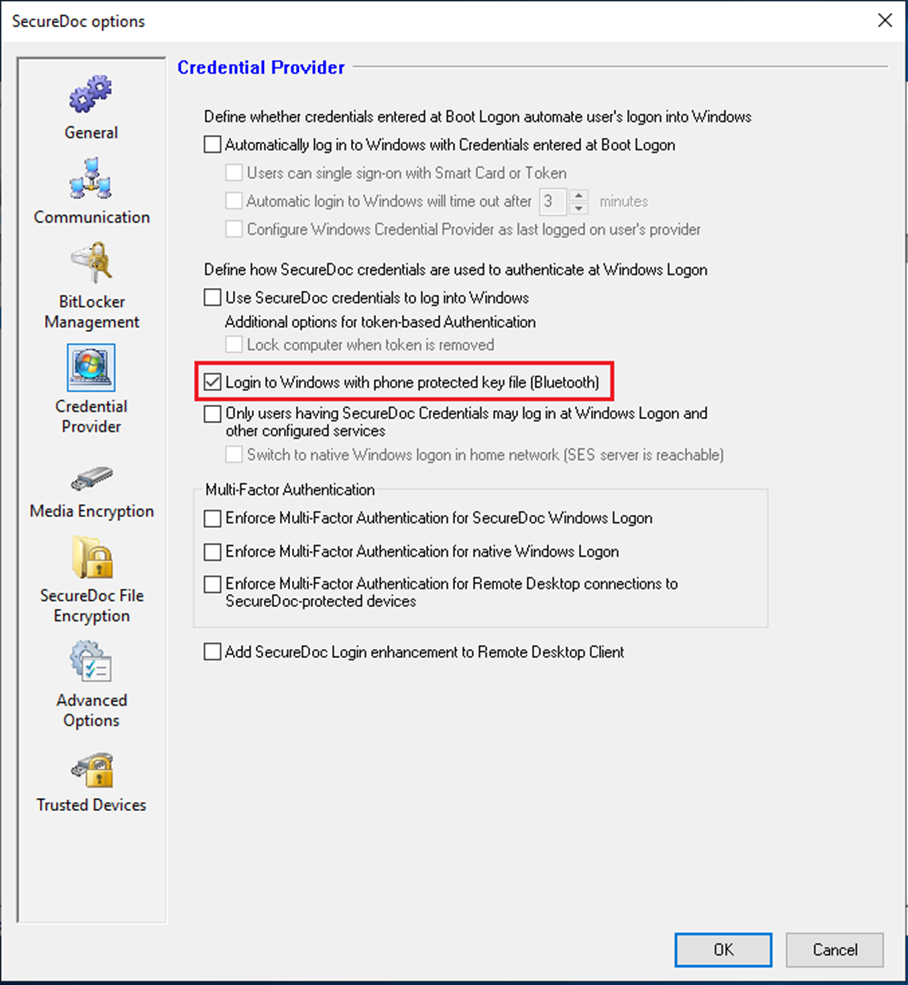
On SES, create a Windows Enterprise profile with these options enabled
- Login to Windows with phone protected key file (Bluetooth)
- Windows Account options (optional)
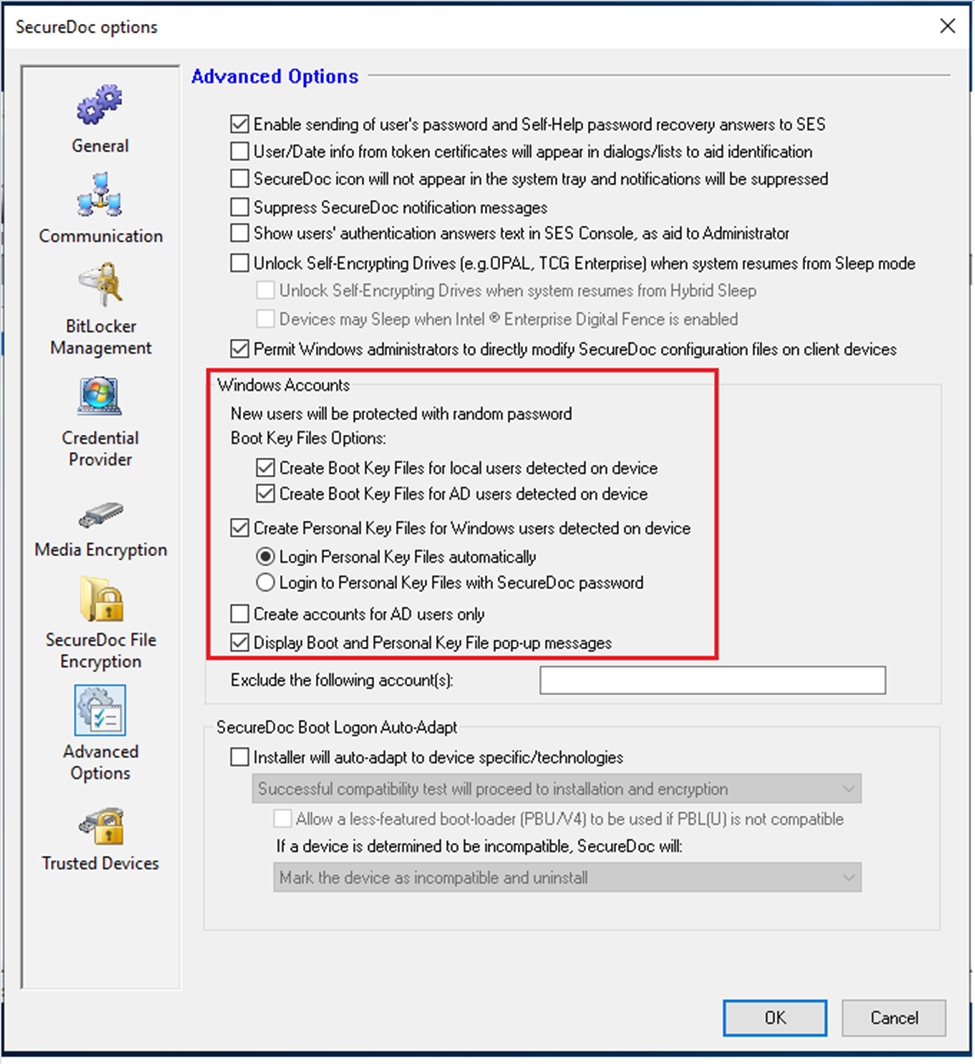
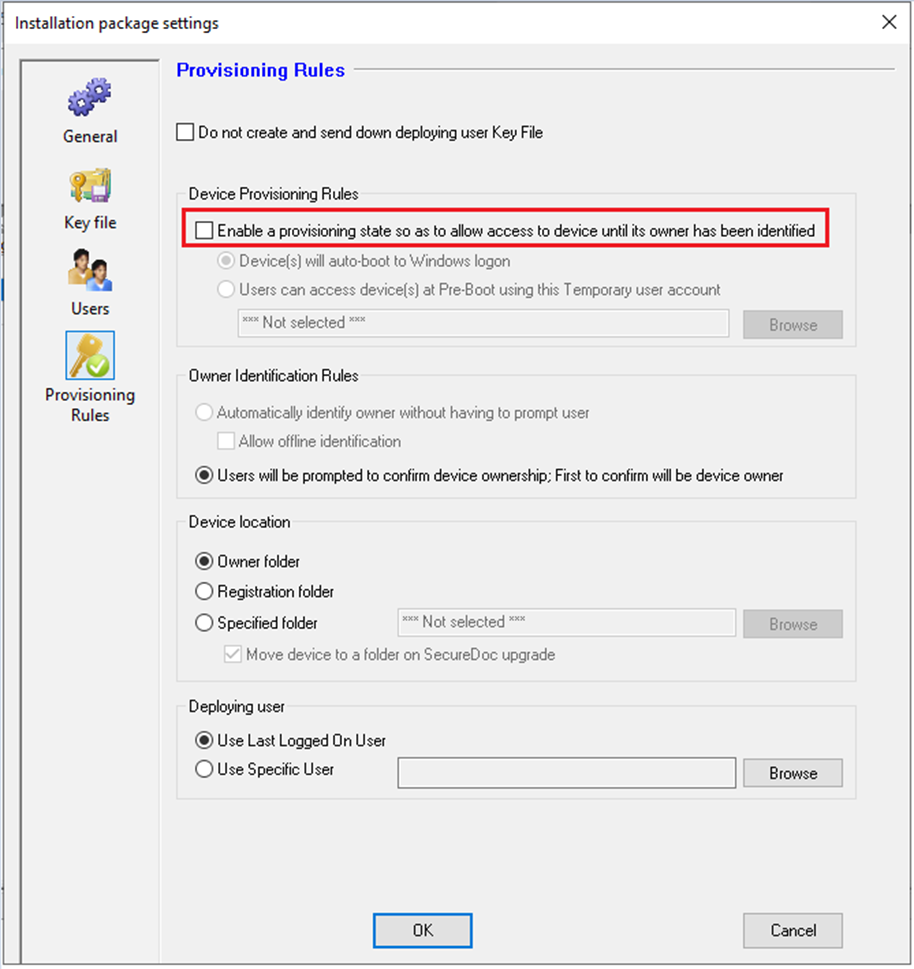
- Create a Windows Enterprise package with these options enabled
No Provisioning
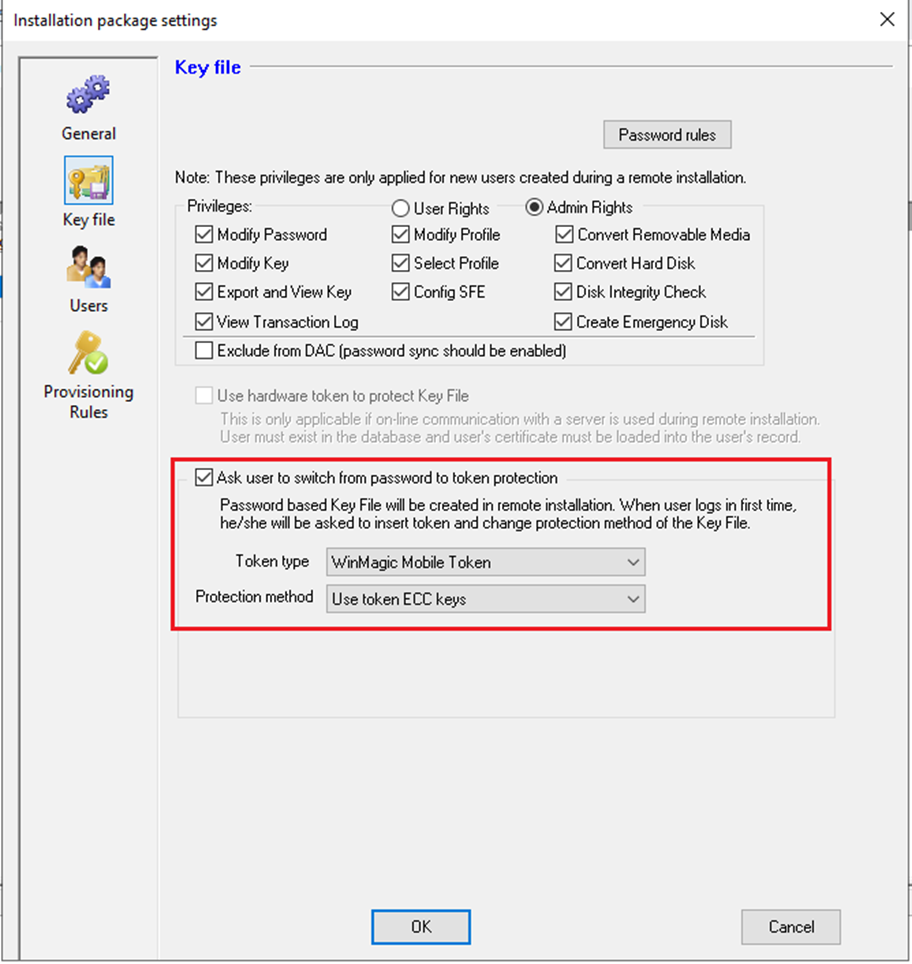
 Enable “Ask user to switch from password to token protection”
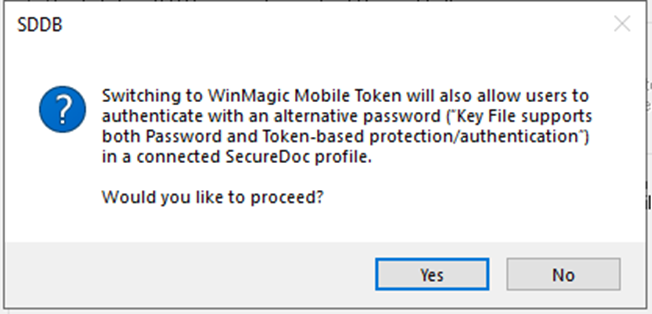
Click Yes on the dialog shown to auto enable Alternative password
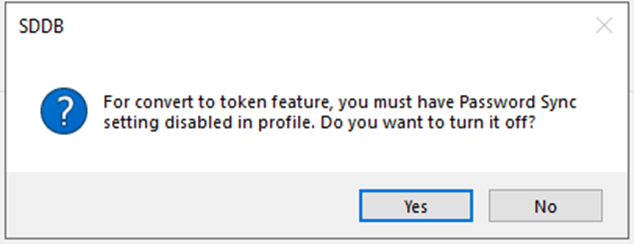
Click Yes on the dialog shown to auto disable Password Sync
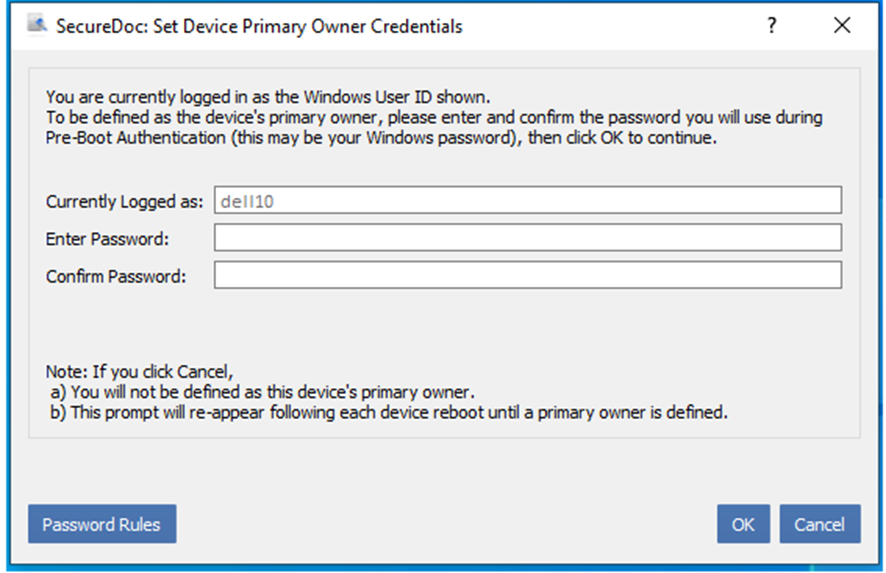
a. Copy the package to client and running SecureDoc.exe
b. Enter password to set device primary owner credential
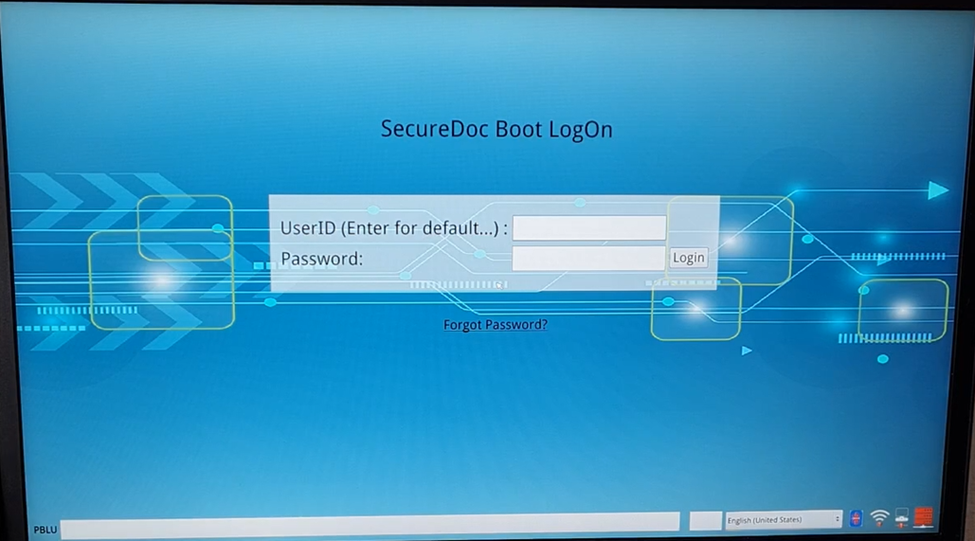
- Boot Login is installed, and HD encrypted successful
- Enter password to login Boot Logon
- Enter password and login to Windows successful
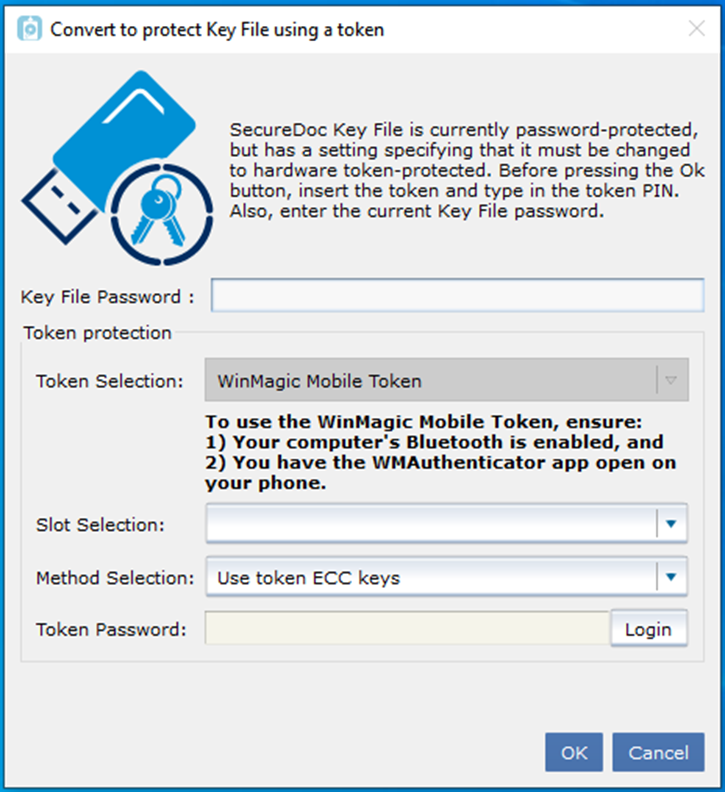
4.Convert key file to phone protected
a. SD prompts to convert key file
b. On phone, open Winmagic Authenticator app and make sure the Bluetooth is enabled on both computer and phone
c. On PC, at “Convert to protect Key File using a token” dialog
- Click ‘Login’ at the ‘Token Password’
- Enter Key File password
- Click OK button
- Authorize on phone
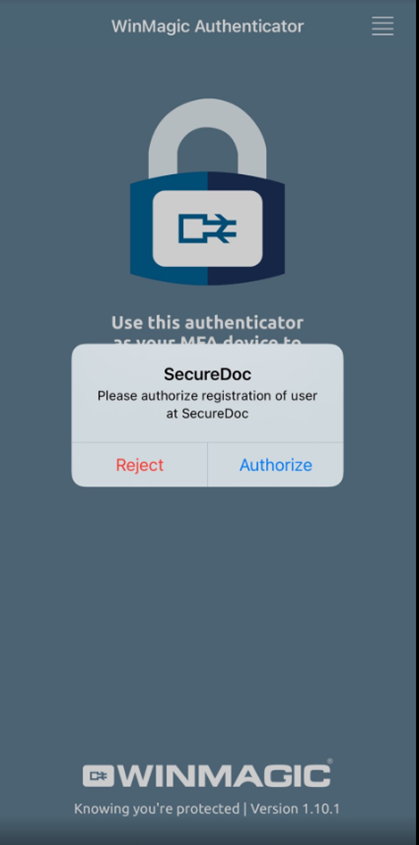
>> Key file is converted to phone protected key file successful
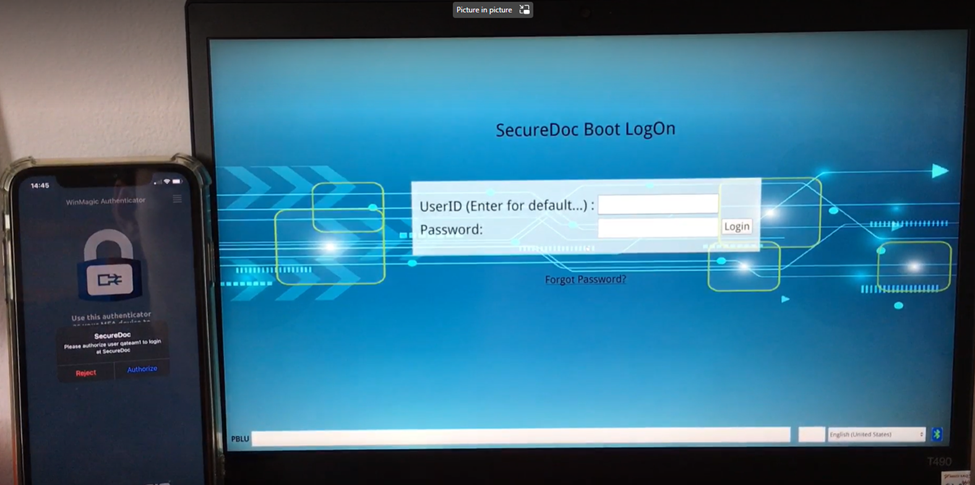
a. At BL, make sure the Authenticator app is open on phone
b. The authentication will be automatically prompted on phone
c. Authenticate on phone >> Login BL successful
- At Windows login, the authentication will be automatically prompted on phone
- Authenticate on phone
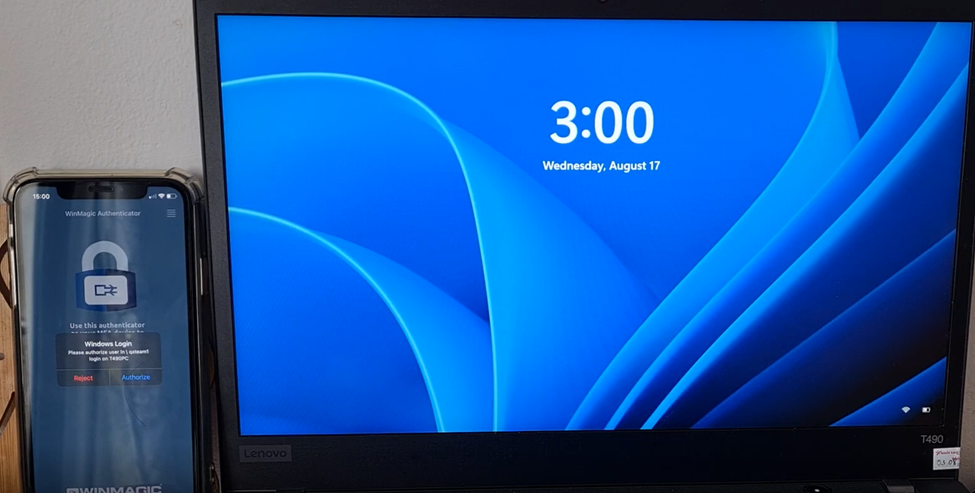
>> Login to Windows successful