Manual update or inspection of Self-learned data in the database
NOTE to Support and PSE Staff: Before this information can be released, customer must sign a Non-Disclosure Agreement (NDA).
Use the following tools
DBSelfLearnExtractUpdate.exe and SDXmlViewer.exe
when require of self-learned configuration needing to be updated in the database.
E.g. fallback type may change (incompatible to SDBM) and this would require a manual change (actually, a removal) of already learned data. A standalone tool is created to allow extraction and update of self-learned data stored in a database.
NOTE:
It is not always necessary to manually update self-learned information.
Consider the following workarounds:
1. Use SQL query to remove an incorrect device entry from SQL DB. Please refer to
KB 1888: How to delete Self-Learning data. Please provide this article 1888 to customer before using these two tools: DBSelfLearnExtractUpdate.exe and SDXmlViewer.exe.
2. Create another profile (profile index would change) which would not result in automatic pick-up of self-learned data.
Instructions for DBSelfLearnExtractUpdate.exe and SDXmlViewer.exe.
Please refer to confluence pages to obtain the exe files.
1. Download and run (with admin rights) the DBSelfLearnExtractUpdate.exe tool
2. Enter database connection string (examples provided below).
- Server\Instance:
- Database Name:
- User ID:
- Note: Account must have the SQL credential or is a Windows service account that has SQL access
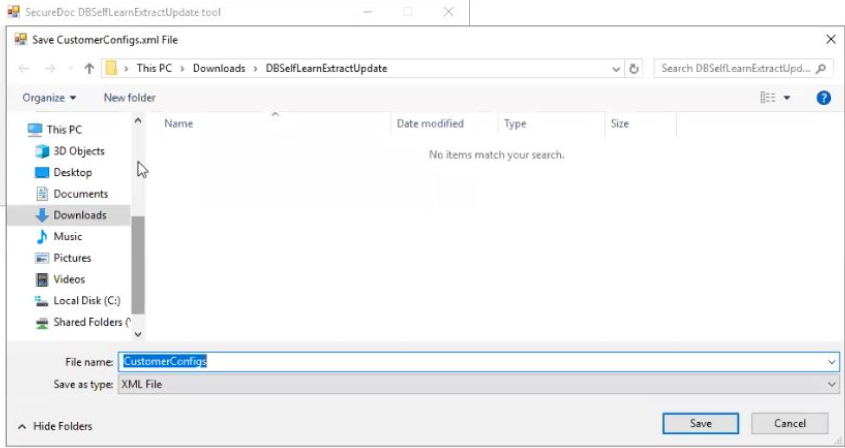
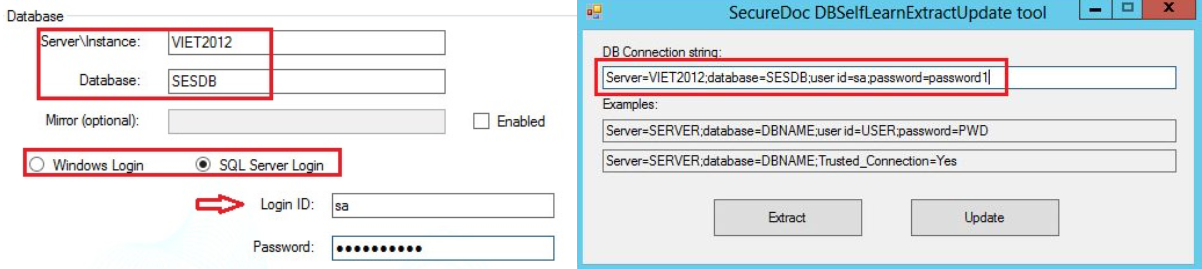 3. Press 'Extract' and save CustomerConfigs.xml file to the file system.
 Click OK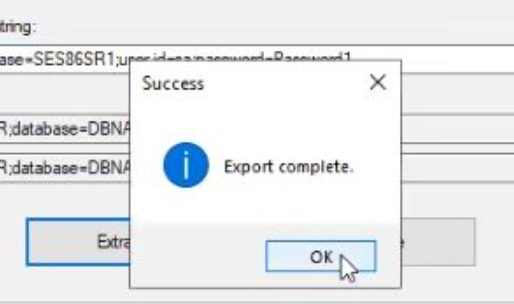
4. Run (with admin rights) the SDXmlViewer.exe tool. This GUI tool is for editing XML System Configurations file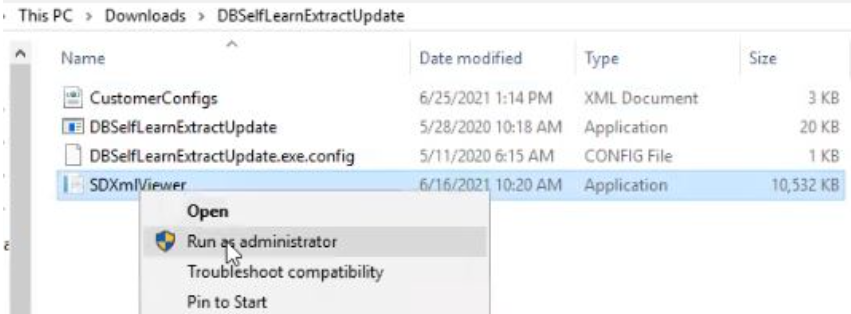 5. Browse and open the extracted CustomerConfigs.xml file
Use the filter field to search for the intended device example:Latitude 7xxx
6. Select the intended device and click on “Remove” button.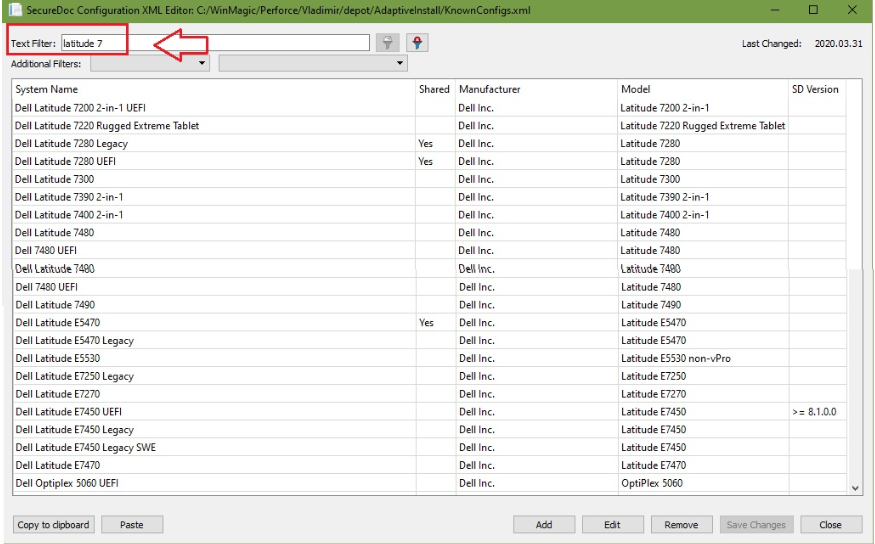 Click “Yes”
Followed by clicking on the “Save Changes” --> Close button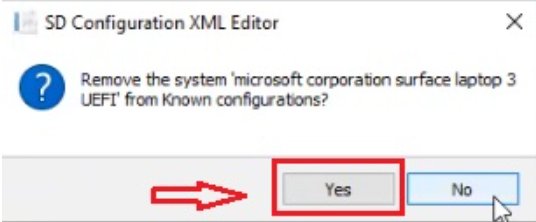
7. To modify the settings of a device, double click on the device and make appropriate changes to the device before clicking on OK button. 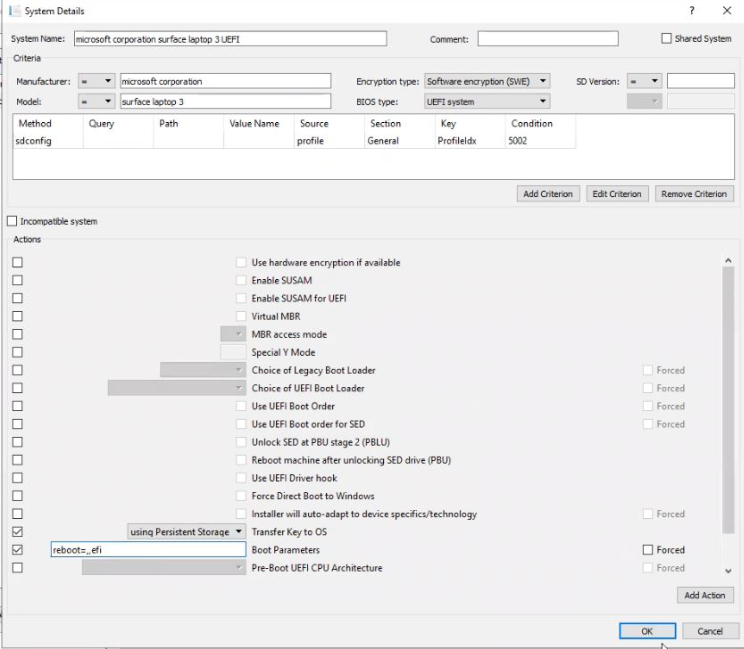 8. Followed by clicking on the “Save Changes” -->Close button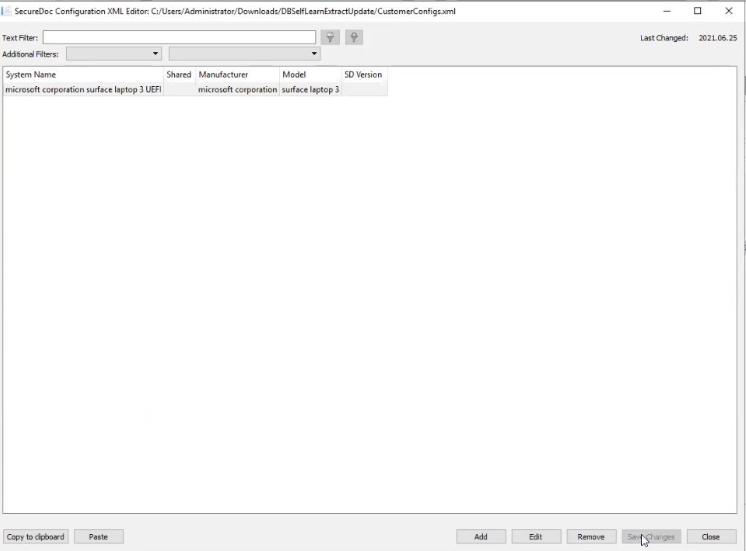
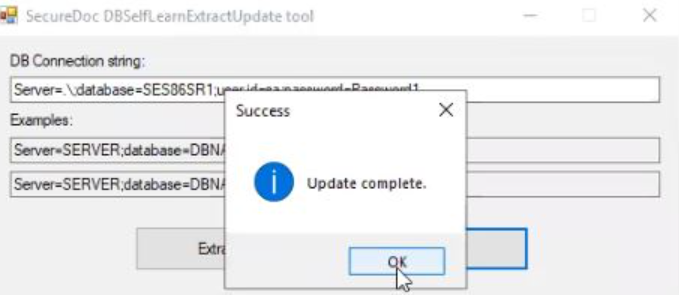
9. Press 'Update' and update the file back to database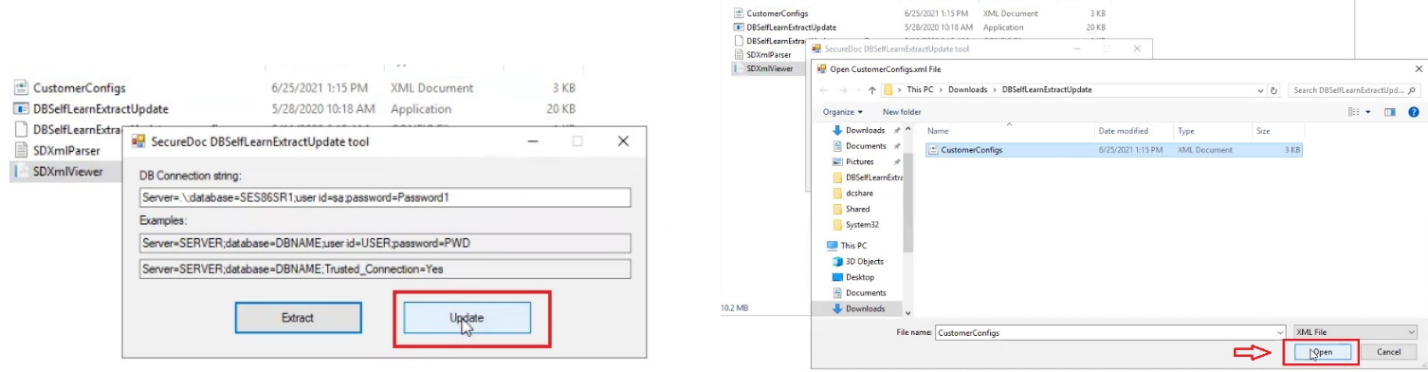
Referencing:
https://confluence.winmagic.local:8443/display/PDCT/Adaptive+Installation%3A+Using+known+and+dynamically+learned+XML+configurations+to+make+SecureDoc+installations+robust
https://confluence.winmagic.local:8443/display/PDCT/Adaptive+Installation%3A+GUI+Tool+for+XML+System+Configurations
The contents of the CustomerConfigs.xml & KnownConfigs.XML file are reserved to be developed and advanced by WinMagic solely. While customers might consider enhancing it, WinMagic cannot be held responsible for issues that might arise from such modifications and may (at its sole discretion) levy an additional support charge to any customers that encounter support issues that can be traced back non-sanctioned customer-initiated changes to these two XML files when using these two tools.
WinMagic welcomes customer ideas and suggestions on how KnownConfigs.XML can be extended and improved, but WinMagic reserves the sole right to test, approve and to publish any changes to KnownConfigs.XML that it deems to be in the broader customer interest, and makes no commitment to act upon or publish all, or indeed any customer-recommended changes.