
How to upgrade SecureDoc encrypted devices to Windows 10
–
Automatic method: WU / WSUS
Contents
Windows 10 Update with SecureDoc completed successfully. 14
Description
WinMagic understands that creating individual ISO and injecting SecureDoc Kernel drivers for each
Windows 10 upgrade takes a lot of time and resources. A simplified approach was developed to perform such tasks, that will follow a simpler path and eliminates the creation of a custom Windows 10 ISO and the necessary SecureDoc Kernel drivers.
Requirements:
- This upgrade requires one of the following encryption deployments:
- Systems encrypted with SecureDoc Software Encryption or
- Microsoft BitLocker.
Note: OPAL\Self Encrypted Drives are not affected by this issue.
- To apply this upgrade successfully, the device(s) must have the following:
- Already installed with SecureDoc Windows client with at least version 7.1 SR5 HF4.
- Installed with either Windows 7 or 8.x or 10, with the intent of upgrading to a Windows 10 where setup.exe file version is 10.0.14393.0 or higher.
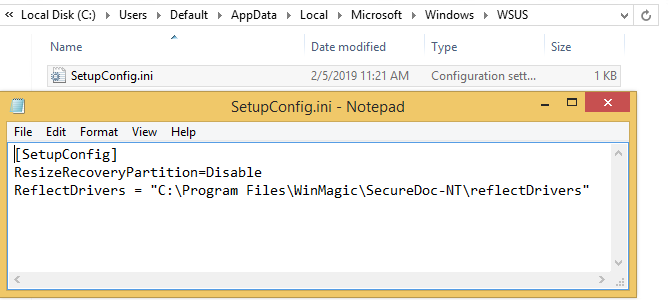
- Validate that the following configuration is present, as seen below:
Pre-Boot recommendation:
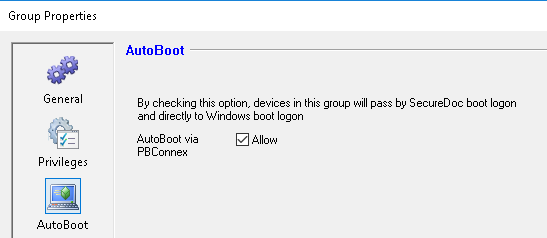
Since, as part of the Windows 10 update process, the device will reboot several times, it is recommended that the device should be part of a group that has the AutoBoot feature enabled. This also implies that at the time of the upgrade the device should be network connected to the corporate network to be able to communicate with the SES at pre-boot.
Steps to follow
- Initiate the Windows 10 upgrade either when prompted by the Windows Update or directly from the Control Panel area.
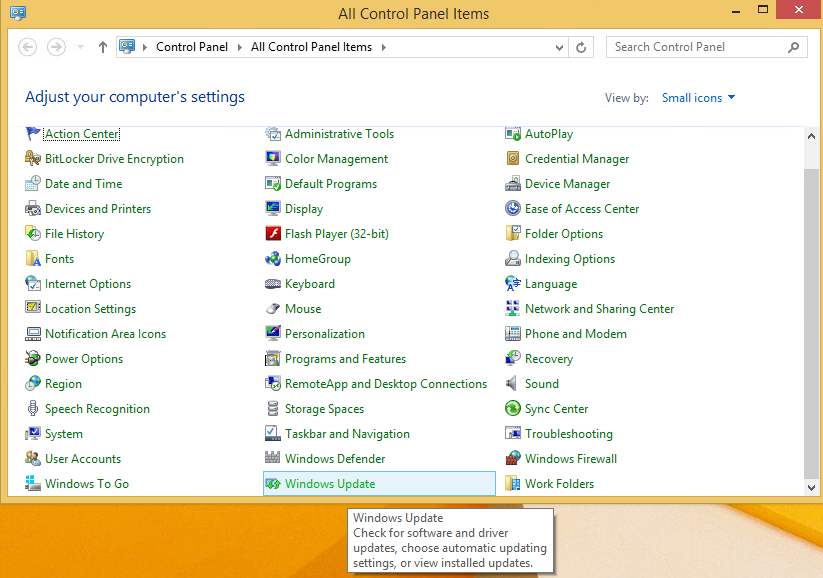
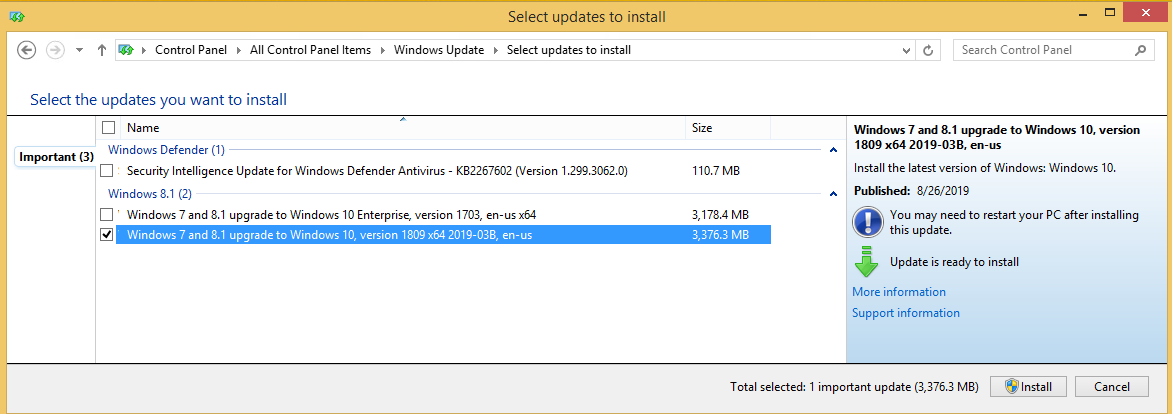
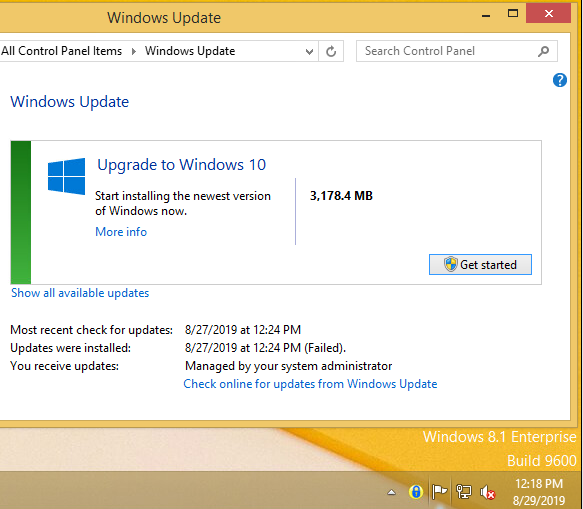
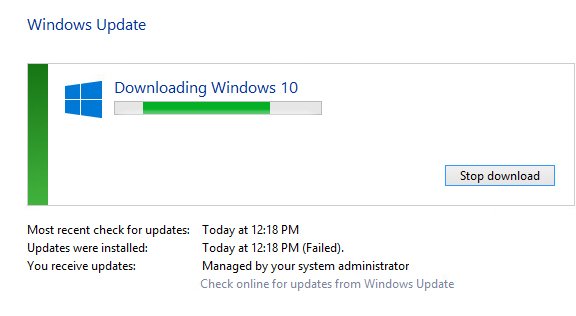
- Simply follow the on-screen prompts when required by the setup.
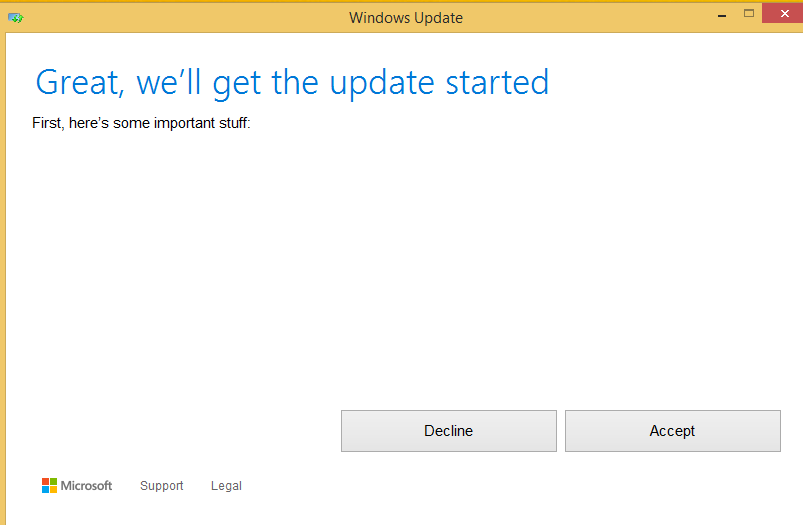
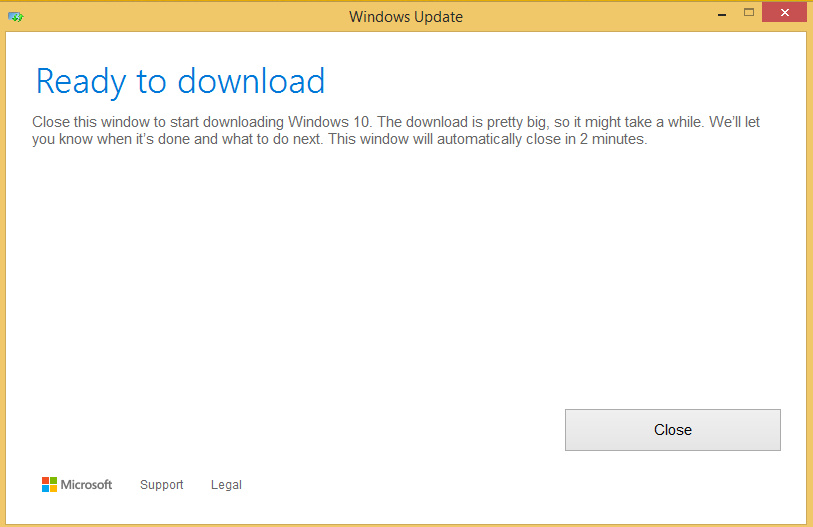
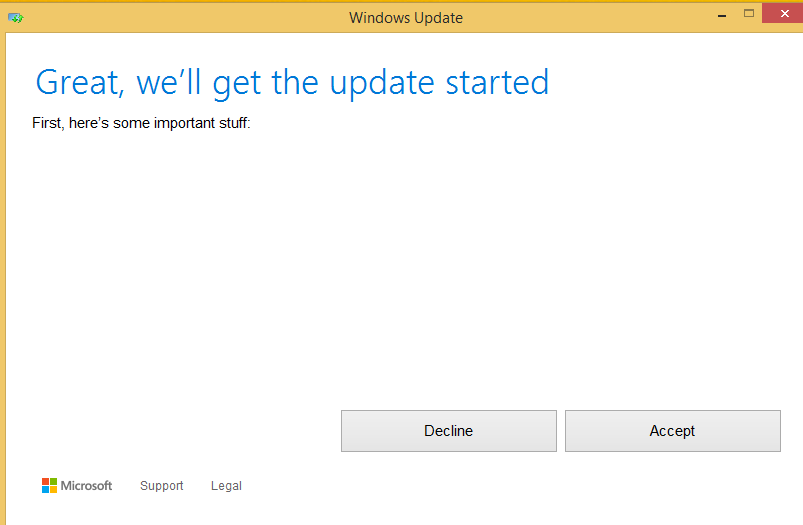

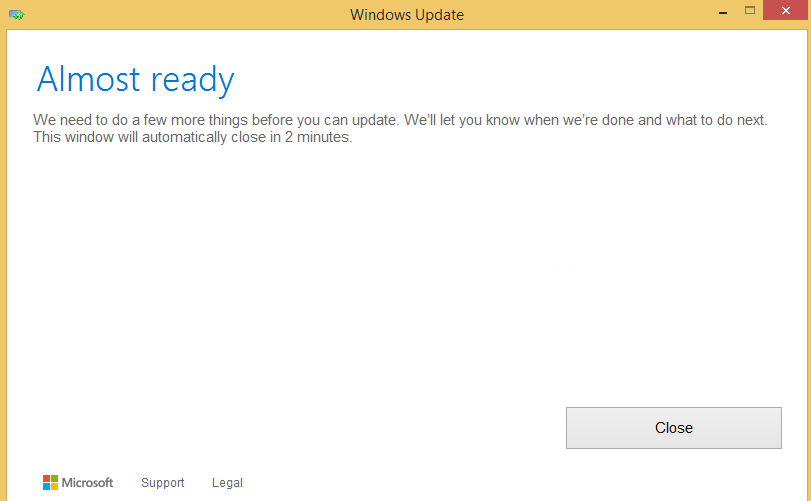
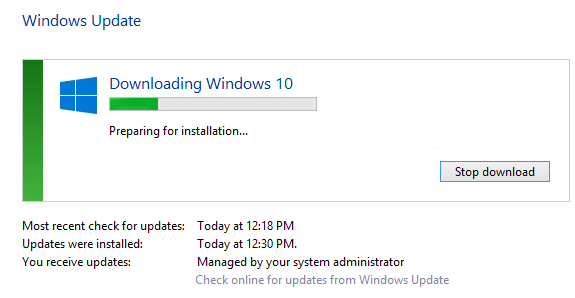
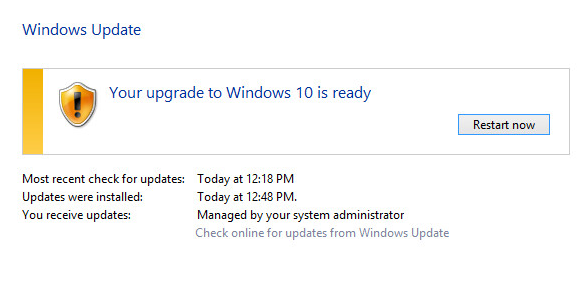
- The system will automatically reboot several times during the update process. SecureDoc pre-boot authentication should be performed automatically if the Pre-Boot recommendation was followed.
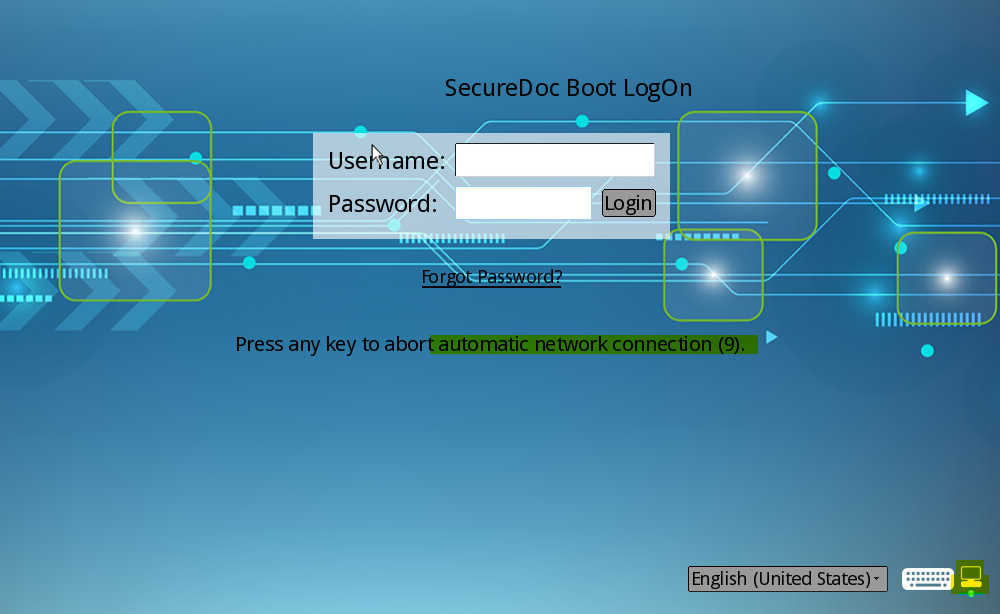
- Windows 10 setup will resume the installation.

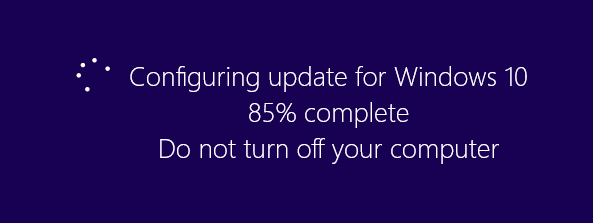




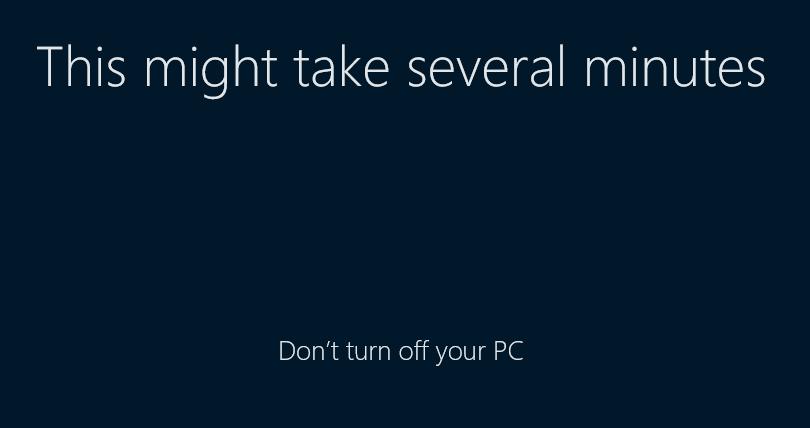
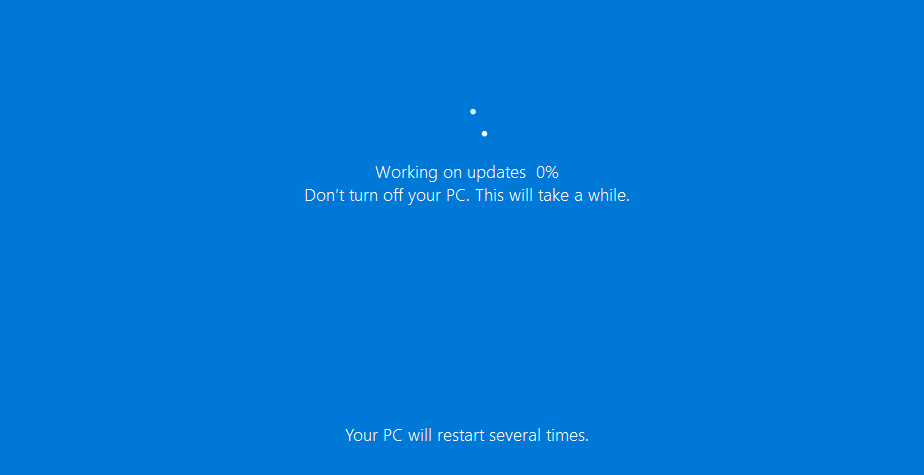
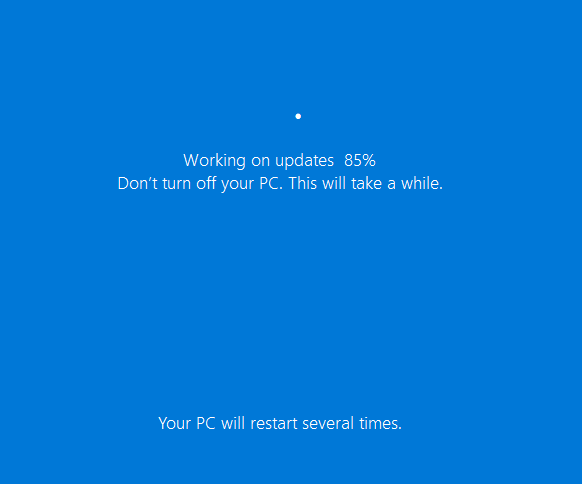
- Once the Windows 10 update is finalized, the user will have to complete the typical Windows 10 “user experience” configuration before loading for the first time Windows 10.
Windows 10 Update with SecureDoc completed successfully.

Pre-Upgrade

Post-Upgrade

200 Matheson Blvd. West, Suite 201, Mississauga, ON, Canada L5R 3L7
Tel: (905) 502-7000 | Fax: (905) 502-7001
Web: www.winmagic.com | Email: [email protected]
SecureDoc, SecureDoc Enterprise Server, Compartmental SecureDoc, SecureDoc PDA, SecureDoc Personal Edition, SecureDoc RME, SecureDoc Removable Media Encryption, MySecureDoc, MySecureDoc Personal Edition Plus, MySecureDoc Media, and SecureDoc Central Database are trademarks of WinMagic Inc. Other products mentioned herein may be trademarks and/or registered trademarks of their respective owner.
© Copyright 2012 WinMagic Inc. All rights reserved. This document is for informational purpose only. WinMagic Inc. makes NO WARRANTIES, expressed or implied, in this document. All specification stated herein is subject to change without notice.