Windows 7 to Windows 10 Operating system upgrade WHILE ENCRYPTED with Securedoc.
When planning to upgrade a device that is already encrypted with SecureDoc, the first thing that should be done is go to http://www.winmagic.com/support/technical-specifications#securedocforwindows and verify that the version of SecureDoc installed on the endpoint being upgraded is compatible with the version of Windows being upgraded to. If it is not, you will need to upgrade your SES and then client to the latest version before proceeding.
Software Encryption
For all software encrypted systems (BitLocker and SecureDoc drive encryption).
- To upgrade the Operating System via Windows update – please ensure this file exist before starting the upgrade: "%systemdrive%\Users\Default\AppData\Local\Microsoft\Windows\WSUS\SetupConfig.ini"
The contents of the file should appear as follows: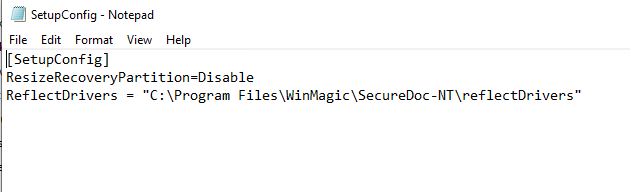
- To upgrade the Operating System via a .ISO file – Insert the Windows 10 ISO DVD/USB and run the file SDWin10Update.exe as Administrator from SecureDoc-NT folder (default location "%systemdrive%\Program Files\Winmagic\SecureDoc-NT)
OR
Via command prompt, run the following command as Administrator:
Setup.exe \reflectdrivers "C:\program files\WinMagic\SecureDoc-NT\Reflectdrivers"
Hardware Encryption
For all hardware encrypted systems (Self Encrypting Drives) since the drive is unlocked after being powered on, and should remain powered on during the upgrading process, no extra steps are required for the upgrade of Windows.
For additional information please see:
https://winmagic.atlassian.net/wiki/spaces/PDKernel/pages/2982692/SecureDoc+update+utility+for+Windows+10+RS1+SDWin10Update.exe
To Upgrade via SCCM
Review our KB article #1222, and at step 7 point to the batch file instead of the upgrade executable.
To Upgrade via Ivanti
Review the setup instructions on the Ivanti website (https://forums.ivanti.com/s/article/How-To-Upgrade-Windows-10-Versions-Using-Ivanti-Patch-Manager) and copy the setupconfig.ini in the zip file attached to this KB to the appropriate location on the client depending on the architecture of the client machine (either “C:\Program Files (x86)\LANDesk\LDClient\W10Config” or “C:\Program Files\LANDesk\LDClient\ W10Config”).