Possible causes:
BitLocker is installed / actively encrypting a hard drive preexisting on a device BEFORE SecureDoc is installed and a ‘BitLocker Cipher type’ mismatch with the profile settings is causing a conflict.
Product version affected:
SecureDoc Enterprise for Windows.
Environment:
BitLocker encryption is present BEFORE SecureDoc is installed.
To see the drive’s current BitLocker status, from an elevated command prompt please enter:
Manage-bde -status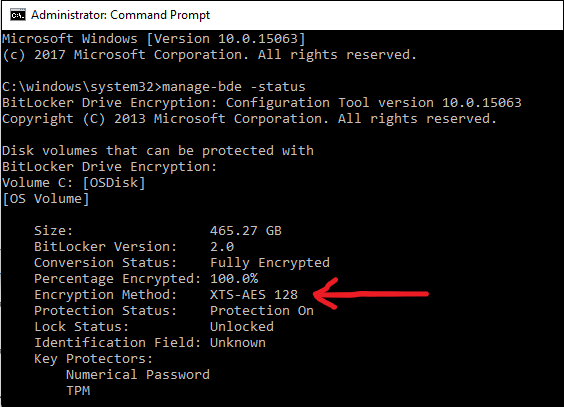
Note the Encryption Method
If the selected SecureDoc Profile option in the Installation package for ‘BitLocker Cipher type’ is different from what BitLocker is already using, this may cause the BitLocker recovery screen to appear on every reboot.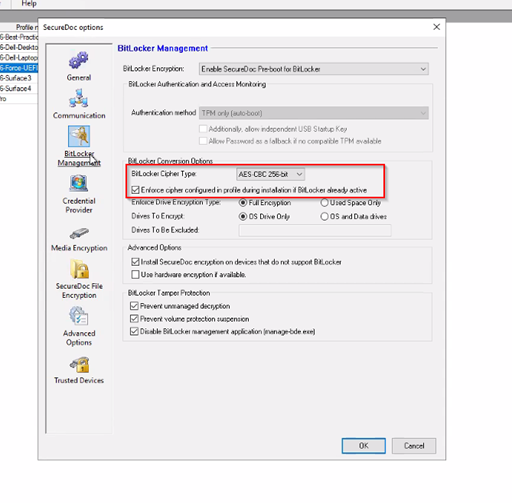
Possible Workaround:
To fix, enter the BitLocker Recovery key to bypass preboot login and reach Windows desktop. Once the client device has reached Windows desktop, assign a SecureDoc profile that either a) Matches the Encryption Method already in use. Or b) does NOT enforce any ‘BitLocker Cipher type’ configured in the profile.
- On the SES Server Console, browse through Profiles to find a suitable profile (Profiles, select the profile, right click and Modify Profile. General Options button, BitLocker Management Tab). If a suitable Profile does not exist, create one.
- Locate the device on the SES Server Console, All Folders, Devices tab. Right click on the device and select Assign Device Profile to devices. The select the desired Profile and click Ok.
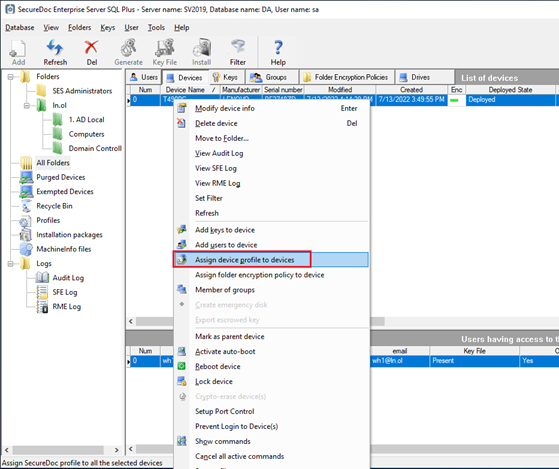
- This will queue the profile update to be sent to the device. The client device will now need to Communicate with Server to receive this update.
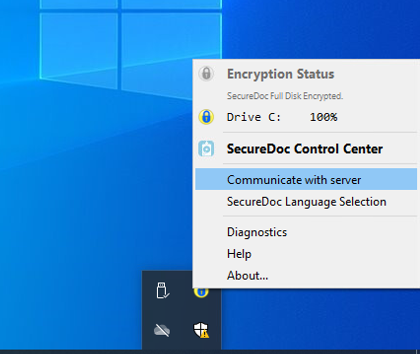
When Communication completes successfully, reboot the client device. BitLocker Recovery screen should no longer appear.