Description:
WinMagic understands that creating individual ISO and injecting SecureDoc Kernel drivers for each Windows 10 upgrade takes a lot of time and resources. A simplified approach was developed to perform such tasks, that will follow a simpler path and eliminates creation of custom Windows 10 ISO + SecureDoc Kernel drivers.
Additional improvements are in the works to simplify this further (there is no release date for these at the time of this writing, April 2017)
Requirements:
This upgrade will only be required if one of the following encryption deployments are met:
Systems encrypted with SecureDoc Software Encryption or
Microsoft BitLocker
Note: OPAL\Self Encrypted Drives are not affected by this issue.
To apply this upgrade successfully the device(s) must be running the following:
SecureDoc Windows client package with at least version 7.1 SR4
Either Windows 7 or 8.x or 10, with intent of upgrading to Windows 10 1511/TH2 RS1/Anniversary build/1607
Instructions:
1) Ensure WinMagic client version 7.1SR4 or higher is installed
2) Create a Folder on C:\ or a USB memory stick (that holds ISO) example C:\Upgrade
3) Download and extract the following http://downloads.winmagic.info/Others/Tools/INF_for_Win10Upgrade.zip into that folder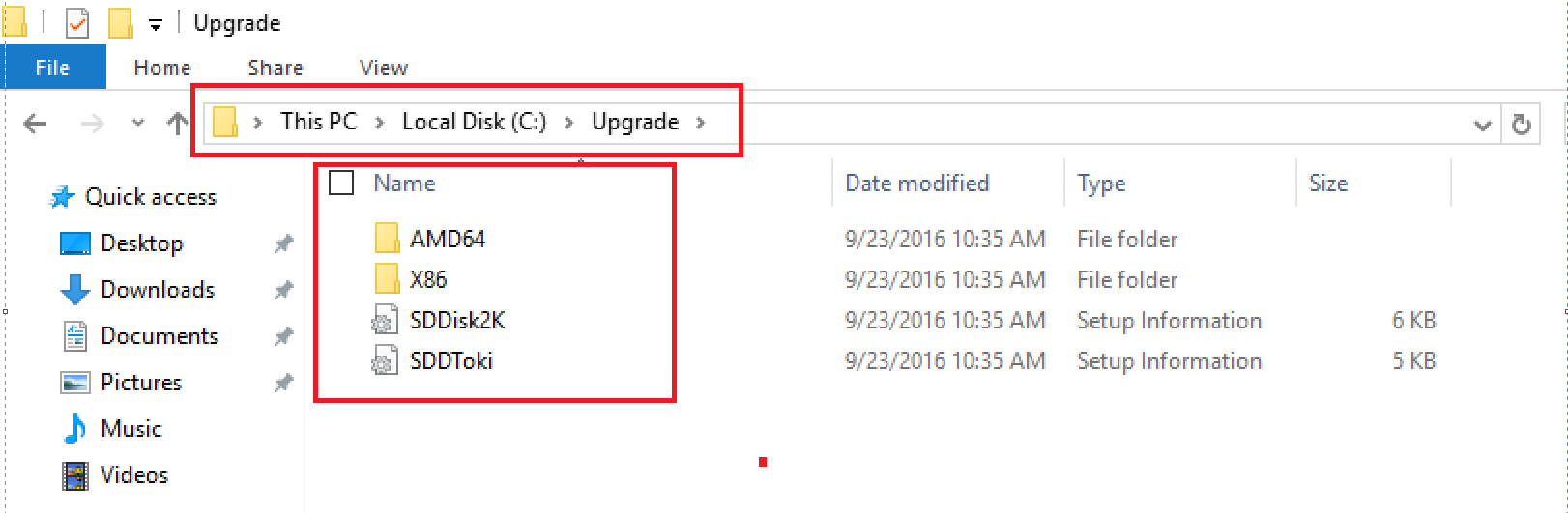
5) Navigate to C:\Windows\System32\Drivers and copy following dlls and checksum files
a.SDDisk2k.sys & chkdxp.dat
b.SDDToki.sys & chkdtk.dat
6) If system is 64 bit place 64 bit dlls and checksum into C:\Upgrade\AMD64
If system is 32 bit place 32 bit dlls and checksum into C:\Upgrade\X86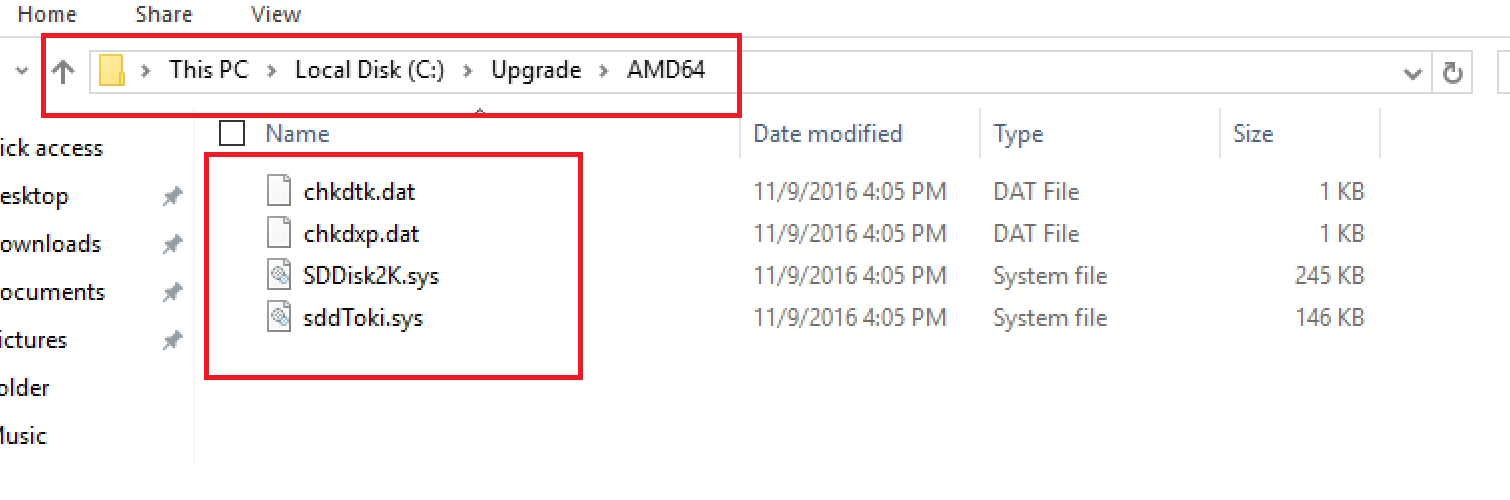
7) Prepare Windows Windows 10 TH2/1511 or 10 RS1/1607/Anniversary build set up media ready (e.g on DVD or USB Key ) (Without SecureDoc kernel drivers injected)
8) Open CMD as Administrator
9) Change directory to DVD drive or USB (this example has DVD directory)
10) cd /d D: <if DVD drive letter is D:
11) type the following setup.exe <location that refers to step2> example setup.exe /ReflectDrivers C:\Upgrade
12) Continue upgrade process - Select "Keep App and Data" when prompted
Tested Scenarios and Limitations: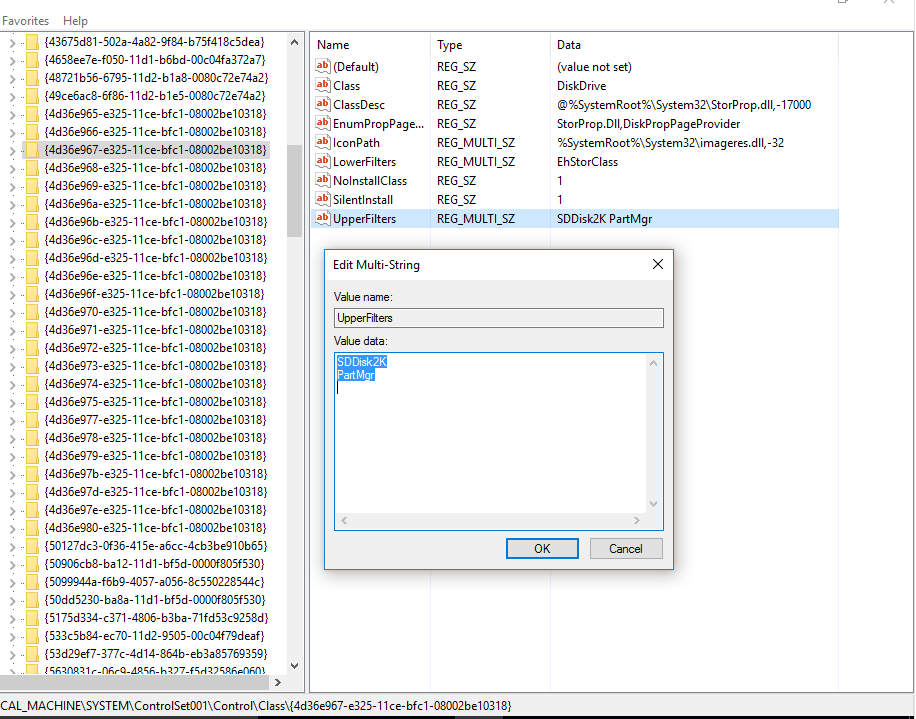
Limitation #1: For BitLocker cases
If client version is 7.1sr4
If Bitlocker case with PBL(preboot Linux)/PBA (Legacy Preboot) on Legacy BIOS then same upgrade process applies
if Bitlocker is configured with PBU (PrebootUEFI) then same upgrades process will apply
If Bitlocker is configured with PBLU (Preboot UEFI Linux) then during each reboot we need to tap letter b to pass credentials until upgrade has finished (this is current Limitation )
Limitation#2: After Windows 10 upgrade a BSOD could occur if USB is inserted
When SecureDoc Disk encryption product is installed on Windows devices we place our UpperFilter at the top of the list .
During Windows 10 upgrade the UpperFilter order gets changed by Microsoft.
Solution is to change the order manually or by running attached registry script
Or if Windows 10 upgrade is being pushed through Windows Deployment Kit (DMK)add a task sequence to change the registry and then restart device.
This will ensure the Registry changes have been applied
HKEY_LOCAL_MACHINE\SYSTEM\ControlSet001\Control\Class\{4d36e967-e325-11ce-bfc1-08002be10318}.png)
Reference SD-21139,SD-21203
Search keywords Windows10.Windows 7 , Windows 8 ,Windows 8.1 ,Upgrade