Context: In SES Version 8.2SR1 WinMagic has introduced a new simplified password recovery role into the SESWeb browser-based console.
This new option permits User Support teams to access to the web console using a new role that is completely and solely focused on helping users recover access to their devices, without offering the Support technician access to extraneous, sensitive or other data that is not essential to this support function.
The following is an abbreviated version of the whole documentation, which can be downloaded here:
http://downloads.winmagic.info/manuals/Simplified_Password_Recovery_8.2SR1.pdf
To Configure Access to this new ROLE.
Step 1: User access to SES Web is performed as usual, and the AD Group must still have permissions to access the SESWeb console.
Step 2: The Administrator can attach a new Right called “Simplified Recovery” to the user or group. This right will allow users to access the simplified password recovery workspace: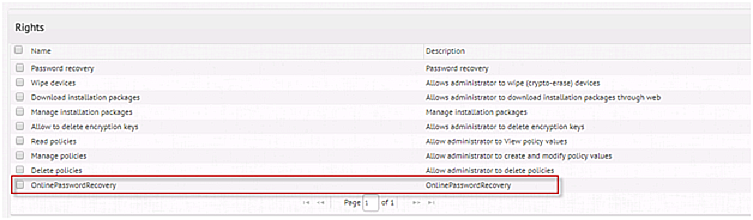
NOTE: For users that only have this role, once they have logged into the SESWeb console as they would normally do, they will only have access to the following simplified password recovery console – as shown in the example below: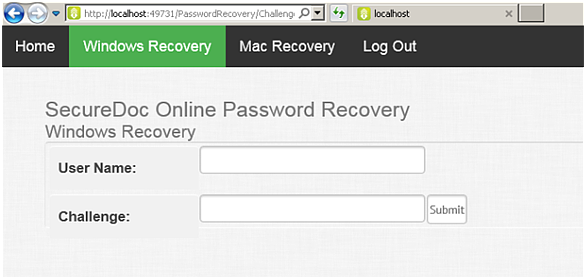
IMPORTANT:
If the user has access to additional roles in SES Web, then a new menu option will appear at the bottom of the main menu which appears on the left edge of the SESWeb workspace. This additional option permits such multi-role users to have direct access to the simplified recovery panel, above.
This new menu option is shown in the image below, which shows only the menu section of the SESWeb workspace.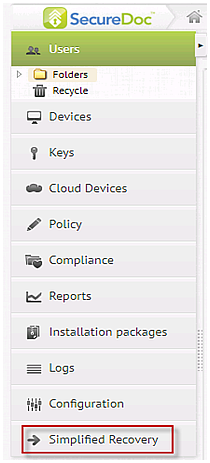
To Use Simplified Recovery
Recovering device access for a Windows user
- Enter the User Name to ??? Search based on user name
- Enter Challenge Data provided by the end user that has called in for support
- Click the “Submit” button.
- This panel display the resulting generate a Response string
- Read the Response String to the user
- Click the “Submit” button.
Recovering device access for an Apple Mac Device
- Enter either the User Name or the Device Name
- Click the Submit button
- If device name found:
- Get Recovery PIN
- If user name found:
- Show list of devices
- Get recovery PIN
- Show list of devices