Topic: This How-To Article provides instructions on how to perform a Challenge Response for an end user who is locked out of the device at preboot.
Additional KB material: KB 1399 "Maximum Number of Failed Logins"
Product version affected: All SD versions
Environment (OS/hardware/software): All Windows and Devices
Steps to follow:
1. Confirm user’s computer is at the pre-boot screen. Ask user to enter their AD User ID and press <F8> to enter the recover menu. The following screen will appear to the user: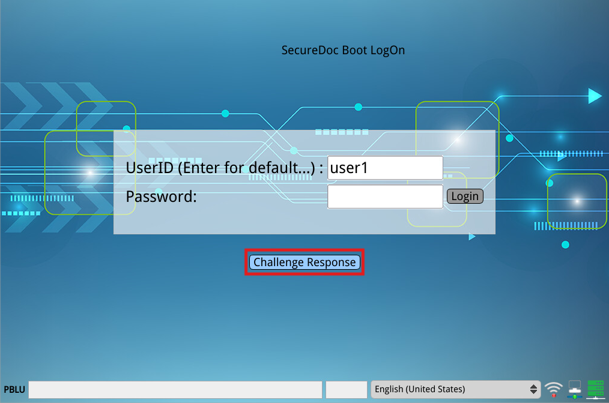
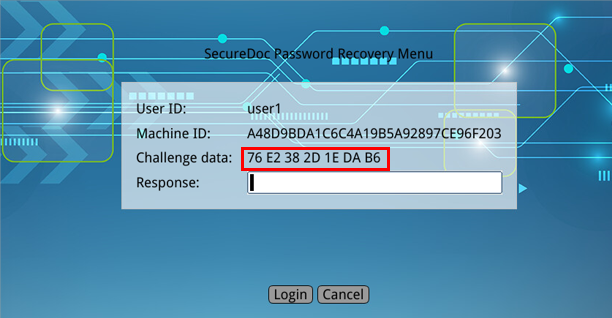
Note: There are two methods of performing the Challenge Response: SES console and SES Web
2a. From the SES server Console:
Right click on the user and select Challenge Response.
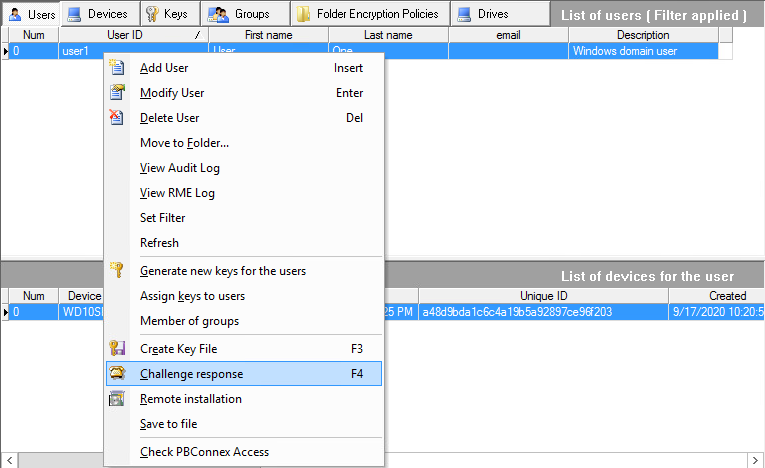
Ask the end user to provide the Challenge Text. Enter the Challenge Text into the Challenge field of the “SecureDoc Challenge Response Recovery”. Then click on Get Reponse”
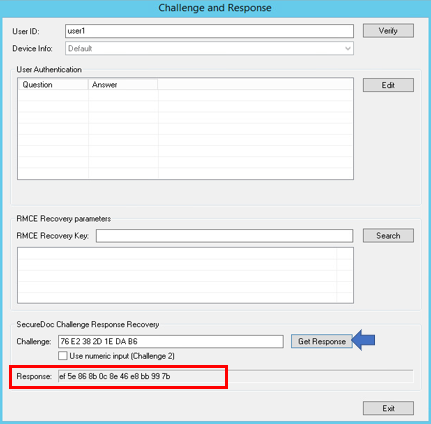
2b.From the SES Web console:
Step 1: In SDWeb select User tab 🡺 View all sub-folders or use the Folders to find the OU where the user resides. Once the user is located, select the user > click on ‘User Advanced’ and select ‘Challenge Response’.
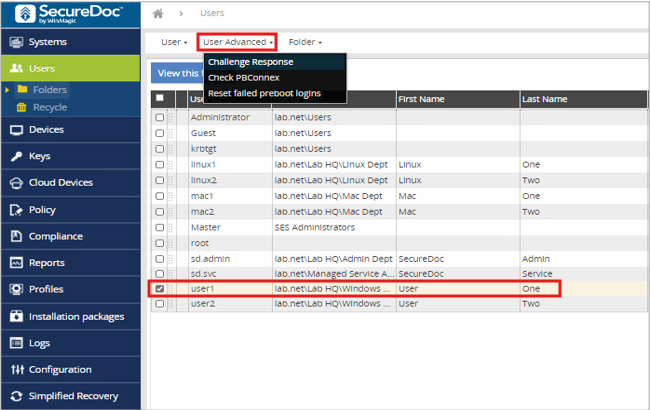
Enter the Challenge Text into the Challenge field of the “SecureDoc Challenge Response Recovery”. Then click on Get Response”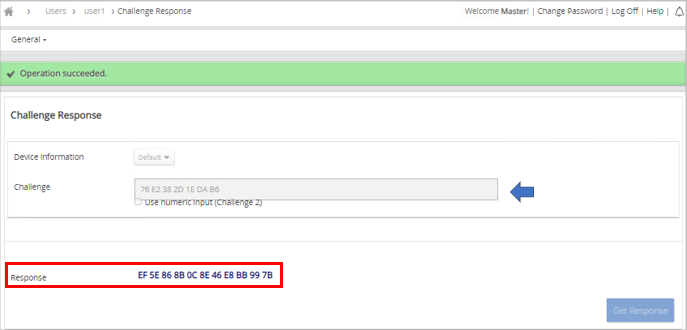
3. Ask user to type in the Response Number in the recover menu: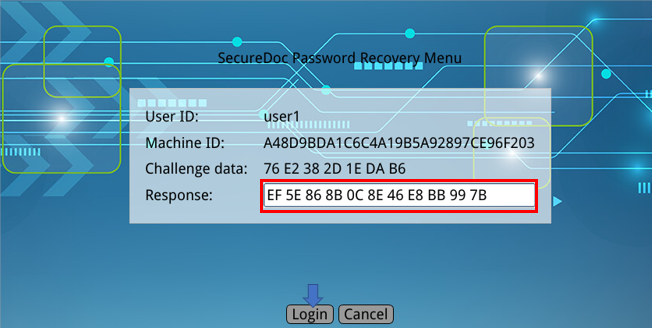
4. If the Response Number is correct, the system will begin to load Windows.
5. If SSO feature is enabled, the system will be loaded to the desktop. In Windows, a SecureDoc prompt will ask to change the password.
a. By entering a new password, it changes the Windows password in AD as well as SecureDoc.
6. Once the user logs into Windows and types in a new password the process is complete