In SES V6.3, RMCE Challenge/Response recovery was only accessible to Administrators and HelpDesk staff through the SES Console application.
With the advent of SES V6.4, this process also became accessible through the SESWeb web-based console. This article covers recovery through both consoles.
IMPORTANT:
The HelpDesk staff member or SES Admin must first identify and validate the user calling in regarding RMCE password recovery. This is required to ensure that we do not have the situation that an outsider is attempting to use Social Attack strategies to gain access to an item of RMCE-encrypted USB media to which he should not have access.
Challenge / Response for an RMCE drive cannot be performed if the USB media is connected to a SD encrypted system. However, if the RMCE drive is plugged a non-encrypted system, then C/R will work fine.
RMCE Challenge Response using the SES Console
Assumption: A user has called in to the SES Support group to help with recovering access to his/her RMCE-encrypted USB media.
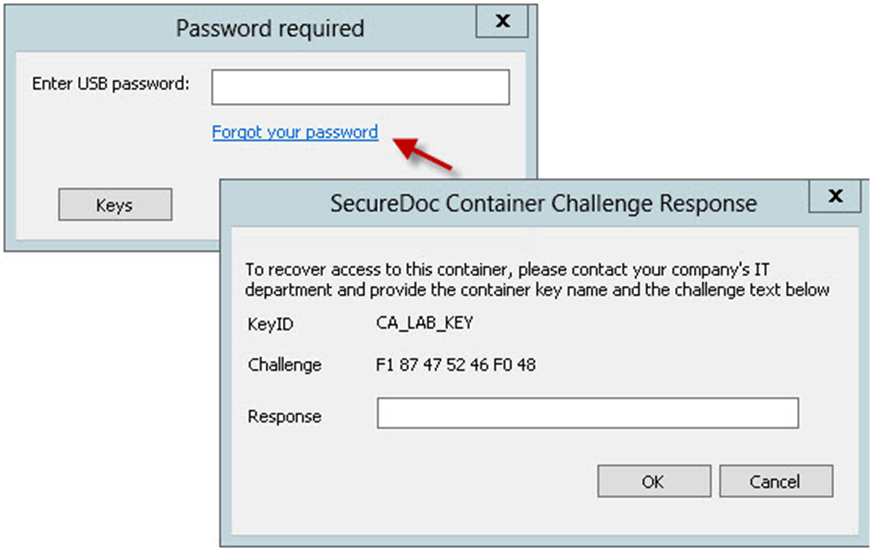
Admin/HelpDesk: Ask the user to click on ‘Forgot your password’ in the RMCE Viewer application. The user will see the following panels:
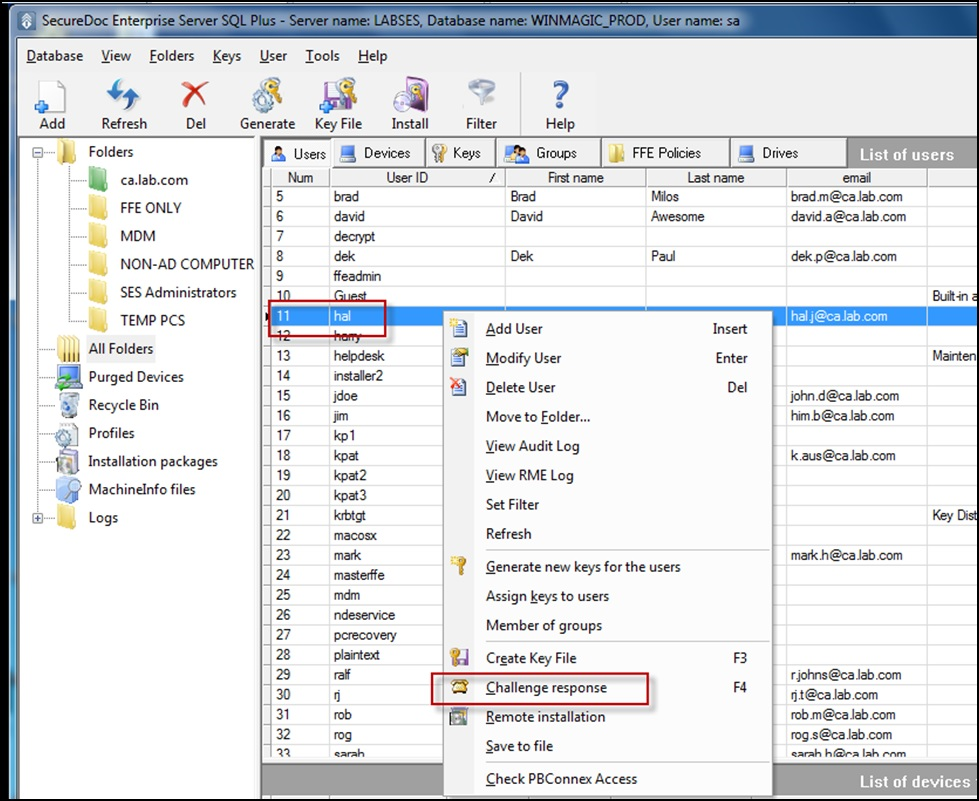
Admin/HelpDesk: Find the user's record in the SES Console's Users tab, as in the image below. Once the User record has been found then
- Right-click on the user record and select Challenge response, or...
- Click on the user record to select it and then press F4 key.
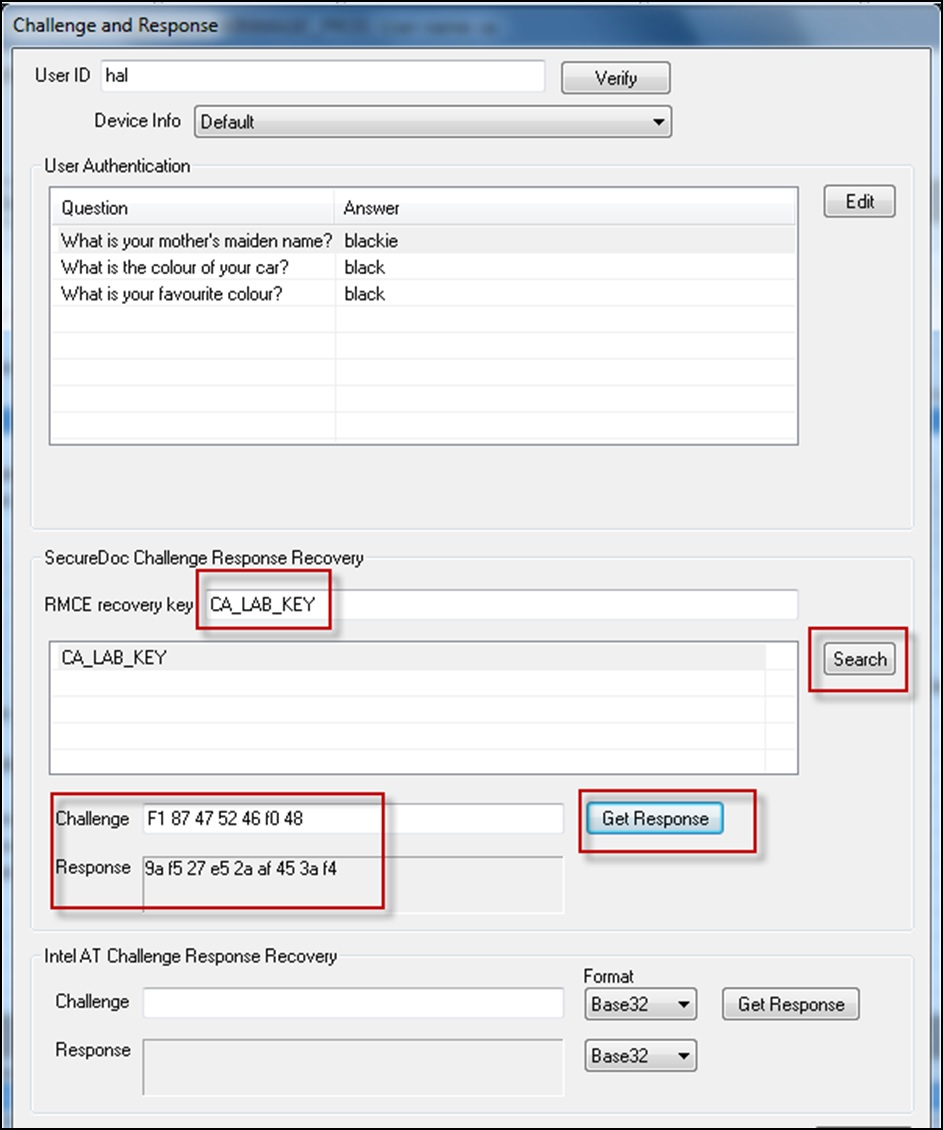
The Challenge Response panel will open, as in the image below.
Admin/Helpdesk: Ask the user to read you the KeyID value (e.g. "CA_LAB_KEY" in the example above)
Enter that value into the RMCE Recovery Key field in the middle of the panel (as shown in the image below).
Click "Search" to validate the key (Note: if the key cannot be found, ask the user to repeat the precise spelling - it is essential to locate the KeyID in the database).
Once the Key ID has been confirmed as found...
Ask the user to read you the Challenge Code, and Enter that into the Challenge field. Ignore any spaces the user may read to you, they are not relevant, only the characters.
Click "Get Response", and ask the user to enter that into the Response field as you read it back to him/her. Don't read any spaces back to the user, they're simply there to make it easy to see the characters.
Suggestion: You may wish to get the user to read the characters back to you to validate they have been entered correctly
Once the user has correctly entered those characters into the Response field (see the first image in this article), ask the user to click OK.
His/her screen should now look like the following image: This notifies the user that a new password MUST be set (since the previous one is unknown).
The user should click the OK button
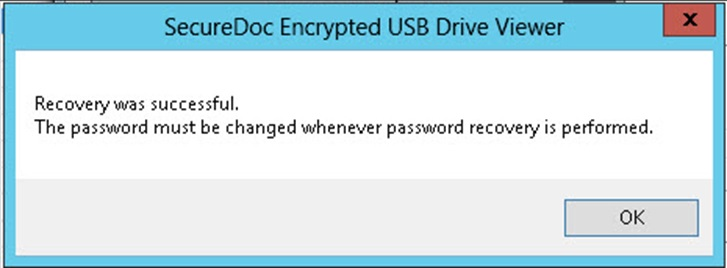
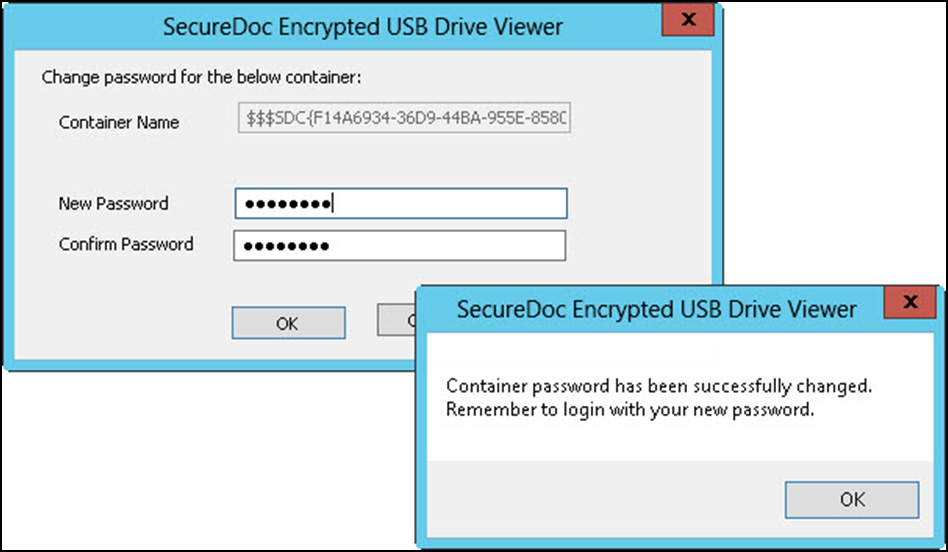
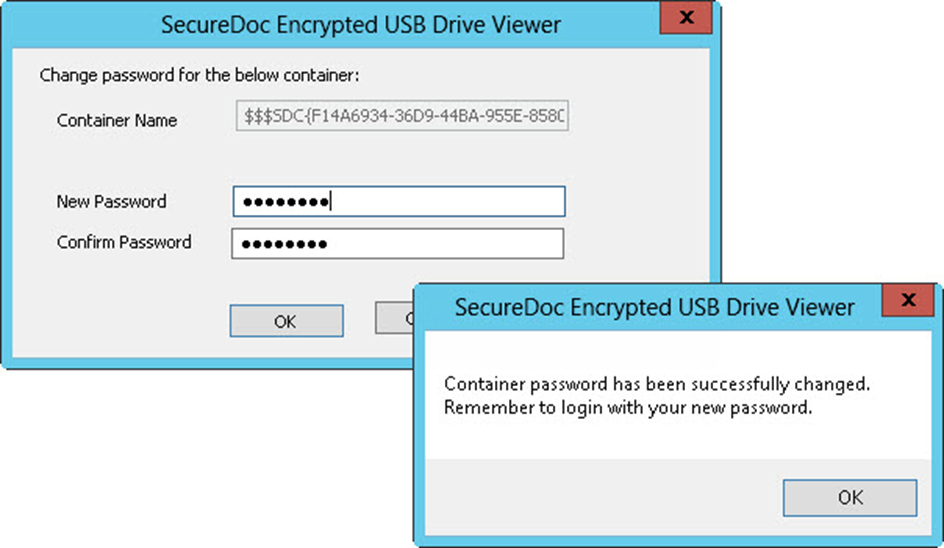
After the user clicks "OK", a new panel will appear (see image below) through which the user will be prompted to set and confirm a new password to protect this Container.
After the user enters and confirms the new password, and clicks the OK button to proceed, a confirmation message will appear, as in the lower right part of the image below.
RMCE Challenge Response through the SESWEB web-based Console
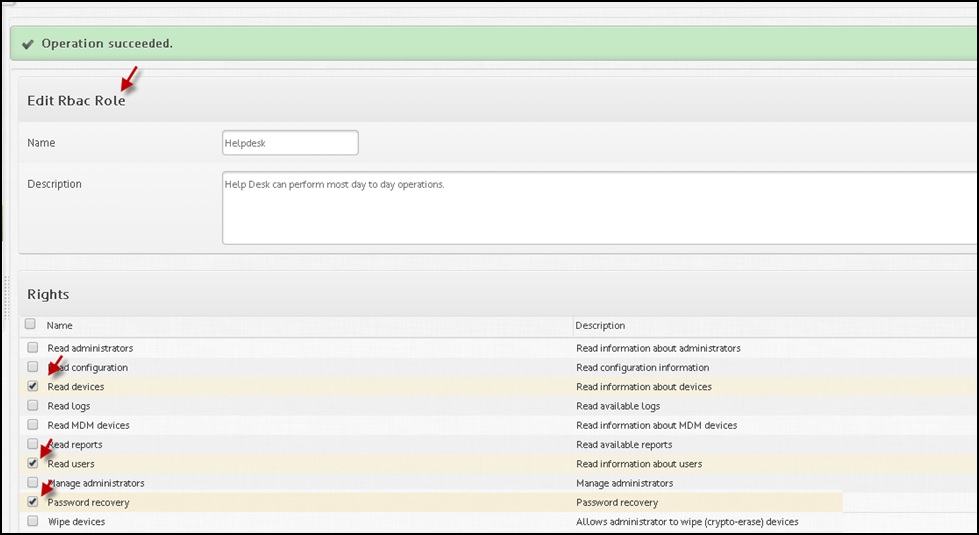
NOTE: Since SESWeb has its own granular rights/authorities system, and since SESWeb users are not all full SES Administrators (e.g. HelpDesk staff), the minimum rights required by helpdesk to perform Challenge Response on RMCE are:
- Read devices
- Read users
- Password Recovery
... as shown in the image below:
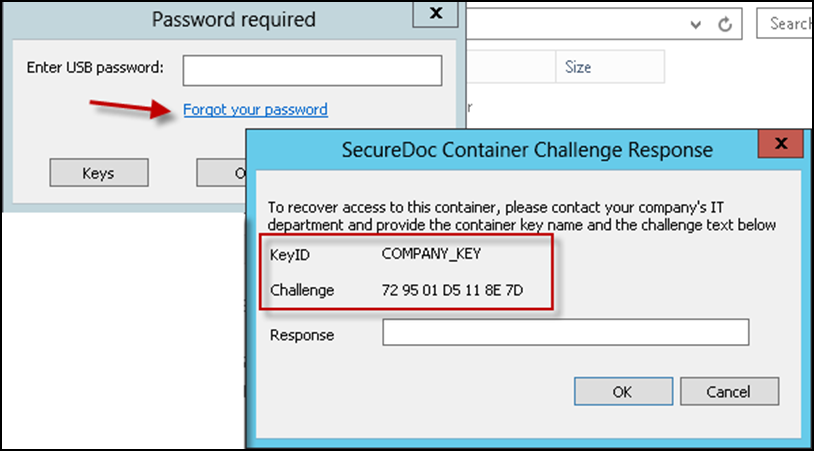
HelpDesk/Admin: Ask User to click on ‘Forgot your password’ in RMCE Viewer
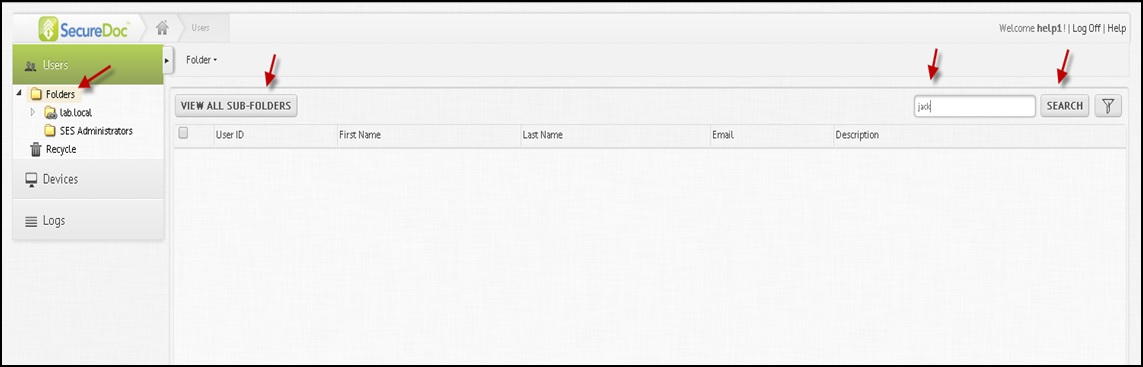
Admin/HelpDesk: Open SESWeb and search for the user. Click on "View All sub-folders", or use the "Search" facility to search all folders within your domain tree, as shown in the image below.
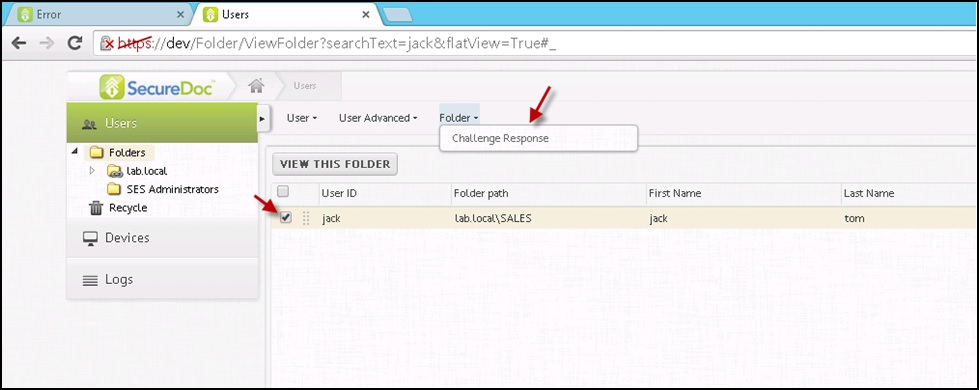
Once the user has been found, click on the user checkbox to select that User Record, then click on the Folder menu, and choose Challenge Response (as shown in the image below).
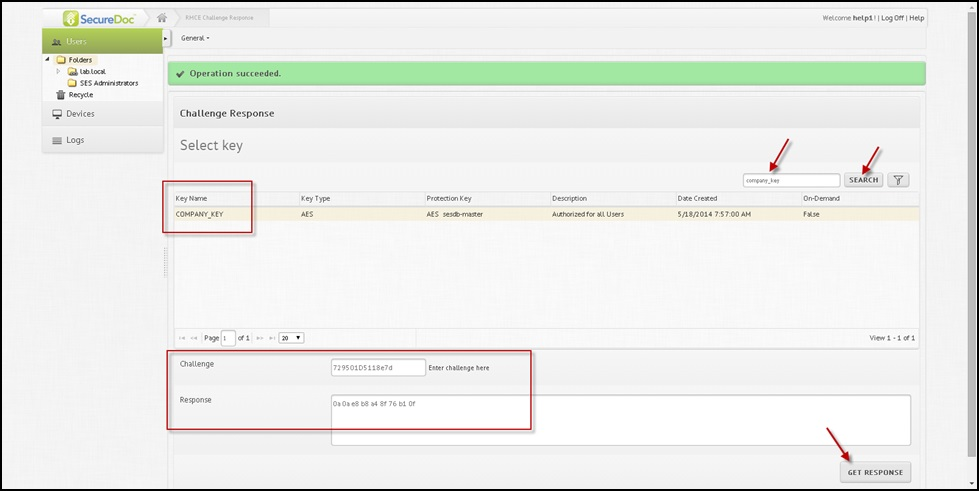
Admin/Helpdesk: Ask the user to read you the KeyID value (e.g. "COMPANY_KEY" in the example above)
Enter that value into the Search textbox, and click on the Search button to locate this key. Once the key has been found, a green "Operation succeeded" bar will appear at the top of the panel, as in the image below.
Once the Key ID has been confirmed as found...
Ask the user to read you the Challenge Code, and Enter that into the Challenge field (as shown near the bottom of the panel below). Ignore any spaces the user may read to you, they are not relevant, only the characters.
Click "Get Response", and ask the user to enter what appears into his Response field as you read it back to him/her. Don't read any spaces back to the user, they're simply there to make it easy to see the characters.
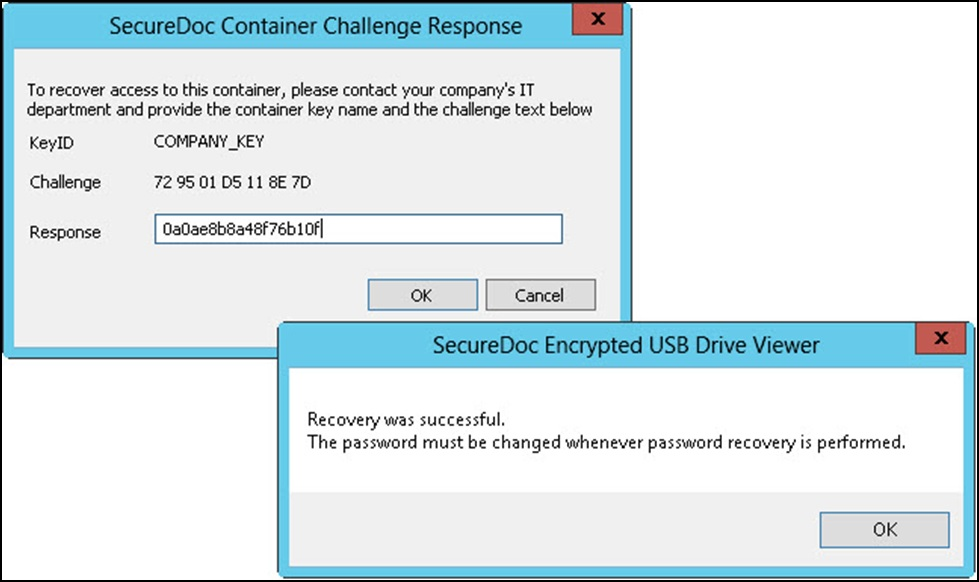
After the user enters the recovery code into his panel (as shown in the image below), and clicks OK, a new messagebox will appear (as shown in the lower right corner of the image below), indicating a successful recovery.
After the user clicks "OK", a new panel will appear (see image below) through which the user will be prompted to set and confirm a new password to protect this Container.
After the user enters and confirms the new password, and clicks the OK button to proceed, a confirmation message will appear, as in the lower right part of the image below.