What is FileVault 2?
FileVault 2 full-disk encryption (FileVault 2) uses XTS-AES-128 encryption with a 256-bit key to help prevent unauthorized access to the information on your startup disk. FileVault 2 is available in macOS Lion or later. When FileVault is turned on, your Mac always requires that you log in with your account password.
How does FileVault 2 encryption work on a Mac?
If you store sensitive information on your Mac, you can use FileVault 2 encryption to protect the files from being seen or copied. For example, if you carry all your company’s financial data on your Mac notebook, losing it could allow someone to access sensitive data that might hurt your business. FileVault 2 encodes the information stored on your Mac so that it can’t be read unless the login password is entered.
To ensure security when you turn on FileVault 2, other security features are also turned on. For example, when you turn on FileVault 2, you need a password to log in when your Mac is in sleep, or after leaving the screen saver. After the initial startup, only users enabled in FileVault can log in; other users need an administrator to log in first.
NOTE: To set up FileVault 2, you must be an administrator
The following options are available to unlock your disk and reset your password in case you ever forget your password:
- iCloud account and password: This choice is convenient if you have an iCloud account or plan to set one up as you don’t need to keep track of a separate recovery key.
- Recovery key: The key is a string of letters and numbers that’s created for you. You will need to keep a copy of the key somewhere other than your encrypted startup disk. If you write the key down, be sure to exactly copy the letters and numbers shown. Then keep the key somewhere safe that you’ll remember, but not in the same physical location as your Mac. If your Mac is at a business or school, your institution can also set an institutional recovery key to unlock it.
WARNING: If you turn on FileVault 2 and then forget your login password and can’t reset it, and you also forget your recovery key, you won’t be able to log in, and your files and settings will be lost forever.
How SecureDoc for FileVault 2 Works?
SecureDoc for FileVault 2 securely manages FileVault 2 for your Apple OS X/macOS computer (desktop or laptop). In this document, SecureDoc for FileVault 2 may be abbreviated to SDFV2. SecureDoc for FileVault 2 can also be used to encrypt and decrypt USB flash media, protecting them with either a password or a key, and such encrypted media’s contents can be read and updated cross-platform - on either macOS or Windows devices. The purpose of SecureDoc working with FileVault 2 is to fulfill the security compliance needs that have been set. On its own FileVault 2 will encrypt a hard-disk, but this will not allow for administrator to achieve a major objective:
- Allowing Administrators to recover credentials
- Administrators will need to be able to access the User Credentials in the case of a forgotten password or username
- Maintain a status on the device
- FileVault 2 will encrypt the partition, but there is still a chance for the files to be accessed (if the password was taken)
- Administrators need to know if FileVault 2 is enabled or has been disabled, and SES’ monitoring abilities will allow for this SecureDoc includes a communication agent which allows it to communicate with the SES Server (through the SDConnex service).
To reinstate SecureDoc Management for FileVault 2, simply install SecureDoc for FileVault 2 on the device, which will reinstate all SecureDoc functionality.
SecureDoc FileVault 2 WM recovery
In a scenario that the users forgot their password and want to use WM recovery account to login preboot perform the following steps.
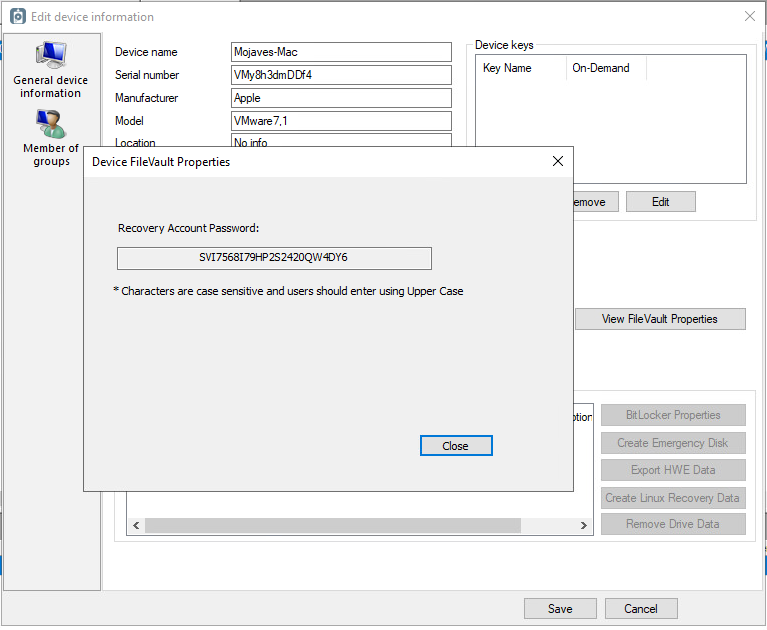
- Locate the device in SES. Right-click on the device and click properties. In the device information click on View FileVault Properties. This will show the Recovery Account Password.

- On the mac preboot screen click on the user WinMagicProprietyUserForFV and provide the password. You should be able to login and reset the user account password.
NOTE: In SES the recovery account password cannot be changed since without the SecureDoc client being active, communication between the device and the SecureDoc Server is not working, and the password update will not be passed back to SES for storage.
CAUTION: In case scenario, where the device does not communicate with the server, you can only use the Recovery Account Password one time to unlock the device. But if you did not reset the user account password and decide to reboot the device, you will not be able to use the Recovery Account Password again as there was no communication back to the server to submit the latest recovery information. This is scheduled to be addressed in SecureDoc 8.7. If no communication between client and SES, the Recovery password (WM recovery account password) cannot be rotated. Postpone WM recovery password rotation in order to keep the old WM password until SES communication has been restored (after login into user's account with newly set password).
In older macOS versions, the steps below can be performed to regain access to the device. Starting from mac OS Catalina and Big Sur an additional security has been implemented that is when going into the mac Recovery will required a valid credentials to login therefore the steps below is not applied.
Reset using your Recovery Key (FileVault 2 must be on) on macOS
If FileVault 2 is turned on and you have a FileVault Recovery Key, you can use that key to reset your password.
- At the login screen, keep entering a password until you see a message saying that you can reset your password using your Recovery Key. If you don't see the message after three attempts, FileVault 2 isn't on.
- Click next to the message. The password field changes to a Recovery Key field.
- Enter your Recovery Key. Use uppercase characters and include the hyphens.
- Follow the onscreen instructions to create a new password, then click Reset Password when done.
- Determine whether to create a new login keychain.
If you can't log in with your new password after restarting your Mac, take these additional steps:
- Restart again, then immediately hold down Command-R or one of the other macOS Recovery key combinations until you see the Apple logo or a spinning globe.
- When you see the macOS Utilities window, choose Utilities > Terminal from the menu bar.
- In the Terminal window, type resetpassword, then press Return to open the Reset Password assistant pictured above.
Select ”My password doesn't work when logging in,” then click Next and follow the onscreen instructions for your user account.
How to use institutional recovery keys with Intel-based Macs. Please see the link below for more information. https://support.apple.com/en-us/HT202385
Reference: https://support.apple.com/en-ca/HT204837, https://support.apple.com/en-us/HT202860, https://support.apple.com/en-ca/guide/mac-help/flvlt001/11.0/mac/11.0