Issue:
Client may be using Pre-Windows 2000 environment and they are looking for a way to change the SecureDoc login username. The client wants to know how to start using UPN (User Principal Name) for the domain user id (UPN takes the form username@domain).
This article will addresses the current limitation of SD product and provide a workaround on how to import the UPN of the user.
Symptom:
Client tried to log onto the device initially as the UPN for the domain user (username@domain). However, SecureDoc is picking up the domain credentials as the “Pre-Win2K" user name (user.name), rather than the UPN format. Once they have authenticated to SecureDoc using that username format, the UserID cannot be edited in order to standardize to the UPN convention when logging onto encrypted devices.
Probable Causes:
Due to the current product design, SecureDoc version 6.2 up to the latest version of 7.1, the current number of characters limit is 32 characters that can be used for the SecureDoc username, which may be a constraint where the combination of a long User Name + @ + a long Domain Name can naturally exceed 32 characters.
Product version affected:
SES 6.2 and up – with the current character limit of 32 characters for the SD Username
Environment:
SQL 2008 R2
HP Elitebook 2560p with a Toshiba MK3261GSYN hard disk drive
Windows 7 64bit
Informational Gathering and Troubleshooting:
- Is the client using AD users in the SD for authentication or is the client creating users in the SecureDoc Console?
- The method of Login the client is using.
a. Synchronize SecureDoc with Windows passwords (bi-directional)
b. Synchronize with matching Windows Account only
Workaround Resolution:
It is possible to remap the ADSync to use the new UPN instead of the Pre-2K User. In ADSync, SD syncs the SAMAccountName. It is possible to modify the SAMAccountName to sync the userPrincipalName parameter.
Step 1:
In ADSync, go to the ‘Configuration’ page, then to the ‘Sync Config’ tab.
Expand the Root of Tree View, then right click on the domain and select Parameter Settings.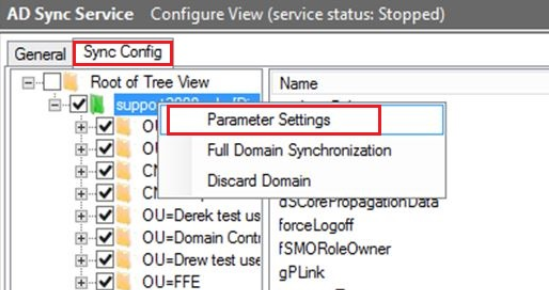
Step 2:
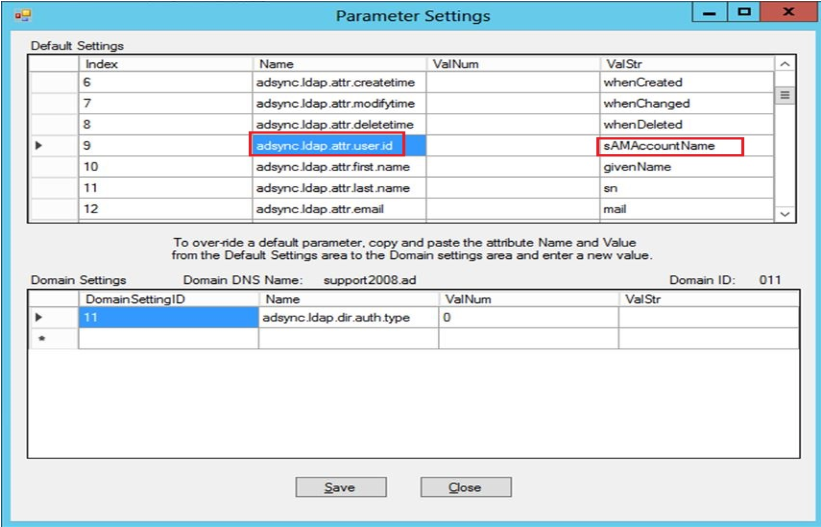
Locate adsync.ldap.attr.user.id under the Name Column in the list. Highlight and use Ctrl + C to copy the record.
Step 3:
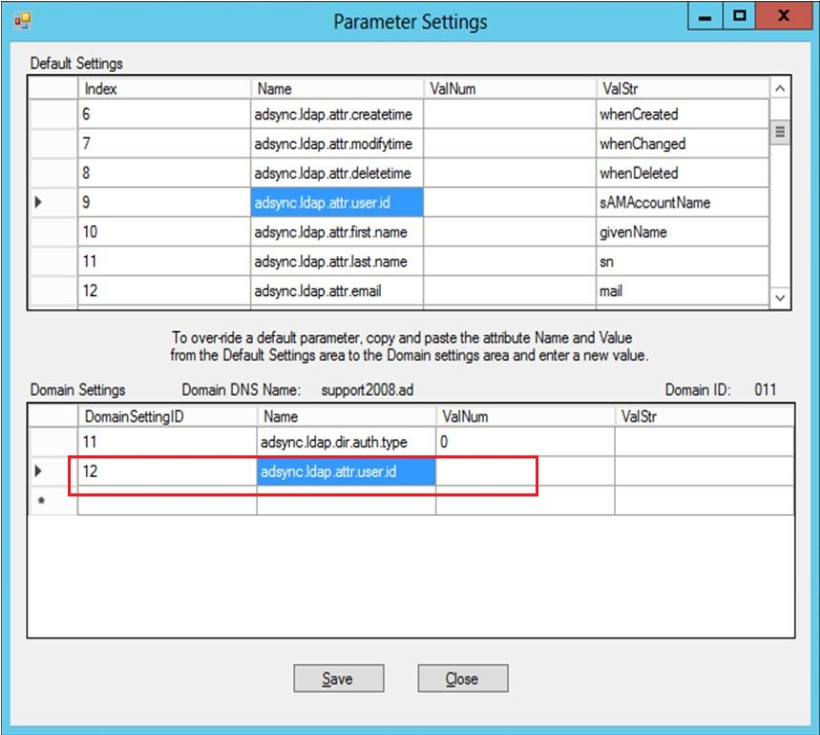
Double Click in the Name column of a new line in the 2nd list in the window and use Ctrl + V to past this.
Step 4:
Double Click under the ValStr of the same line. Type in userPrincipalName (pay attention to use of upper/lower case in this value) > Click Save.
Please note that if they have modified the schema of their AD, the UPN may be a different parameter, and they will need to substitute that for userPrincipalName.
Limitation:
From SD 6.2 up to the current version of 7.1, there is a 32-character limit for the SecureDoc username.
WinMagic will be expanding the character limit for users in future versions (design review pending 8.1)
Internal Reference:
SF-71991