Issue:
SDPin error randomly appears with the following message:
Error Number: 30721 "Error applying the port control policy." appears when client restarts the device and log into Windows.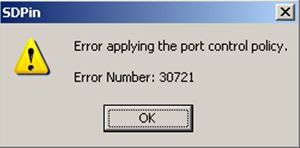
Symptom:
The event appears as a result of a policy in place that applied port control.
SD client may not be able to communicate with the server.
Probable Causes:
A policy to enable Port control was applied on the device but the device is not enabled with the feature.
Product version affected:
All SD versions
Environment (OS/hardware/software):
All Windows OS and devices
Informational Gathering and Troubleshooting:
1. Determine if the profile or SD Control Center has port control enable or not (This may affect Read/write capabilities (DAC)
2. Collect the UserData folder, and check the securedoc.ini file to see if DAC is enable or not
3. Determine if the device has the right IP address to communicate with the server, or is on the same network as the SES server
4. Determine if there a migration of the device to a new server or not
5. Try removing the policy of restriction write and cd on this device,
6. Determine if there is a docking station that can interfere with the policy that is currently enabled.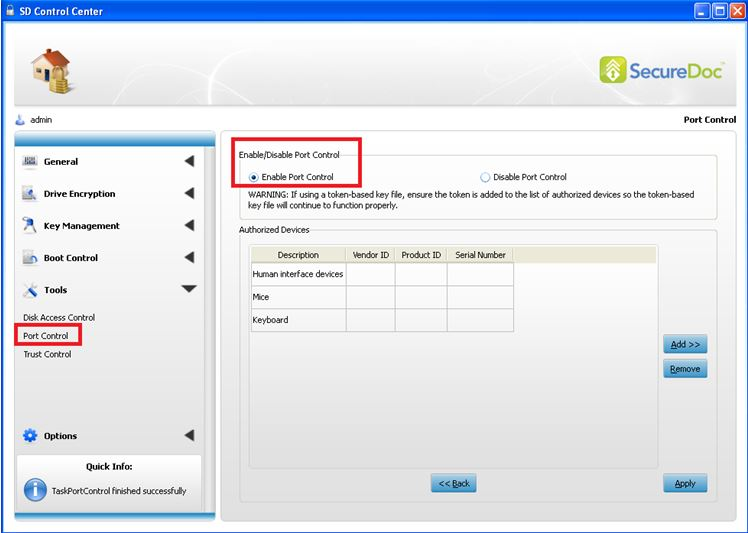
Suggested Resolution:
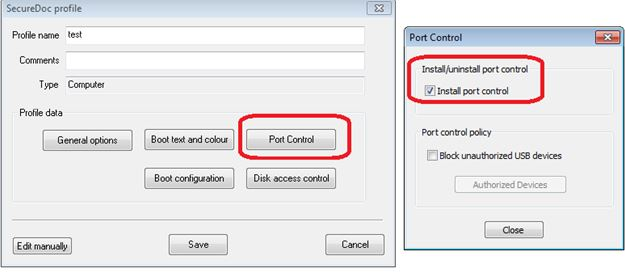
- The problem can be resolve by going into the SD Control Center and install and the port control.
Restart the device after installing the port control and the SD icon would appear without errors.
- A simple decrypt and encryption of SecureDoc on the system
- Re-run the installation package on-top on the machine to correct this error
- Try to re-push the profile the device in SES. Check If the original profile has any DAC settings enabled.
- Force startup of the SecureDoc Services each time at start up.
Internal Reference:
SF 69428, 61418
1572 Error Applying the Port Control Policy. Error Number: 30721
- Updated on Feb 6, 2026
- 1 minute(s) read
- VN
Was this article helpful?