Topic:
Port Control is a way of restricting/limiting access to USB enabled devices on a SecureDoc-managed encrypted device. This article providing steps to configuring the port control in the SD Control Center either for SecureDoc Stand-Alone users, or it may also be configured by SES-managed device users that have adequately raised (Admin) rights on the device.
Product version affected:
All SD versions
Environment:
All Windows OS versions
All devices
Steps to follow:
Log into the SD Control Center with an admin account
Under Tools > Port Control > Click 'Install' – A message appears asking to restart the device once it finish the enabling the Port Control > Click OK to reboot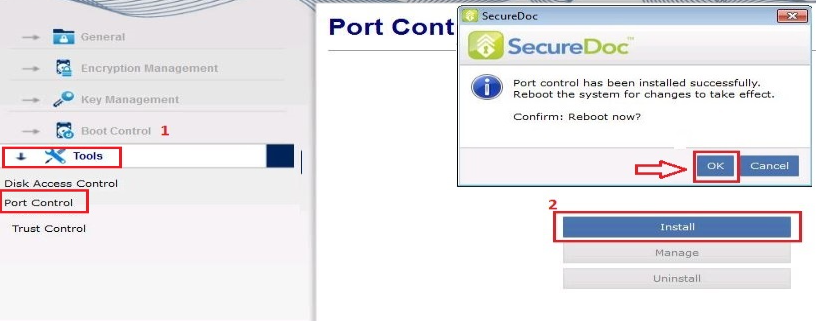
Log back into the SD Control Center.
Click Manage > Select “Enable Port Control” > Click "Apply"
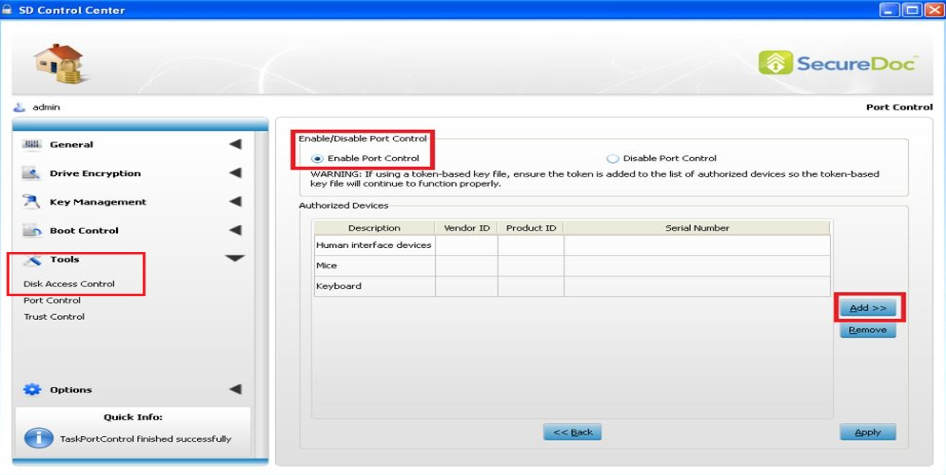
Choose from the following the options:
a. To authorize a device class
b. To authorize a device model
c. To authorize a specific device
Click Apply
For example if selecting the option "Authorize a device class" > Click Next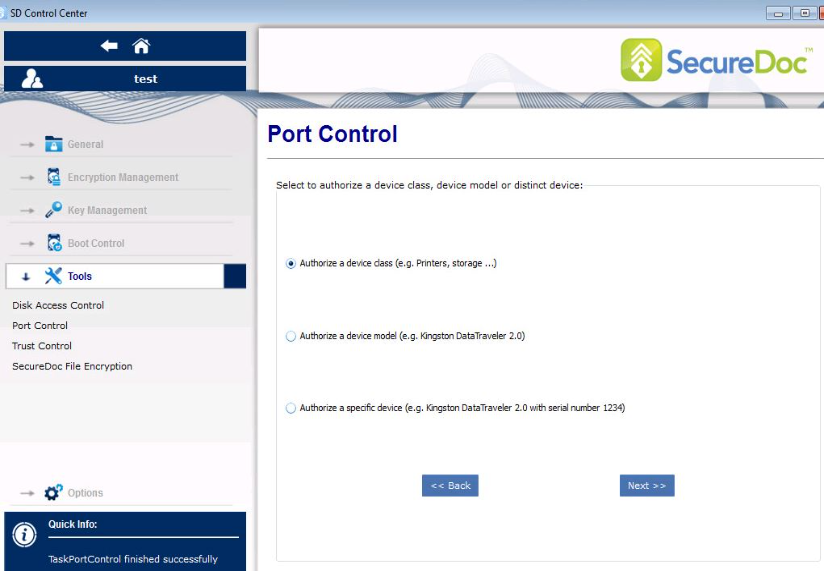
Windows will automatically detect the device. For example: "CMS External USB 3.0 USB Device"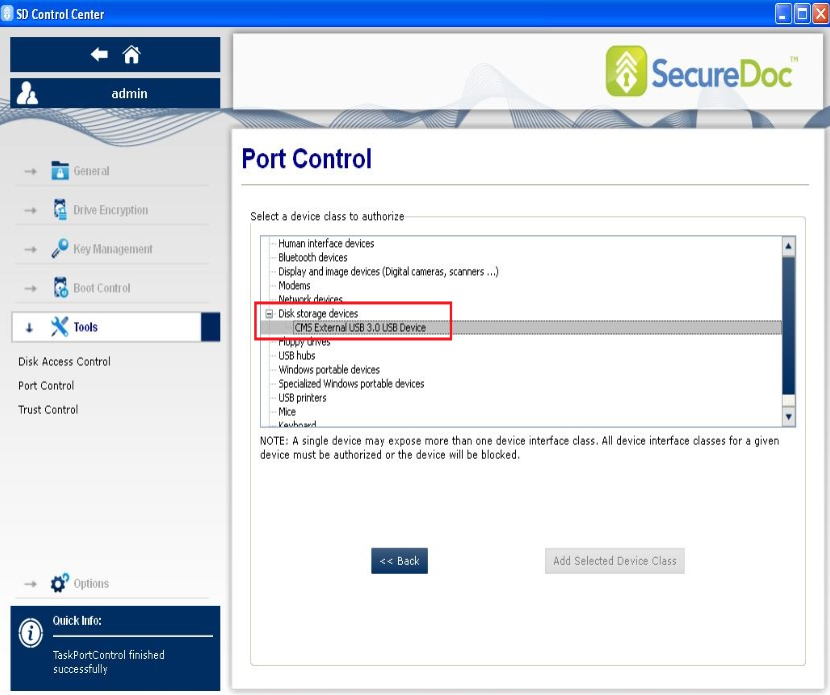
Highlight the device > Click 'Add Selected Device Models'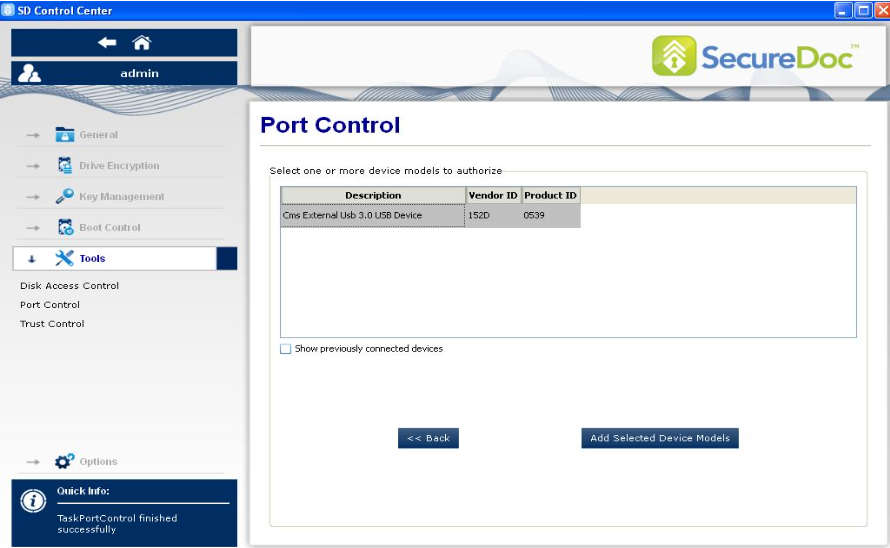
Click Apply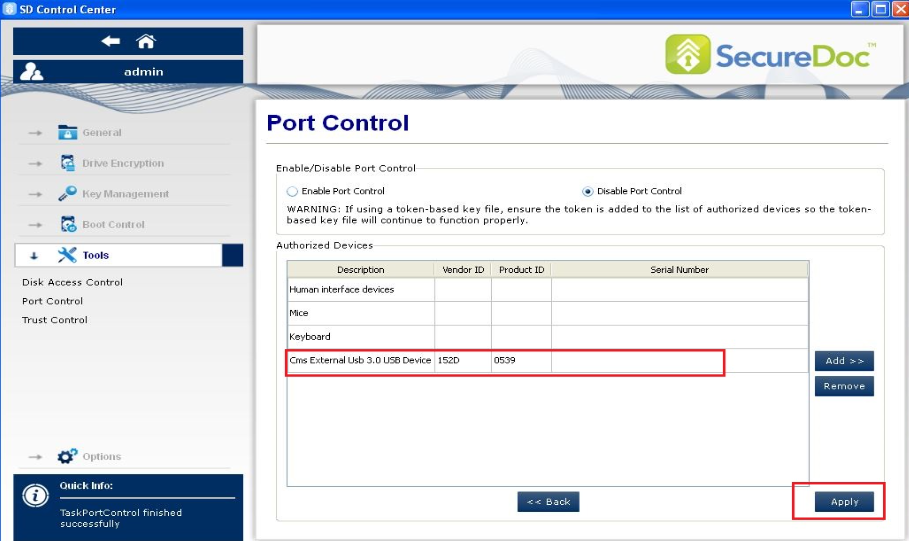
Message, "Port Control changes have been saved". Click OK
If Windows is not able to automatically detect the device, customer must obtain the VendorID and ProductID and manually input it in the port control.
The option, "Authorized a specific device (e.g. Kingston DataTraveler 2.0 with serial number 1234)"
For example: the 'Flash Disk USB Device' has the Vendor ID 1976 and ProductID 6025.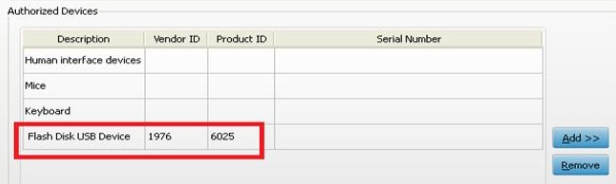
1536 Enabling Port Control on SD Device
- Updated on Feb 6, 2026
- 1 minute(s) read
- VN
Was this article helpful?