How to collect SecureDoc client Support Logs
Summary: There may be occasions where, when seeking assistance from WinMagic Technical Support, a support member may request detailed device-level logs to aid in trouble-shooting issues on a given device.
SecureDoc offers an easy way to aggregate these logs, after which they can be sent to WinMagic Technical Support.
There exists a batch file named collectClientSupportInfo.bat in folder C:\ProgramFiles\WinMagic\SecureDoc-NT\Support. This file allows the end-users (upon SES Administrator request) to collect automatically aggregated device-level detail logs. These logs may be required by WinMagic Support to troubleshoot issues on that device.
To collect support information and logs:
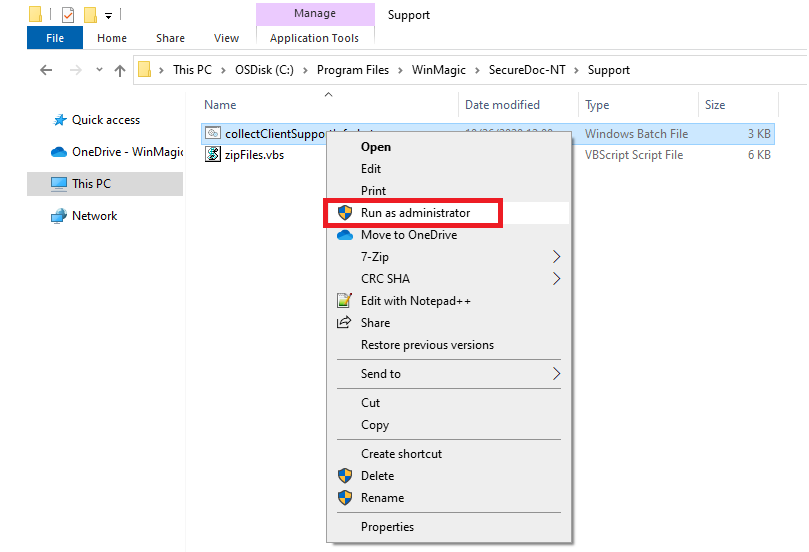
- Go to C:\Program Files\WinMagic\SecureDoc-NT\Support
- Right-click on the collectClientSupportInfo.bat file.
- Select Run as administrator. A file called <name>_wmSupportFile.zip file is created at current folder. The <name> is a placeholder for the name of the current user, so this will be replaced with e.g. johndoe_wmSupportFile.zip
How to enable debug log and collect logs in SecureDoc 8.6 SR1 and newer
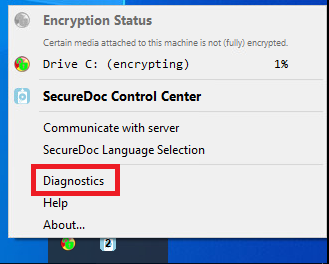
- Right-click on the SecureDoc Icon tray then click Diagnostics.
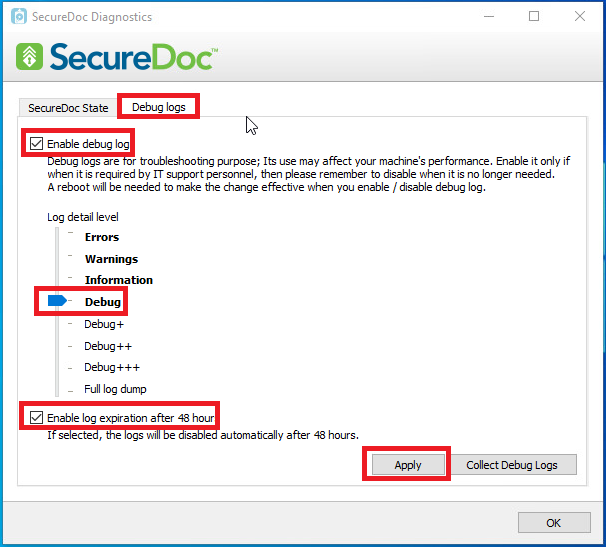
- Click the Debug log tab then check “Enable debug log”. Click Apply.
- Restart the device.
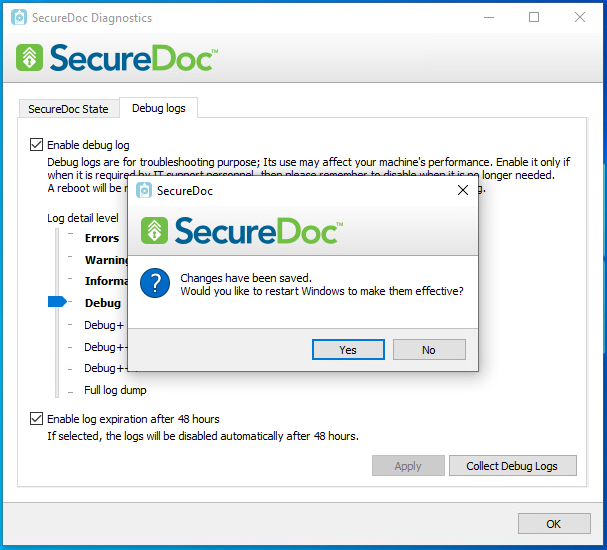
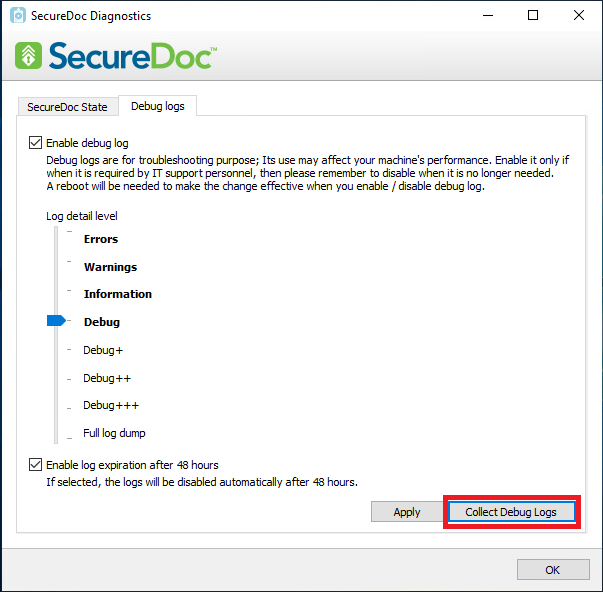
- Right-click on the SecureDoc Icon tray then click Diagnostics. Click the Debug log tab then click Collect the logs.
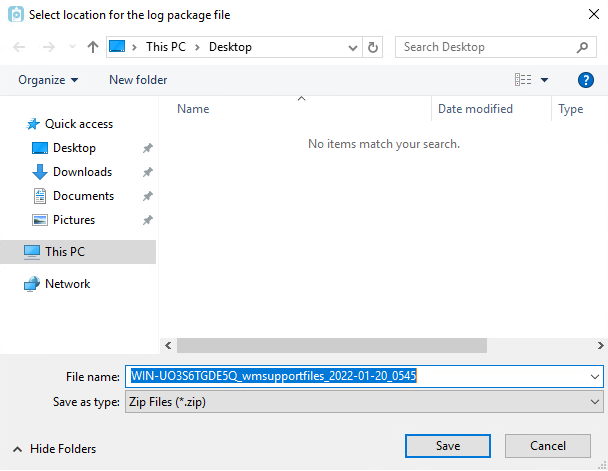
- A new window will open. Specify the location where the files should be saved.
- Submit the logs by attaching it to the ticket.
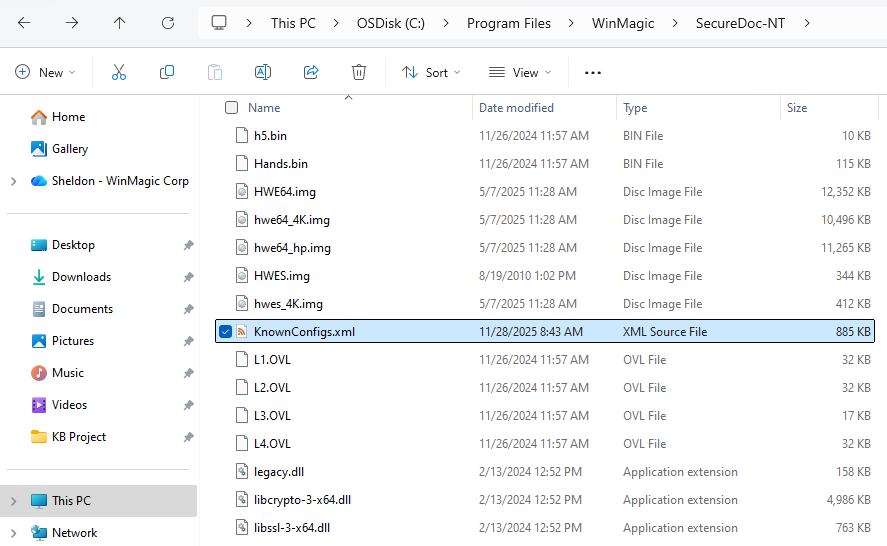
- We also require the KnownConfigs.xml file located in the following directory: C:\Program Files\WinMagic\SecureDoc-NT. Please include this file in the bundle you send us so we can proceed with a complete analysis.