How to add new user to computer, ensuring he/she sets a personal password on first use of computer?
Problem Scenario:
A new user is to be added to an already-encrypted SecureDoc-protected device. It is assumed that the user has never used a SecureDoc-protected device before.
It’s necessary that the user set his/her own personal credentials (Password) to protect his local (device-resident) key file as soon as possible upon first logging into the device.
Proposed Solutions:
There are several ways to go about deploying additional users to devices. Some of which are extremely broad approaches, while others can be more specifically targeted.
Working from the device-focused to Broad/Global approaches:
Device-Specific: Create and send a User Key file to a device and forcing the user to set a new password:
Scenario: You need to add a user to a device, in an environment where PBConnex is not used.
Assumptions: This option assumes the Change initial password option is set globally.
- In the devices tab, right-click on the Device Record, then select option Add users to device
- You can then select the desired user(s) from the list that appears.
- Click on OK button
NOTE: IF the user has previously signed into a SecureDoc encrypted device, the password that is pushed down will be the password that is currently stored in the User’s record. You can stop at this step, and ask the user to communicate with the server, before restarting the device and logging in.
IF this is a new user, the password pushed will be a random SecureDoc password. To allow for the user to sign in, please continue with Step 4.
- Now that the user has been associated with the device, Right-Click on the user record in the list of “Users having access to the device <devicename>” in the lower half of the device panel and select "Create Key File" from the options in the pop-up menu.
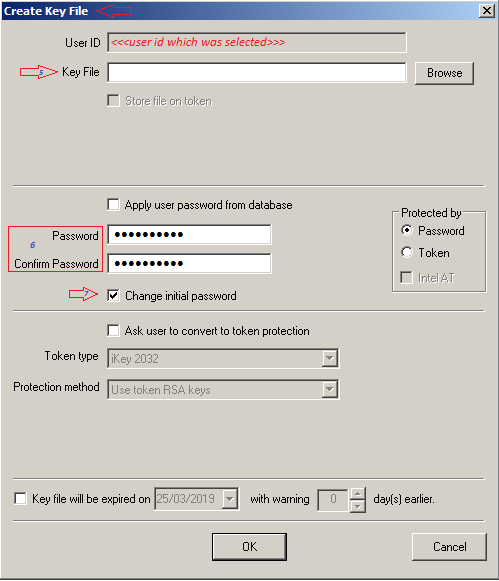
- Leave the Key File field empty (we're not creating a physical file, this key file will be sent over the network).
- Replace the content in the Password and Confirm Password fields with a password you can provide the end user.
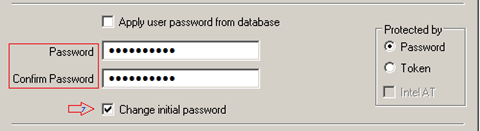
- Make sure to add checkmark for "Change initial password". Using this option will force the user to change his/her password after first use.
- Leave all other options unchanged and click on OK button
The new key file protected by what is now a one-use initial password will be queued up to be sent to the device.
Make sure someone is using the device, so that it can check in. You may wish to ask that user to right-click on the SecureDoc icon to force the client device to communicate immediately to the SES server.
Right-click on the device record, then click on "Show commands". The command to create a new Key File should have been sent and executed OK.
You will need to communicate the one-time password set, to the user so he/she can log in at the SecureDoc Boot Logon.
Broad: Automatic creation of user key file when signed into Windows:
Scenarios:
- Devices in common areas which are used by undefined multiple users, that maybe left signed out to the Windows Login, but past the SecureDoc Boot Logon.
- Loaner devices, that may already have SecureDoc installed.
Assumptions: That there has already been a user signed in at the SecureDoc Preboot.
Configuration:
- Login to the SES Console.
- Go to the Profile Section of the Console.
- Select the desired profile you wish to modify, right click and select Modify Profile.
- Go to General Options.
- Under the General section, Enable the Password synchronization option.
- Synchronize SecureDoc password with Windows password (bi-directional)
- Synchronize passwords only when Windows User ID matches SecureDoc User ID
- Next go to Advanced Settings.
- Enable the Windows Account Features.
- Create Boot Key files for local users detected on device.
- Create Boot Key files for AD users detected on device.
- Create accounts for AD users only.
- You can Enable the following Optional Setting if you are pushing additional keys to devices for RME/RMCE or SFE.
- Create Personal Keys for local users
- Login Personal Key files automatically.
- Create Personal Keys for local users
- Click on OK button, and then Save.
This profile can now be added to an Installation Package or pushed to device from the SES Console.
Process of adding the User:
- If there is a user signed into Windows, use Switch user or Sign Out of the OS.
- Enter the desired user’s credentials and click on Login.
When the user in, SecureDoc should capture the User ID, and Password. It will then send this to the SES to request a key file for the user. The next time the user is faced with the SecureDoc Boot Logon on the device, they will be able to enter their Windows credentials.
Global: Configuring PBConnex Authentication
Scenarios: When you would like for users to be able to sign in to any device.
PBConnex Configuration:
- Login to the SES Console.
- Click on Tools, then Preboot Network (PBConnex), and then PBConnex Global Options.
- Enable Authenticate user against Active Directory.
- Click on OK.
Profile Configuration:
- Go to Profiles in the SES.
- Right click on the desired profile you wish to modify, and select Modify Profile.
- Click on General Options.
- Go to the Communication section.
- Enable “Enable machine to communicate with SDConnex at preboot”
- Click Add. Ensure DNS or IP addresses of all SDConnex servers are added to the list.
- Click on OK, then OK, and then Save.
This profile can now be added to an Installation Package or pushed to device from the SES Console.
Group Configuration:
- Click on the Folders folder on the right-hand side of the SES.
- Click on the Groups tab on the right-hand pane at the top of the screen.
- Right click on the white area on the right-hand pane, and select Add Group
- Fill in a name for the group under the General section.
- Go to PBConnex Access Policies.
- Enable “Allow” and “Save Key File to client machine”
- Click on OK.
- Select your new group.
- In the lower half of the screen, select the Groups tab.
- Right click in the white are of the pane and click on Add subroups.
- Highlight All Devices Group, and then hold down the Ctrl key, and highlight the All Devices Group.
- Click on OK.
This completes the PBConnex configuration. Once devices receive the updated profile, and are connected to the network, users will be able to sign into boot logon, on a device they have not previously used.
NOTE: This is only applicable to devices using the v5, PBLU or PBU boot logon versions. V4 does not have networking support.